How To Fix Android Doze Mode Delaying Critical Notifications?
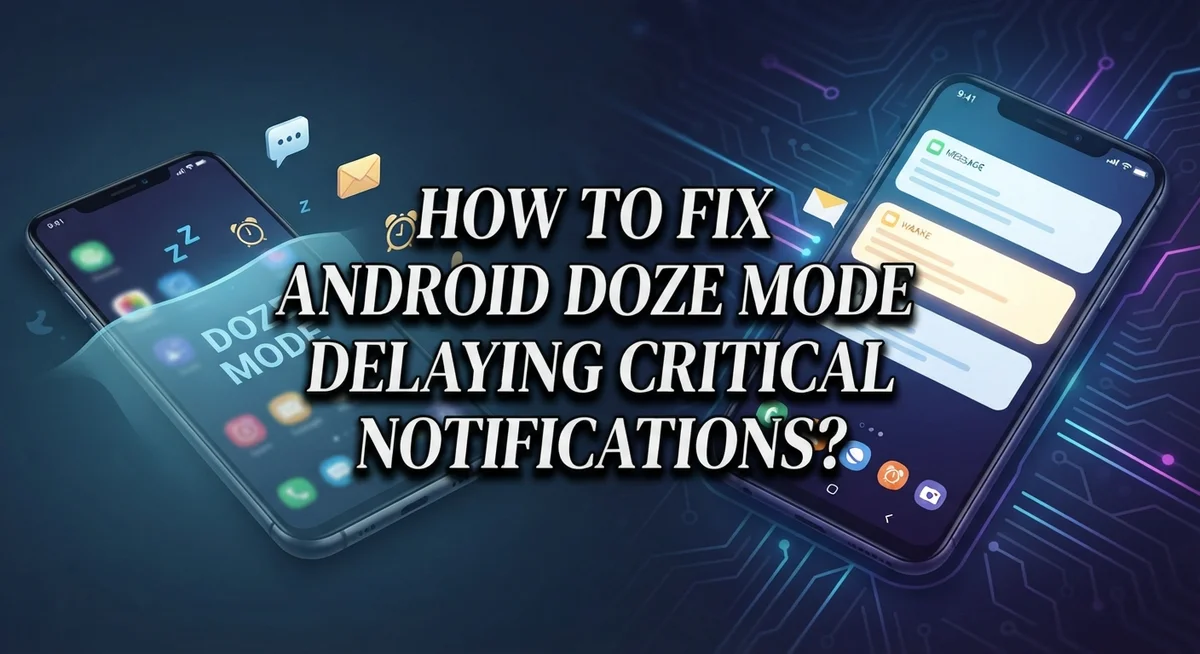
You pick up your phone and see a message that arrived 20 minutes ago. It was urgent. You missed it because your Android was quietly “resting.”
This is Android Doze Mode at work, and it is one of the most common reasons critical notifications get delayed on Android devices.
Doze is a built-in power-saving feature. It limits how often your phone wakes up to check for new data, creating gaps of 15 to 28 minutes between updates.
For casual notifications, this is fine. But for work alerts, messages from family, or time-sensitive apps, those delays can cause real problems.
The good news is that you can fix this without turning off battery saving entirely. A few targeted settings changes can stop Doze from blocking the apps that matter most.
This article walks you through exactly why Doze delays notifications and how to take back control. You will learn which settings to adjust, which common mistakes to avoid, and how to keep critical alerts arriving on time.
In a Nutshell
- Android Doze Mode is a power-saving system that limits your phone’s background activity, causing notification delays of up to 15–28 minutes.
- The core problem is that Doze restricts apps from processing incoming alerts during its sleep cycles, so critical messages arrive late.
- The most effective fix is whitelisting important apps from Doze by setting their battery usage to “Unrestricted” in your phone’s settings.
- You should also disable battery optimization for any app that sends time-sensitive notifications, like messaging or alarm apps.
- A common mistake is ignoring permission and optimization settings that quietly accumulate over time, making delays worse even if things worked fine before.
- Ongoing permission management matters because Doze restrictions tend to intensify the longer your phone sits idle, so a one-time fix may not be enough.
What Is Android Doze Mode and How Does It Work?
Android Doze Mode is a battery saving system built into your phone. It works by putting your device into a low power state when you are not actively using it.
Here’s how it operates. When your phone detects that you have not touched it for a while, Doze automatically reduces background activity. This includes limiting how often apps can check for new messages, sync data, or run background processes. Your phone essentially enters a sleep mode to preserve battery life.
The system wakes your device periodically during maintenance windows. These windows occur roughly every 15 to 28 minutes. During these brief periods, your phone allows apps to process pending tasks and send notifications. Once the window closes, Doze puts the phone back to sleep.
This approach saves significant battery power. However, it creates a major problem for time sensitive notifications. If a critical message arrives between maintenance windows, your phone will not wake up to deliver it immediately. Instead, the notification waits until the next scheduled window. This delay can range from a few minutes to nearly half an hour.
Doze becomes more aggressive over time. The longer you do not use your phone, the longer the intervals between maintenance windows become. This means notifications get delayed even more as hours pass.
The system applies different rules based on your device’s movement and charging status. If your phone is moving (like in your pocket while walking), Doze relaxes slightly. When your device is stationary and unplugged, Doze restrictions intensify significantly.
Understanding this mechanism is crucial. It explains why messages arrive late and why some notifications never appear until you unlock your phone. Once you know how Doze works, you can take specific steps to prevent delays for apps that matter most to you.
Why Doze Mode Delays Your Critical Notifications
Android Doze Mode delays your critical notifications because it puts your phone into a low power state. When your device enters Doze, it stops most background processes to save battery life. This means apps cannot send you alerts or process data until the phone wakes up again.
The system wakes your device every 15 to 28 minutes during maintenance windows. Your critical notifications get held back until these maintenance periods arrive. If an important message comes through during Doze sleep, you won’t see it right away. This creates frustrating delays for time sensitive communications like work alerts or emergency messages.
The core issue is that Doze restricts background processing. Your phone literally stops checking for new notifications while in this power saving state. Apps cannot wake your screen or send alerts during sleep cycles. This protection works great for battery life but terrible for urgent messages.
Doze becomes more aggressive the longer your phone sits idle. After a few hours without movement, the system applies stricter restrictions. The maintenance windows get longer, and fewer apps can access your network. This explains why some notifications delay more as time passes.
Your phone’s charging status and movement also affect Doze behavior. A stationary phone gets hit with stronger restrictions than one you carry around. A plugged in phone usually skips Doze entirely. Understanding this pattern helps you see why certain notifications fail during specific times.
The real problem combines two factors: restricted background activity and infrequent wake windows. When these work together, critical alerts get trapped until the next maintenance cycle. This is why some people miss important messages completely.
How To Whitelist Apps From Android Doze Mode
Whitelisting apps from Android Doze Mode is the most direct way to stop notification delays. Your phone has a built in system for managing which apps can run freely during low power states.
Start by opening your device Settings and finding the Battery or Battery and Device Care section. The exact name varies by manufacturer, but look for options related to battery optimization or power management. You’ll see a list of apps with different restriction levels.
Find the notification app causing delays, like your messaging or email service. Tap on it and change the setting from “Optimized” or “Restricted” to “Unrestricted” or “Unrestricted Battery Usage.” This tells Doze to let the app wake your phone whenever it receives an alert.
Some Android devices use a different approach. You may need to navigate to Apps, then Permissions, and disable battery optimization directly from there. Look for an option that says “Allow unrestricted data usage” or “Allow this app to run in background.”
After whitelisting, check your app’s individual permission settings. Make sure notifications are enabled and that the app has permission to run in the background. Go to Settings > Apps > [App Name] > Permissions and verify background activity is allowed.
The key is being specific about which apps need whitelisting. Don’t whitelist every app, as this defeats the purpose of battery saving. Focus only on apps sending time sensitive alerts like messaging services, calendar reminders, or work communications.
After making these changes, your phone will wake up immediately when these apps receive notifications instead of waiting for the next maintenance window.
How To Set Background Activity to Unrestricted for Critical Apps
Setting your critical apps to unrestricted background activity is one of the most effective ways to stop notification delays. This setting tells your phone to let these apps run freely without Doze restrictions.
Start by opening your device Settings and locating the Battery section. Different Android phones call this differently, so look for Battery, Battery and Device Care, or Power Management. Once you find it, search for an option called Background Activity, Background Usage, or App Power Management.
Find your critical notification app in the list. This might be your messaging service, email app, or communication platform. Tap on it to open the app’s settings.
Look for a dropdown menu or toggle that shows power management options. You’ll see choices like Optimized, Medium, or Unrestricted. Select Unrestricted. This tells Android to stop limiting your app’s background processes.
Important: Only set critical apps to unrestricted. Setting every app to unrestricted defeats the purpose of battery saving and drains your battery faster. Be selective and only choose apps that absolutely need instant notifications.
After changing this setting, go back and check your app’s individual permissions. Make sure notifications are enabled and that the app has permission to run in the background. Sometimes these permissions get disabled separately from the power management settings.
Test your notification timing after making these changes. Send yourself a test message or email to confirm notifications arrive immediately. If delays continue, you may need to adjust additional battery optimization settings specific to your device brand.
This approach works because you’re explicitly telling your phone that this app matters and should bypass Doze restrictions completely.
How To Disable Battery Optimization for Notification Apps
Disabling battery optimization for notification apps requires accessing your device’s power management settings. This process removes restrictions that prevent your apps from running in the background and receiving timely alerts.
Open your device Settings and navigate to the Battery section. The exact name varies by manufacturer. Some devices call it Battery and Device Care, while others use Power Management or similar labels. Look for an option called App Power Management or Background Usage Limits.
Find your notification app in the list of installed applications. Tap on it to view its current battery optimization status. You’ll see options like Optimized, Medium, or Unrestricted. Select Unrestricted to remove all power restrictions on that specific app.
Important consideration: Only disable optimization for apps that need instant notifications. Setting every app to unrestricted drains your battery quickly and defeats the purpose of power saving features.
After changing the battery setting, check your app’s individual permissions. Go to Settings, then Apps, and select your notification app. Verify that permissions for notifications, location, and background activity are all enabled. Some devices have a separate Permissions section where you can grant each permission individually.
Next, look for any file optimization or storage cleanup settings. Disable these for your notification app, as they can interfere with background processes. Some manufacturers include aggressive cache clearing that removes app data unnecessarily.
Test your notification timing after making these changes. Send yourself a test notification and check if it arrives immediately. If delays continue, repeat this process for other notification apps you rely on.
Remember to review these settings periodically. Android updates sometimes reset optimization preferences, so your apps may revert to restricted status without warning.
Using Doze Stopper to Take Control of Doze Behavior
Doze Stopper gives you direct control over how Doze affects your phone’s notification timing. This app lets you see exactly which apps Doze is restricting and adjust those restrictions based on your needs.
Start by downloading Doze Stopper from Google Play. Open the app and you’ll see a list of all your installed applications. Each app shows its current Doze status and power management level.
Look for your critical notification apps in this list. These include messaging services, email clients, calendar apps, and any other service that needs instant alerts. Tap each one to view its Doze settings.
The app shows you several control options. You can set apps to “Unrestricted” mode, which removes Doze limitations entirely. You can also choose “Optimized” mode, which lets the app function during Doze maintenance windows without constant restrictions.
For apps requiring immediate notifications, select “Unrestricted.” Your phone will wake up right away when these apps receive messages or alerts. This prevents the 15 to 28 minute delay that standard Doze causes.
Important: Only unrestrict apps that truly need instant notifications. Setting every app to unrestricted defeats the purpose of battery saving and drains your battery faster.
After adjusting settings in Doze Stopper, go back to your device Settings and verify the individual app permissions. Sometimes Doze restrictions work alongside permission restrictions, causing double delays.
Test your notification timing over the next few days. If delays still occur, you may need to adjust which apps are unrestricted or check your device’s other battery management features. Doze Stopper gives you visibility into the process, making it easier to find the right balance between battery life and notification speed.
Common Mistakes That Make Notification Delays Worse
Many people make mistakes that actually make notification delays worse. Understanding these errors helps you fix the problem faster.
The biggest mistake is leaving aggressive battery management enabled across all your apps. Your phone applies strict power limits to every application, not just the ones that need it. This means even critical apps get throttled heavily. You end up waiting longer for messages that should arrive instantly.
Another common error is forgetting to whitelist your notification apps from Doze restrictions. Whitelisting means telling your phone “this app is important, let it work normally.” Without this step, Doze treats your messaging app the same as a game or social media app. Your notifications stay stuck in the queue until the next maintenance window.
Permission settings accumulate problems over time. Many users ignore app permissions and file optimization settings after the initial setup. Weeks later, these restrictions pile up and slow notifications significantly. You might have accidentally denied notification permissions or enabled storage cleanup that deletes notification data.
A third mistake involves not checking individual app settings after changing battery management. You might set an app to unrestricted in battery settings, but the app itself still has permission restrictions. These two settings work together. If either one blocks the app, notifications delay.
Finally, people often enable battery saving features that conflict with notification delivery. Some devices have charging optimizations or aggressive power modes that run constantly. These features override your whitelist settings.
The key is reviewing both battery settings and app permissions regularly. Don’t set every app to unrestricted though. This defeats Doze’s purpose and drains your battery quickly. Focus on truly critical apps only. Test your notifications after each change to confirm they arrive on time.
How To Verify Your Notification Settings Are Working Correctly
Testing your notification settings requires a simple, hands-on approach. Start by sending yourself a test notification from the app you want to monitor. Note the exact time you send it and check when it arrives on your phone.
Open your notification app’s settings menu. Look for any options related to notifications, alerts, or message delivery. Some apps have their own notification preferences separate from your phone’s system settings. Enable all notification types you need, including sound, vibration, and visual alerts.
Check your app’s individual permissions next. Go to your phone’s Settings, find Apps or Application Manager, and select your notification app. Tap Permissions and ensure the app has access to notifications, do not disturb, and any other relevant features. Missing permissions often cause silent failures.
Verify battery optimization isn’t blocking your app. Return to your phone’s Settings and navigate to Battery or Battery Usage. Search for your notification app in the list. Confirm it’s set to “Unrestricted” or “Allow without restrictions” depending on your device. Some phones call this setting “Unrestricted battery usage” or “Ignore battery optimization.”
Test notifications during different phone states. Send a test alert while your screen is on, then again with the screen off. Send another test when your phone has been idle for 30 minutes. This reveals whether Doze Mode specifically causes delays.
Document your results. Write down the times for each test and any patterns you notice. If delays only happen after your phone sits idle, Doze Mode is the culprit. If delays happen constantly, the problem lies elsewhere in your settings or permissions.
Repeat this testing process after making any changes to confirm improvements actually worked.
Final Thoughts
Android Doze mode is a smart power-saving feature, but it can seriously disrupt your notification timing when left unchecked.
The good news is that fixing it does not require advanced technical skills. A few targeted changes to your battery and permission settings can make a big difference.
Start by understanding that Doze restricts background activity to maintenance windows every 15 to 28 minutes. This means critical alerts from messaging, health, or security apps can arrive late without the right adjustments.
The most effective approach is to set battery usage to “Unrestricted” for apps that need instant notifications. This single change removes most Doze-related delays for those specific apps.
Always check individual app permissions after updating your battery settings. Permission and optimization settings can quietly reset or accumulate new restrictions over time.
Do not apply unrestricted settings to every app on your phone. Only prioritize apps where delayed notifications could cause a real problem. This keeps your battery life balanced while protecting what matters most.
Remember that Doze restrictions tend to intensify the longer your phone sits idle. An app that delivers notifications fine during active use may start delaying them overnight or during long idle periods.
Ongoing management is key here. Revisit your settings every few weeks to make sure nothing has changed after system updates or app reinstalls.
Testing your setup regularly confirms that your changes are actually working. A quick test during idle periods gives you the most accurate picture of your notification performance.
With consistent attention to these settings, you can keep Android Doze working in your favor without sacrificing battery life.
Frequently Asked Questions
Why do my notifications work fine at first but then stop arriving?
Doze mode restrictions grow stronger the longer your phone stays idle. Your app might deliver messages normally for the first few days. Over time, the system tightens its grip on background activity. This happens because Android assumes unused apps don’t need constant updates. You need to refresh your app’s battery settings every few weeks to keep notifications flowing smoothly.
Can I disable Doze mode completely?
You can reduce Doze’s impact, but you cannot turn it off entirely on most Android phones. The feature protects your battery life. Instead, focus on exempting your critical apps from Doze restrictions. Set their battery usage to “Unrestricted” in your phone’s settings. This tells Android to let these specific apps wake your phone when they need to send alerts.
What’s the difference between Doze and Battery Saver mode?
Doze activates automatically when your phone sits unused for a while. Battery Saver is a manual feature you turn on when your battery runs low. Both limit background activity, but Battery Saver is more aggressive. Having both enabled at once creates a double barrier against notifications. Check your Battery Saver settings and disable any conflicting power management features that interfere with your notification apps.
How do I know which apps need to be whitelisted?
Whitelist only apps that send urgent or time-sensitive messages. These include messaging apps, banking alerts, or emergency notifications. Don’t whitelist every app on your phone, or your battery will drain quickly. Test each app by sending yourself a test message. If it arrives within seconds, the app is working. If it takes minutes, add it to your unrestricted list.

Hi, I’m Lily — a tech enthusiast and the voice behind SmartResizerr.com. I love testing gadgets, breaking down specs into plain English, and helping everyday people find the right tech without the overwhelm.