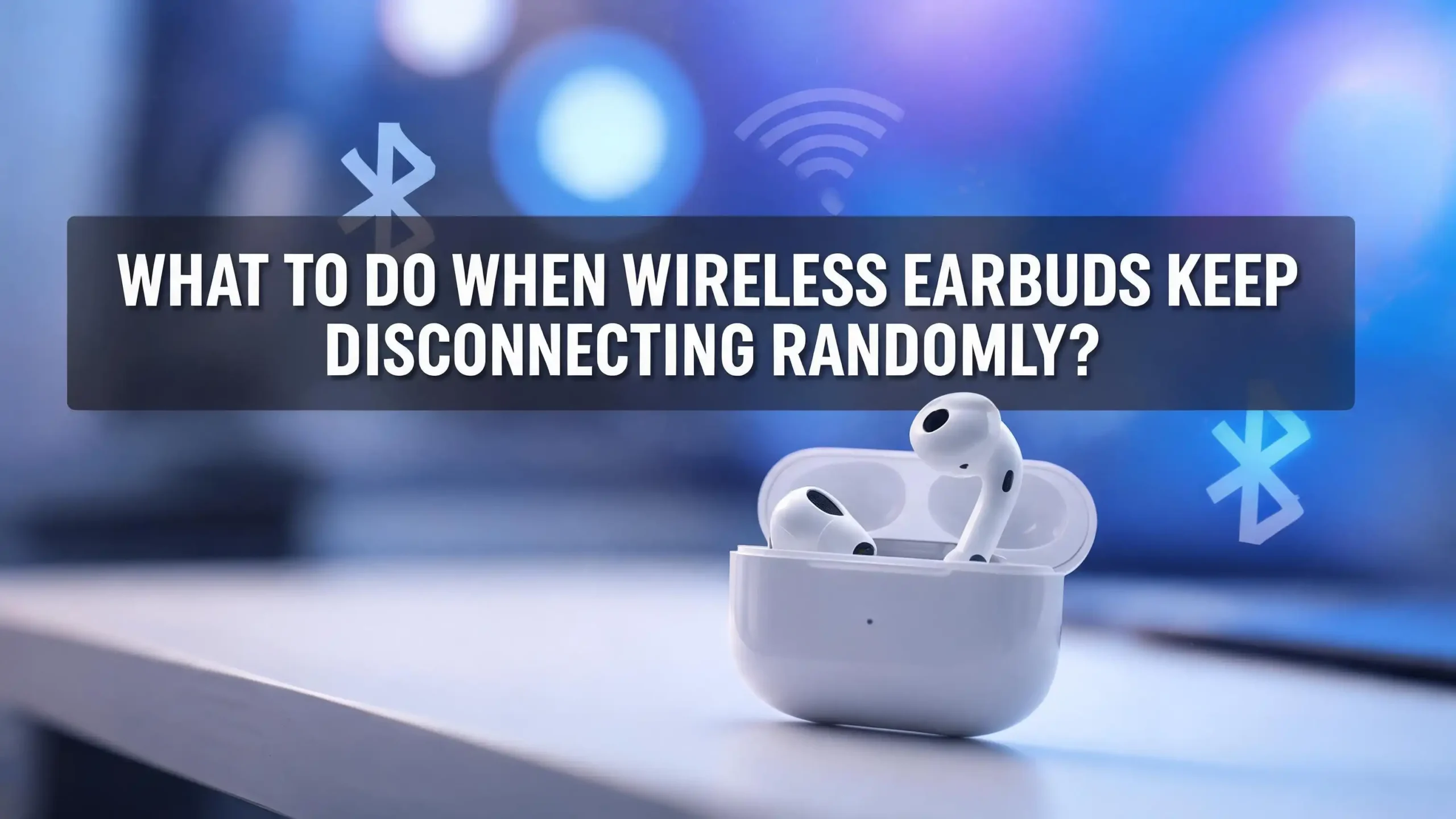
What to Do When Wireless Earbuds Keep Disconnecting Randomly?
You press play on your favorite song. The beat builds. The chorus is about to drop. Then silence. Your wireless earbuds just disconnected again for no obvious reason. This is one of the most common complaints among wireless earbud users, and it happens across all brands and price points.
The good news? Random disconnections almost always have a clear, fixable cause. The problem usually traces back to signal interference, outdated software, low battery, or incorrect settings on your phone or computer.
This guide walks you through every major reason your wireless earbuds disconnect randomly and gives you step by step solutions you can try right now. By the end, you will know exactly what is causing your problem and how to solve it for good.
In a Nutshell
- Check your battery levels first. Low battery on your earbuds or your phone is one of the most common and overlooked causes of random Bluetooth disconnections. Many earbuds reduce signal strength as power drops below 10 to 15 percent.
- Stay within Bluetooth range. Most wireless earbuds work best within 30 feet of the connected device. Walls, doors, and furniture reduce this range significantly. Keeping your phone in a front pocket instead of a back pocket can make a real difference.
- Update your firmware and operating system. Manufacturers release firmware updates to fix known bugs, including connection stability issues. Similarly, an outdated phone or computer OS can cause Bluetooth problems.
- Remove old paired devices and re-pair fresh. Corrupted pairing data stored on your phone can silently cause disconnections. Forgetting the earbuds and pairing them again often solves persistent issues.
- Reduce wireless interference around you. Bluetooth operates on the 2.4 GHz frequency, the same band used by Wi-Fi routers, microwaves, baby monitors, and smart home devices. Too many signals in this band cause audio dropouts.
- Disable power saving settings on your device. Both Windows and Android have battery optimization features that can shut down Bluetooth connections during idle moments to save power. Turning these off prevents unexpected disconnections.
Why Do Wireless Earbuds Disconnect Randomly
Understanding why the problem happens makes fixing it much easier. Wireless earbuds use Bluetooth to send audio data from your phone or computer. This data travels as radio waves on the 2.4 GHz frequency band. Any disruption to these radio waves causes your audio to skip, stutter, or cut out entirely.
The most common causes include low battery, excessive distance from your device, signal interference from other electronics, outdated firmware, corrupted pairing profiles, and power saving settings. In some cases, the earbuds themselves have a hardware defect, especially if they have been dropped or exposed to moisture.
Random disconnections are different from consistent connection failures. If your earbuds never connect at all, you likely have a pairing issue. If they connect fine but drop out at unpredictable times, the problem is almost always environmental or software related. Knowing this distinction helps you focus your troubleshooting on the right area.
It also matters which Bluetooth version your earbuds support. Older earbuds running Bluetooth 4.2 are more prone to dropouts than newer models with Bluetooth 5.0, 5.2, or 5.3. Newer Bluetooth versions offer improved stability, faster reconnection, and better resistance to interference.
Check and Charge Your Earbud Battery
This is the simplest fix and one that people overlook most often. Low battery is a leading cause of random Bluetooth disconnections. Bluetooth modules inside your earbuds need steady power to maintain a strong signal. As the battery drops, the earbud reduces its transmission power to conserve energy. This weaker signal becomes fragile and drops easily.
Many earbud models start behaving unpredictably once the battery falls below 10 to 15 percent. Some models disconnect entirely at around 5 percent. The problem is that you may not always notice a low battery warning, especially if you are focused on a call or a workout.
Make it a habit to charge your earbuds before each use. Place them back in the charging case whenever you are not wearing them. Also check your phone’s battery. A phone running on very low power can also weaken its Bluetooth output. Keep both devices reasonably charged for the best connection stability.
Most earbud companion apps show the exact battery percentage. If your earbuds do not have an app, your phone’s Bluetooth settings usually display battery levels for connected devices. Check this number before you start troubleshooting anything else.
Stay Within Bluetooth Range
Bluetooth has a limited range. Most wireless earbuds support a maximum distance of about 30 feet (10 meters) from the source device. That is the ideal maximum in open air with no obstacles. In real life, walls, doors, furniture, and even your own body reduce this range significantly.
If you leave your phone on a desk and walk to another room, you may exceed the stable range. The signal does not simply stop at 30 feet. It weakens gradually, causing intermittent dropouts before it cuts out completely. This is why your earbuds might work fine for a moment and then disconnect a few seconds later.
Keep your phone or laptop close to you. If you carry your phone, place it in a front pocket rather than a back pocket. Your body absorbs Bluetooth signals, so having the phone on the same side as your dominant listening ear helps. Avoid placing large metal objects or thick walls between your earbuds and your device.
If you regularly need to move far from your source device, look for earbuds that support Bluetooth 5.0 or higher. These versions offer improved range and stability compared to older Bluetooth standards. Some premium models with Bluetooth 5.3 maintain stable connections at significantly greater distances.
Reduce Wireless Interference
Your wireless earbuds share the 2.4 GHz radio frequency with many other household devices. Wi-Fi routers, microwave ovens, baby monitors, cordless phones, smart home hubs, and other Bluetooth devices all operate on this same frequency band. Too many signals competing in this space cause what engineers call packet loss, which your ears hear as audio skipping or complete silence.
Interference is often the hidden cause that people never suspect. You might have perfect battery levels and be standing right next to your phone, yet your earbuds still disconnect because your Wi-Fi router is sitting three feet away broadcasting on the same frequency.
Try moving away from your Wi-Fi router and other electronics. If you notice dropouts in a specific room, look for devices that might be causing interference. Kitchens are common problem spots because of microwave ovens. Home offices can be problematic because of multiple connected devices.
You can also reduce interference by switching your Wi-Fi router to the 5 GHz band for your internet connection. This frees up the 2.4 GHz band for Bluetooth. Most modern routers support dual band operation. Log into your router settings and move your devices to the 5 GHz network. This one change alone has fixed disconnection problems for many users.
Forget and Re-Pair Your Earbuds
Over time, the Bluetooth pairing data stored on your phone or computer can become corrupted or outdated. This corrupted data causes your device to connect improperly, leading to unstable behavior and random disconnections. The fix is simple: forget the earbuds and pair them again from scratch.
On an iPhone, go to Settings, then Bluetooth, tap the info icon next to your earbuds, and select “Forget This Device.” On Android, go to Settings, then Connected Devices or Bluetooth, tap the gear icon next to your earbuds, and select “Unpair” or “Forget.” On Windows, go to Settings, then Bluetooth and Devices, click the three dots next to your earbuds, and select “Remove Device.”
After forgetting the earbuds, power them off completely. Place them in the charging case and close the lid. Restart your phone or computer. Then take the earbuds out, put them in pairing mode, and connect them as if they were brand new. This clears all old connection data and creates a fresh, clean link.
This step fixes a surprising number of persistent disconnection issues. If your earbuds have been paired to many devices over their lifetime, old pairing profiles can accumulate and create conflicts. A fresh start eliminates these hidden problems.
Update Your Earbud Firmware
Earbud manufacturers regularly release firmware updates that fix bugs, improve connection stability, and optimize Bluetooth performance. If you have never updated your earbuds’ firmware, you might be running software with known connection problems that the manufacturer has already fixed.
Most popular earbuds have a companion app that handles firmware updates. Apple AirPods update automatically through iOS. Samsung Galaxy Buds use the Galaxy Wearable app. Sony earbuds use the Sony Headphones Connect app. Check your earbud brand’s app store listing and install the companion app if you have not already.
Open the app, connect your earbuds, and look for a firmware update option. The update process usually takes a few minutes. Keep your earbuds in the charging case during the update and do not disconnect them until the process completes. A failed firmware update can cause more problems.
Also update your phone’s operating system. Bluetooth improvements are often included in iOS and Android updates. An outdated phone OS can introduce compatibility issues with newer earbud firmware. Go to your phone’s settings and check for any available system updates. Install them and restart your device.
Disable Power Saving and Battery Optimization
Both Windows and Android devices have built in power management features that can silently disconnect your Bluetooth earbuds. These features are designed to save battery life by turning off idle connections. However, they sometimes misidentify an active Bluetooth audio connection as idle and cut it off.
On Windows, open Device Manager. Expand the Bluetooth section. Right click your Bluetooth adapter and select Properties. Go to the Power Management tab. Uncheck the box that says “Allow the computer to turn off this device to save power.” Click OK and restart your computer. This prevents Windows from killing your Bluetooth connection to save energy.
On Android, go to Settings, then Battery or Battery Optimization. Find your earbud companion app and your music app in the list. Set them to “Not Optimized” or “Unrestricted.” Android’s battery optimization can put Bluetooth related processes to sleep, causing your earbuds to lose their connection during quiet moments or brief pauses in audio.
On iPhone, this is less of a concern because iOS manages Bluetooth connections differently. However, if you have Low Power Mode enabled, try turning it off to see if your earbud connection improves. Low Power Mode reduces background activity, which can sometimes affect Bluetooth stability.
Turn Off Multipoint Connection
Many modern earbuds support multipoint connectivity, which lets them connect to two devices at the same time. For example, you can be connected to your laptop and your phone simultaneously. This is convenient for switching between devices, but it can cause disconnection problems.
When both connected devices try to send audio at the same time, your earbuds may struggle to prioritize. A notification sound on your laptop while you listen to music on your phone can cause a brief dropout. Some earbuds handle this smoothly. Others disconnect from one device entirely during the switch.
To test if multipoint is your problem, turn off Bluetooth on every device except the one you are actively using. If the disconnections stop, multipoint is the cause. You can then disable multipoint in your earbud’s companion app if the setting is available. Alternatively, manually disconnect from devices you are not using before starting your listening session.
Some earbuds also automatically attempt to reconnect to previously paired devices that come within range. If your earbuds keep jumping to your tablet or laptop when you only want them connected to your phone, removing old pairings from devices you rarely use with the earbuds can help.
Factory Reset Your Earbuds
If none of the previous fixes have solved your problem, a factory reset can clear deeper software glitches inside the earbuds themselves. A factory reset erases all stored pairing data, custom settings, and preferences from the earbuds. It returns them to their original out of box state.
The reset process varies by brand. For most true wireless earbuds, you place both earbuds in the charging case, then press and hold a button or touch sensor for a specific duration. Check your earbud manual or the manufacturer’s website for exact instructions. Common steps include holding the button for 10 to 15 seconds until the LED indicator flashes a specific color.
After the reset, your earbuds will not remember any of your devices. You will need to pair them again with your phone, laptop, and any other devices. This is actually a good thing. It removes any corrupted data that may have built up over months of use.
Factory resetting is especially helpful if your earbuds disconnect from each other. True wireless earbuds use a separate connection between the left and right buds. If this inter-earbud connection becomes unstable, a factory reset re-establishes it cleanly. Many users report that this single step fixed months of frustrating disconnections.
Check for App Conflicts and Background Processes
Sometimes the problem is not your earbuds or your Bluetooth settings. It is another app on your phone or computer interfering with the Bluetooth connection. Certain apps aggressively manage audio routing, and some VPN or security apps monitor network connections in ways that affect Bluetooth.
Too many apps running in the background can also strain your device’s processing power. Bluetooth audio encoding and decoding require CPU resources. If your phone is overloaded with background processes, the Bluetooth audio stream may not get the processing priority it needs, resulting in stuttering and dropouts.
Close unnecessary apps running in the background. On Android, go to Settings, then Apps, and force stop apps you do not need. On iPhone, swipe up from the bottom to see your app switcher and close apps that are not in use. On Windows, open Task Manager and end processes that consume excessive CPU or memory.
Pay special attention to other audio apps. If you have Spotify, YouTube, a podcast app, and a video calling app all running simultaneously, they may fight over the Bluetooth audio channel. Close all audio apps except the one you are actively using. This simple cleanup often resolves random disconnection issues.
Check Your Bluetooth Version and Codec Settings
The Bluetooth version your earbuds and device use matters significantly for connection stability. Bluetooth 5.0, released in 2016, brought major improvements in range and speed over older versions. Bluetooth 5.2 introduced LE Audio. Bluetooth 5.3 improved stability and energy efficiency even further.
If your earbuds support Bluetooth 5.0 but your phone only has Bluetooth 4.2, the connection defaults to the older, less stable standard. The Bluetooth version of your source device matters just as much as the version on your earbuds. Check your phone’s specifications to see which Bluetooth version it supports.
Audio codecs also play a role. SBC is the default Bluetooth audio codec and is the most compatible but least efficient. AAC works well on Apple devices. AptX and LDAC offer higher quality on Android but require more bandwidth, which can sometimes cause stability issues in areas with heavy interference.
If you experience frequent disconnections while using a high quality codec like LDAC, try switching to SBC or AAC in your phone’s Bluetooth developer settings. On Android, go to Settings, then Developer Options, then Bluetooth Audio Codec, and select a different option. A lower bandwidth codec can provide a more stable connection in challenging wireless environments.
Inspect for Physical Damage or Moisture
If you have tried every software and settings fix and your earbuds still disconnect randomly, the problem may be physical damage. Wireless earbuds are small, delicate electronics. Dropping them on hard surfaces, exposing them to sweat during workouts, or accidentally getting them wet can damage internal components.
The Bluetooth antenna inside each earbud is particularly vulnerable. It is a tiny component, and even minor physical trauma can reduce its effectiveness. A cracked antenna will produce intermittent signal loss that looks exactly like random disconnections.
Moisture is another common culprit. Even earbuds with water resistance ratings can suffer damage over time from accumulated sweat or humidity. Moisture can corrode internal contacts and degrade the Bluetooth module. If you regularly use your earbuds during exercise, make sure to dry them thoroughly after each session and store them in a clean, dry case.
Examine your earbuds closely. Look for visible cracks, loose components, or residue buildup on the charging contacts. Dirty charging contacts can cause incomplete charging, which leads to the low battery disconnection problem described earlier. Clean the contacts gently with a dry, soft cloth or a cotton swab. If you see physical damage, contact the manufacturer for warranty support or consider replacing the earbuds.
What to Do If Nothing Else Works
You have tried every fix in this guide and your earbuds still disconnect randomly. This usually points to a hardware defect. Internal component failures do happen, especially with earbuds that have been used heavily for over a year.
Before giving up, try your earbuds with a completely different device. Pair them with a friend’s phone or a different computer. If the disconnections persist on a different device, the fault is confirmed to be in the earbuds. If they work perfectly on a different device, the problem is with your original phone or computer’s Bluetooth hardware.
Check your warranty status. Most earbud manufacturers offer a one year warranty that covers defects in materials and workmanship. Random disconnections caused by a faulty Bluetooth module would qualify for warranty replacement. Contact the manufacturer’s support team with your purchase details and a description of the problem.
If your earbuds are out of warranty, weigh the cost of repair against replacement. For budget earbuds, replacement is almost always more cost effective. For premium earbuds, some manufacturers offer repair services. When shopping for replacements, prioritize models with Bluetooth 5.2 or 5.3 for the best connection stability, and check user reviews specifically for comments about Bluetooth reliability.
Frequently Asked Questions
Why do my wireless earbuds disconnect only during phone calls?
Phone calls use a different Bluetooth profile called HFP (Hands Free Profile) compared to music streaming, which uses A2DP (Advanced Audio Distribution Profile). HFP is an older, lower bandwidth profile that is more sensitive to interference and range issues. Your earbuds may handle A2DP music streaming fine but struggle with HFP call audio. Make sure your earbuds have the latest firmware update, as manufacturers often improve HFP stability in newer software versions.
Can Wi-Fi cause my Bluetooth earbuds to disconnect?
Yes. Wi-Fi and Bluetooth both operate on the 2.4 GHz frequency band. A strong Wi-Fi signal from a nearby router can interfere with your Bluetooth audio connection. This is especially true if your router and earbuds are within a few feet of each other. Moving away from your router or switching your Wi-Fi network to the 5 GHz band can reduce this interference significantly.
How often should I update my earbud firmware?
Check for firmware updates once a month or whenever you notice new connection issues. Most companion apps will notify you when an update is available. Do not skip updates, because manufacturers frequently include Bluetooth stability improvements and bug fixes. Always keep your earbuds charged above 50 percent before starting a firmware update to prevent interruptions.
Do cheap wireless earbuds disconnect more than expensive ones?
Generally, yes. Budget earbuds often use older Bluetooth chipsets and lower quality antennas that are more prone to interference and signal drops. Premium earbuds from established audio brands typically invest in better Bluetooth hardware, newer chipsets, and more rigorous quality testing. However, price alone does not guarantee reliability. Read user reviews and check the Bluetooth version before purchasing.
Why does only one earbud keep disconnecting?
When only one earbud disconnects, the issue is usually with the inter-earbud connection. In most true wireless designs, one earbud acts as the primary (connecting to your phone) and relays audio to the secondary earbud. If the secondary earbud has a weaker battery, dirty contacts, or internal damage, it will drop out while the primary continues working. A factory reset often fixes this by re-establishing the link between both earbuds.
Should I turn Bluetooth off and on again to fix disconnections?
Yes, this is a valid quick fix. Toggling Bluetooth off and on clears the active connection cache and forces your device to re-establish the link. This can resolve temporary glitches caused by software conflicts or brief interference. If you find yourself doing this frequently, however, it means there is a deeper issue that you should address using the steps outlined in this guide.

Hi, I’m Lily — a tech enthusiast and the voice behind SmartResizerr.com. I love testing gadgets, breaking down specs into plain English, and helping everyday people find the right tech without the overwhelm.