How to Clean a Sticky Laptop Trackpad Without Damaging It?
A sticky laptop trackpad is one of the most annoying problems you can face while working, studying, or browsing. Your finger drags instead of gliding. The cursor jumps to random spots. Clicks stop registering. You start wondering if your laptop is broken.
The good news? In most cases, a sticky trackpad is simply dirty. Oil from your fingertips, food residue, dust, and grime build up over time and create that frustrating sticky feeling. The even better news is that you can fix this problem at home in just a few minutes with the right supplies and technique.
This guide walks you through the exact process to clean your sticky laptop trackpad safely. You will learn what causes the stickiness, which cleaning supplies are safe, which ones to avoid, and how to keep your trackpad clean for months to come.
Key Takeaways
- Always turn off your laptop and unplug it before you start cleaning the trackpad. This prevents electrical damage and protects internal components from moisture.
- Use a lint free cloth and distilled water or diluted isopropyl alcohol as your primary cleaning tools. These are the safest options for almost every trackpad material.
- Never spray liquid directly onto the trackpad. Always apply the cleaning solution to the cloth first, and make sure the cloth is damp rather than wet.
- Avoid harsh chemicals like bleach, acetone, ammonia based cleaners, and undiluted alcohol. These strip the trackpad coating and cause permanent surface damage.
- Clean the edges of the trackpad with a cotton swab or a thin piece of paper to remove trapped dust and grime that builds up along the seam between the trackpad and the laptop body.
- Build a regular cleaning habit to prevent sticky buildup from returning. A quick wipe with a dry microfiber cloth after each use session keeps your trackpad smooth and responsive for much longer between deep cleans.
What Causes a Laptop Trackpad to Become Sticky
Understanding the root cause of a sticky trackpad helps you choose the right cleaning method. The most common cause is natural oil from your skin. Every time you touch the trackpad, your fingers leave behind a thin layer of sebum, sweat, and dead skin cells. Over weeks and months, this layer builds up and creates a tacky, grippy surface.
Food residue is another frequent cause. Even if you wash your hands before using your laptop, tiny traces of grease, sugar, or sauce can transfer from your fingertips to the trackpad. Eating near your laptop significantly increases the speed of sticky buildup.
Dust and environmental debris also play a role. Fine particles settle on the trackpad surface and mix with the oil layer. This combination creates a grime that feels sticky and affects cursor accuracy.
In some cases, the stickiness is not dirt at all. The trackpad’s surface coating can degrade over time, especially on older laptops. This degradation makes the plastic feel tacky or rubbery. Alcohol based cleaners can actually speed up this process if used too frequently. A swollen battery underneath the trackpad can also cause physical issues like the trackpad popping up or not clicking properly. If your trackpad looks physically warped or raised, stop using it and consult a repair professional immediately.
What Supplies You Need Before You Start
Gathering the right supplies before you begin saves time and prevents mistakes. You do not need anything expensive or specialized. Most people already have these items at home.
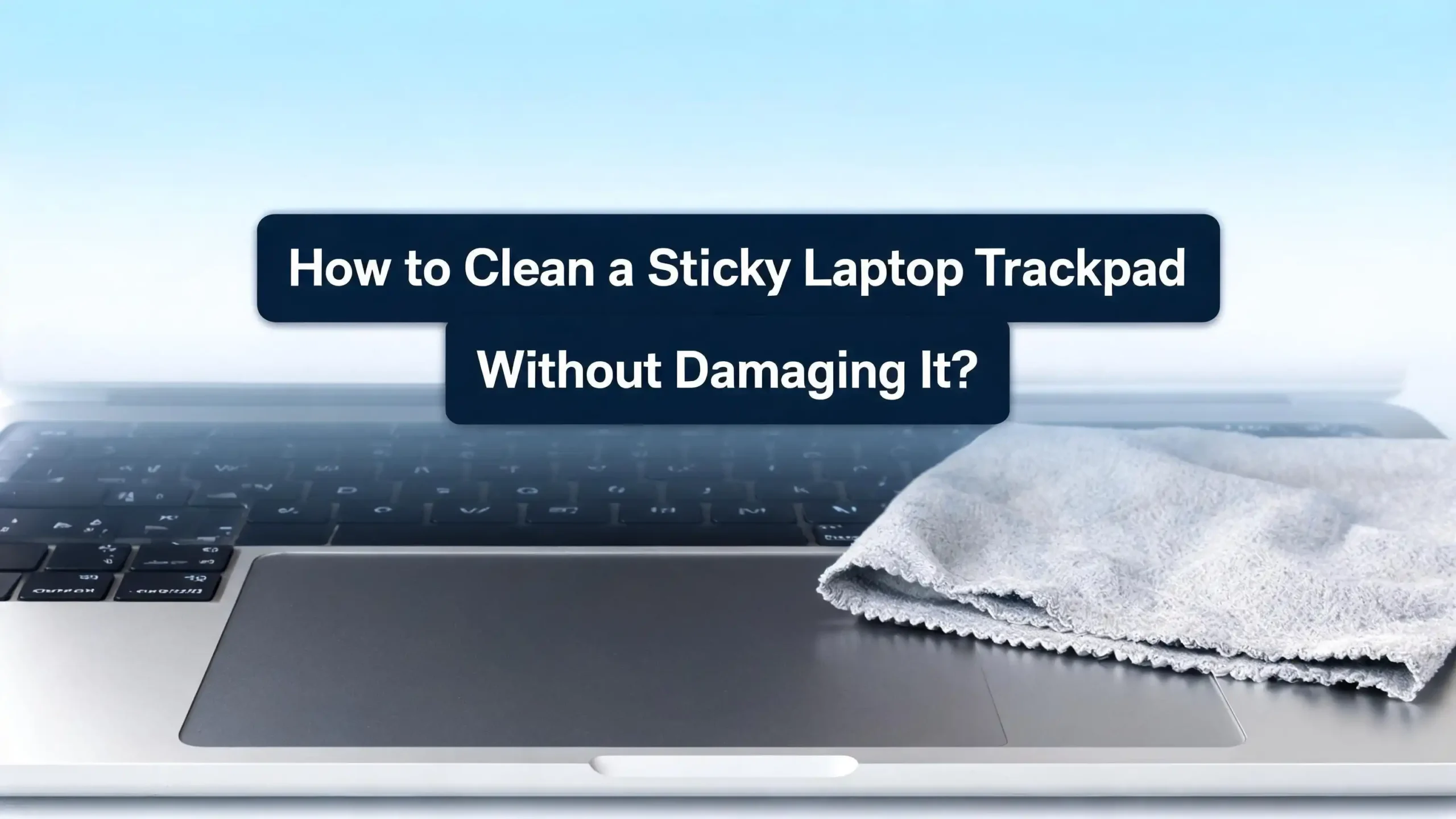
A soft, lint free cloth is your most important tool. Microfiber cloths work best. Eyeglass cleaning cloths are also a good choice. Avoid paper towels, tissues, and rough rags. Paper towels leave lint behind and can scratch delicate trackpad surfaces. A microfiber cloth picks up oil and debris without leaving anything behind.
For cleaning solution, distilled water is the safest option for any trackpad material. It contains no minerals that could leave residue or buildup. If distilled water is not enough to remove the stickiness, use isopropyl alcohol diluted to 70% or less. Mix it with distilled water at a 30:70 ratio for a gentle but effective solution.
You should also grab a few cotton swabs for cleaning edges and corners. A can of compressed air helps blow out dust and crumbs trapped around the trackpad border. Keep a second dry lint free cloth nearby for drying. If you plan to clean the trackpad edges thoroughly, a business card or a folded piece of thick paper works well for sliding along the seam to push out hidden grit.
How to Prepare Your Laptop for Cleaning
Preparation is a critical step that many people skip. Taking a minute to set up properly protects your laptop from damage during the cleaning process.
First, save all your work and shut down the laptop completely. Do not just close the lid or put it to sleep. A full shutdown ensures no electrical current runs through the system while you clean. This protects your laptop if any moisture accidentally gets inside.
Unplug the power cable and remove any connected USB devices or peripherals. If your laptop has a removable battery, take it out as well. Place the laptop on a flat, clean, and dry surface. A desk or table with good lighting works best so you can see the dirt and grime clearly.
Wash and dry your hands thoroughly before touching the laptop. This might seem obvious, but oily or dirty hands will just re-contaminate the surface as you clean it. Some people wear lint free gloves during this step, but clean dry hands work just fine.
Before you apply any liquid, use a dry microfiber cloth to wipe the trackpad surface. This removes loose dust, crumbs, and surface debris. It also prevents you from grinding particles into the trackpad surface during the wet cleaning step. If you have compressed air, give the trackpad edges a quick blast to dislodge trapped crumbs.
Step by Step Guide to Cleaning a Sticky Trackpad
Now that your laptop is powered off and your supplies are ready, follow these steps carefully. This method works for both plastic and glass trackpads.
Step one: Apply a small amount of distilled water or your diluted isopropyl alcohol solution to the lint free cloth. The cloth should feel slightly damp, not wet. If you squeeze the cloth and liquid drips out, wring it until only dampness remains. Never apply liquid directly to the trackpad surface.
Step two: Place the damp cloth flat against the trackpad and wipe gently in one direction. Use light, even pressure. Do not press hard or scrub aggressively. Heavy pressure can push liquid into the seams around the trackpad and damage internal components.
Step three: Repeat the wiping motion across the entire trackpad surface. Focus on areas that feel especially sticky or show visible grime. If the dirt is stubborn, dampen the cloth again and make another pass. Avoid circular scrubbing motions as they can wear down the coating unevenly.
Step four: Use a dry lint free cloth to wipe the trackpad dry. You can also let it air dry for about 30 seconds. If you used an alcohol based solution, it will evaporate very quickly.
Step five: Before turning your laptop back on, run your clean dry finger across the trackpad to check for any remaining sticky spots. If stickiness remains, repeat steps one through four. Do not turn the laptop on until the trackpad is completely dry.
How to Clean the Edges and Borders of the Trackpad
The edges of a trackpad collect more dirt than most people realize. The narrow gap between the trackpad and the laptop body acts like a magnet for dust, crumbs, and oily grime. Ignoring this area is one of the reasons trackpads feel sticky again so quickly after cleaning.
Dip a cotton swab in your diluted isopropyl alcohol solution and run it carefully along the border of the trackpad. Use the tip of the swab to trace the entire perimeter. Apply light pressure so the swab reaches into the seam without forcing liquid under the trackpad.
For deeper cleaning of the edges, take a business card or a piece of thick paper and slide it along the gap. This pushes out compacted grime that a cotton swab cannot reach. Move the card slowly along each edge and wipe it clean after each pass. You might be surprised at how much debris comes out.
After cleaning the edges, use compressed air to blow away any loosened particles. Hold the can at an angle and use short bursts. Do not hold the compressed air can upside down, as this can release liquid propellant that damages your laptop. Finish by wiping the entire area with a dry cloth. Clean edges not only improve the trackpad feel but also prevent dirt from migrating back onto the surface.
How to Remove Stubborn Sticky Residue from Your Trackpad
Sometimes a simple wipe down is not enough. If someone spilled soda, juice, or another sugary liquid on the trackpad, the residue can be very difficult to remove with water alone.
For stubborn sticky residue, use a cotton swab dipped in 70% isopropyl alcohol. Target only the sticky area rather than wiping the entire surface. Gently rub the swab over the residue in small circular motions. The alcohol dissolves most organic sticky substances without damaging the trackpad.
If the residue resists the first attempt, let the alcohol sit on the spot for about 10 seconds before wiping. Do not flood the area. Use just enough to moisten the surface. Follow up immediately with a dry cloth to absorb the dissolved residue and prevent the alcohol from sitting on the surface for too long.
A paste made from baking soda and water can help with extremely stubborn spots. Mix a tiny amount of baking soda with a few drops of distilled water to form a thick paste. Apply it to the sticky area with a cotton swab and rub very gently. The mild abrasive action helps lift the residue. Wipe away all traces of the paste with a damp cloth afterward to prevent baking soda from getting into the trackpad seams.
If the residue is underneath the trackpad or inside the edges, do not try to pry the trackpad open yourself. Contact your laptop manufacturer or a certified repair technician. Forcing the trackpad open can break the clips, flex cables, or sensors beneath it.
Cleaning Solutions You Should Never Use on a Trackpad
Choosing the wrong cleaning product can cause more damage than the original sticky problem. Several common household cleaners are harmful to trackpad surfaces and should be avoided entirely.
Bleach and bleach based cleaners are extremely harsh on plastic and glass. They can strip the protective coating off your trackpad, discolor the surface, and break down the adhesive that holds the trackpad in place. Even diluted bleach is too aggressive for electronics.
Acetone and nail polish remover will dissolve plastic surfaces almost instantly. These solvents destroy the smooth finish on your trackpad and can cause permanent cloudiness or texture damage. Even brief contact with acetone can ruin a trackpad.
Window cleaners that contain ammonia are another bad choice. Ammonia degrades the coatings on both plastic and glass trackpads over time. It can also leave a thin film that interferes with touch sensitivity.
Undiluted isopropyl alcohol at 90% or higher concentrations works too aggressively on plastic trackpads. While 70% or lower concentrations are generally safe, high concentration alcohol strips the protective coating faster. If you must use higher concentration alcohol, dilute it with distilled water before applying.
Abrasive cleaning pads, steel wool, and rough sponges physically scratch the trackpad. Even light scratches can make the surface feel rough and affect cursor tracking. Stick to soft, lint free cloths and cotton swabs. When in doubt, test any cleaning solution on a tiny, inconspicuous area of the laptop first.
Cleaning Glass Trackpads vs Plastic Trackpads
Not all trackpads are made from the same material. The cleaning approach varies depending on whether your trackpad is glass or plastic. Knowing your trackpad material prevents accidental damage.
Glass trackpads are found on most modern MacBooks and some premium Windows laptops. They are more durable and resistant to scratches and chemical damage. You can safely use glass cleaner on a glass trackpad, but apply it sparingly and always to the cloth first. Distilled water and diluted isopropyl alcohol also work well on glass.
Plastic trackpads are more common on budget and mid range laptops. They are more sensitive to chemicals and wear. Avoid alcohol based cleaners on plastic trackpads whenever possible. Frequent use of alcohol strips the smooth coating and makes the plastic feel tacky or rubbery over time. Distilled water is the best choice for regular cleaning of plastic trackpads.
If you do not know what material your trackpad is made of, check your laptop’s specifications on the manufacturer’s website. Look for terms like “glass precision trackpad” or “force touch trackpad” which indicate glass construction. If you cannot find the information, treat the trackpad as if it were plastic and use the mildest cleaning products available.
Glass trackpads tend to show fingerprints and oil smudges more visibly, but they are easier to clean and maintain. Plastic trackpads hide dirt better but develop a worn, sticky feeling faster. Understanding this difference helps you set the right cleaning schedule for your specific laptop.
What to Do If Your Trackpad Still Feels Sticky After Cleaning
You followed every step. You cleaned the surface, the edges, and the stubborn spots. But the trackpad still feels sticky. This is frustrating, but there are a few explanations and solutions.
The stickiness might not be dirt at all. On older laptops, the trackpad coating breaks down through normal use. This degradation creates a rubbery, tacky texture that no amount of cleaning can fix. You can confirm this by running a clean, dry finger across the trackpad. If it feels uniformly sticky and there is no visible grime, the coating is likely worn.
For a degraded coating, you have a few options. Applying a thin trackpad protector film can restore a smooth gliding surface. These are available online and can be cut to fit your specific laptop model. They add a thin, smooth layer over the worn trackpad without affecting sensitivity.
Another possibility is that the issue is under the trackpad rather than on top of it. A swollen battery can push against the trackpad from below, causing it to stick, pop up, or not click properly. If your trackpad feels physically raised or wobbles when you press it, shut down your laptop immediately. A swollen battery is a safety hazard and needs professional attention.
Software issues can also cause symptoms that feel like a sticky trackpad. Update your trackpad drivers through your laptop manufacturer’s support website. On Windows, you can also check Device Manager for driver issues. On macOS, make sure your system is updated to the latest version. Sometimes a driver glitch makes the cursor behave erratically, which feels similar to a physically sticky surface.
How Often Should You Clean Your Laptop Trackpad
Establishing a regular cleaning routine prevents sticky buildup from becoming a major problem. The ideal frequency depends on how often you use your laptop and the conditions you use it in.
For daily laptop users, a quick dry wipe after each session keeps the trackpad clean and smooth. Just take a microfiber cloth and make a few passes across the surface. This takes about five seconds and removes the oil and moisture your fingers leave behind during each use.
A more thorough cleaning with a damp cloth should happen once every one to two weeks. This deeper clean removes the grime that dry wiping misses. Use distilled water or a very mild cleaning solution for this routine maintenance.
If you eat near your laptop, work in dusty environments, or share your laptop with others, you should increase the cleaning frequency. These situations accelerate trackpad contamination. A weekly deep clean combined with daily dry wipes is a good schedule for heavy use scenarios.
Cleaning the trackpad edges with a cotton swab should happen at least once a month. Edge grime builds up slowly, but it migrates onto the trackpad surface over time and contributes to that sticky feeling. Monthly edge cleaning stops this cycle.
Pay attention to how the trackpad feels during normal use. If you notice increased friction or the cursor starts behaving oddly, clean the trackpad even if it is not your scheduled cleaning day. Catching buildup early means less effort and fewer chemicals needed for each cleaning session.
Practical Habits to Prevent a Sticky Trackpad
Prevention is always easier than cleaning. A few simple daily habits can dramatically reduce how often your trackpad gets sticky and extend its lifespan.
Wash your hands before using your laptop. This single habit makes the biggest difference. Clean, dry hands transfer far less oil, dirt, and food residue to the trackpad. You do not need to wash them every single time, but doing so before longer work sessions helps a lot.
Avoid eating while using your laptop. Greasy, sugary, or salty foods leave invisible residue on your fingers. Even if your hands look clean after eating, they carry food oils that transfer to the trackpad with every touch. If you must eat near your laptop, use utensils and avoid touching the trackpad until you have cleaned your hands.
Keep your laptop in a clean environment. Dust settles on the trackpad whenever the laptop sits open and unused. Close the lid when you step away. If you work in a particularly dusty room, consider using a laptop cover or sleeve when the device is not in use.
Use a trackpad protector film if you want long term protection. These transparent films sit on the trackpad surface and provide a barrier against oil, grime, and wear. They are easy to replace when they get worn, and they keep the actual trackpad surface in good condition underneath.
Avoid using your laptop with wet or sweaty hands. Moisture accelerates grime buildup and can also cause temporary trackpad sensitivity issues. Keep a small hand towel near your workstation during hot weather or intense work sessions.
When to Seek Professional Repair for Your Trackpad
Some trackpad problems go beyond what surface cleaning can solve. Knowing when to call a professional saves you from accidentally making things worse.
If your trackpad is physically raised, warped, or clicking unevenly, the problem is likely internal. A swollen battery is the most common cause of these symptoms. Swollen batteries can leak or even catch fire in extreme cases. Do not attempt to fix this yourself unless you have experience with laptop hardware repair. Take your laptop to a certified repair center.
If liquid seeped underneath the trackpad, surface cleaning will not resolve the issue. Internal moisture can corrode the trackpad sensor, the flex cable, or the motherboard connectors. A repair technician can safely disassemble the laptop, clean the internal components, and replace any damaged parts.
If the trackpad coating is severely degraded and a protector film does not help, a technician can replace the trackpad or the entire palm rest assembly. On many laptops, the trackpad is built into the palm rest and cannot be replaced individually. A professional can advise you on the most cost effective repair option.
Before visiting a repair shop, check if your laptop is still under warranty. Trackpad issues caused by manufacturing defects or battery swelling may be covered. Contact your laptop manufacturer’s support line and describe the problem. They can often tell you over the phone whether the repair qualifies for warranty coverage.
Finally, if your trackpad works perfectly fine but just feels worn and smooth rather than sticky, remember that this is normal wear. A shiny, smooth trackpad is not a broken trackpad. It just means you have used your laptop well. You can continue to use it as long as the tracking and clicking still function properly.
Quick Summary: The Safe Trackpad Cleaning Process
Let us bring everything together into a simple reference you can follow any time your trackpad needs attention.
Power off your laptop and unplug all cables. Remove the battery if it is removable. Place the laptop on a flat, clean, well lit surface. Wash and dry your hands.
Dry wipe first. Use a clean microfiber cloth to remove surface dust and loose debris. Blow compressed air along the trackpad edges to dislodge trapped crumbs.
Damp clean next. Apply distilled water or diluted isopropyl alcohol (30:70 ratio) to a lint free cloth. Wipe the trackpad gently in one direction with light pressure. Do not spray liquid directly on the trackpad.
Target stubborn spots. Use a cotton swab dipped in 70% isopropyl alcohol for sticky residue. For extreme cases, a baking soda paste can help. Always wipe away all cleaning residue with a damp cloth.
Clean the edges. Run a cotton swab or a thin piece of paper along the trackpad border to remove hidden grime. Follow up with compressed air.
Dry and test. Wipe the trackpad dry with a second lint free cloth or let it air dry. Run a clean finger across the surface to check for remaining stickiness. Only turn your laptop back on after the trackpad is completely dry.
Build a routine. Dry wipe after each session. Damp clean weekly. Edge clean monthly. Wash your hands before use. Avoid eating near your laptop. These habits keep your trackpad smooth and responsive for years.
Frequently Asked Questions
Can I use baby wipes to clean my laptop trackpad?
Baby wipes can work in a pinch, but they are not ideal for regular use. Many baby wipes contain moisturizers, fragrances, and other chemicals that leave a film on the trackpad surface. This film can actually make the trackpad feel stickier after it dries. If you use baby wipes, choose unscented, alcohol free varieties and follow up with a distilled water wipe to remove any residue. A microfiber cloth with distilled water remains the safest choice for routine cleaning.
Is 99% isopropyl alcohol safe for my trackpad?
High concentration isopropyl alcohol is more aggressive than lower concentrations. It can strip the protective coating on plastic trackpads faster than 70% alcohol. If you have a glass trackpad, 99% alcohol is generally safe when used sparingly. For plastic trackpads, always dilute 99% alcohol with distilled water to bring it down to 70% or lower. Use a 30:70 alcohol to water ratio for the safest results. Apply it to a cloth rather than directly to the surface.
Why does my trackpad feel sticky even though it looks clean?
This usually means the trackpad’s surface coating is degrading. Over time, the protective layer on plastic trackpads breaks down and creates a tacky, rubbery texture. Cleaning cannot fix this because the problem is the material itself, not surface dirt. Your best options are applying a trackpad protector film to restore a smooth surface or having the trackpad replaced by a repair technician. Avoid using alcohol based cleaners on a degraded trackpad, as alcohol speeds up the deterioration.
Can a swollen battery make my trackpad sticky or unresponsive?
Yes. A swollen battery pushes against the underside of the trackpad and can cause it to stick, pop up, click inconsistently, or stop responding entirely. If your trackpad is raised, warped, or feels different when you press it compared to the edges, a swollen battery may be the cause. This is a safety issue. Stop using the laptop, power it off, and take it to a professional repair center. Do not attempt to puncture or remove a swollen battery yourself.
How do I clean crumbs and dust stuck around the trackpad edges?
Use short bursts of compressed air aimed at the trackpad border to dislodge loose debris. For compacted grime, slide a business card or thick piece of paper along the seam between the trackpad and the laptop body. This pushes out dirt that compressed air cannot reach. Follow up with a cotton swab dipped in diluted isopropyl alcohol to wipe the edges clean. Avoid using toothpicks or sharp objects, as they can scratch the trackpad or damage the seam.
Can I use hand sanitizer to clean my trackpad?
Hand sanitizer is not recommended for trackpad cleaning. Most hand sanitizers contain moisturizers, aloe, fragrances, and other additives that leave a sticky residue on the surface. This residue can interfere with touch sensitivity and actually make the stickiness worse. Some hand sanitizers also contain chemicals that can damage plastic coatings. Stick to distilled water or properly diluted isopropyl alcohol applied to a lint free cloth for safe and effective cleaning.

Hi, I’m Lily — a tech enthusiast and the voice behind SmartResizerr.com. I love testing gadgets, breaking down specs into plain English, and helping everyday people find the right tech without the overwhelm.