How to Troubleshoot Blue Screen of Death on Windows 11?
The Blue Screen of Death is one of the most stressful errors any Windows 11 user can face. Your screen suddenly turns blue, displays a sad face emoji, and shows a cryptic stop code.
Your work stops, your files feel at risk, and panic sets in. But here is the good news. Most BSOD errors on Windows 11 are fixable at home without calling a technician.
This guide walks you through every practical fix you can try. You will learn what causes these crashes, how to read the error codes, and which tools inside Windows 11 can repair the damage. Keep reading because the very first fix might save you hours of frustration.
Key Takeaways
- Note the stop code first. Every Blue Screen of Death shows a specific error name like CRITICAL_PROCESS_DIED or MEMORY_MANAGEMENT. This code is your biggest clue.
- Most BSOD errors come from four sources. These include faulty drivers, bad RAM, corrupted system files, and failing hardware such as a dying SSD.
- Safe Mode is your best friend. If Windows 11 will not start normally, boot into Safe Mode to run repairs without third party software loading.
- Built in tools fix most problems. Commands like SFC /scannow and DISM /RestoreHealth repair damaged system files in minutes.
- Hardware checks matter too. Run the Windows Memory Diagnostic and CHKDSK to find failing RAM or storage before replacing parts.
- Backup before major changes. Always copy important files to an external drive or cloud before doing system restores or resets.
Understand What the Blue Screen of Death Means
The Blue Screen of Death, often called BSOD, is Windows 11’s way of stopping everything when it detects a serious problem. Instead of letting the system keep running and risk losing data or damaging hardware, Windows forces a shutdown. The blue screen you see is actually a safety feature.
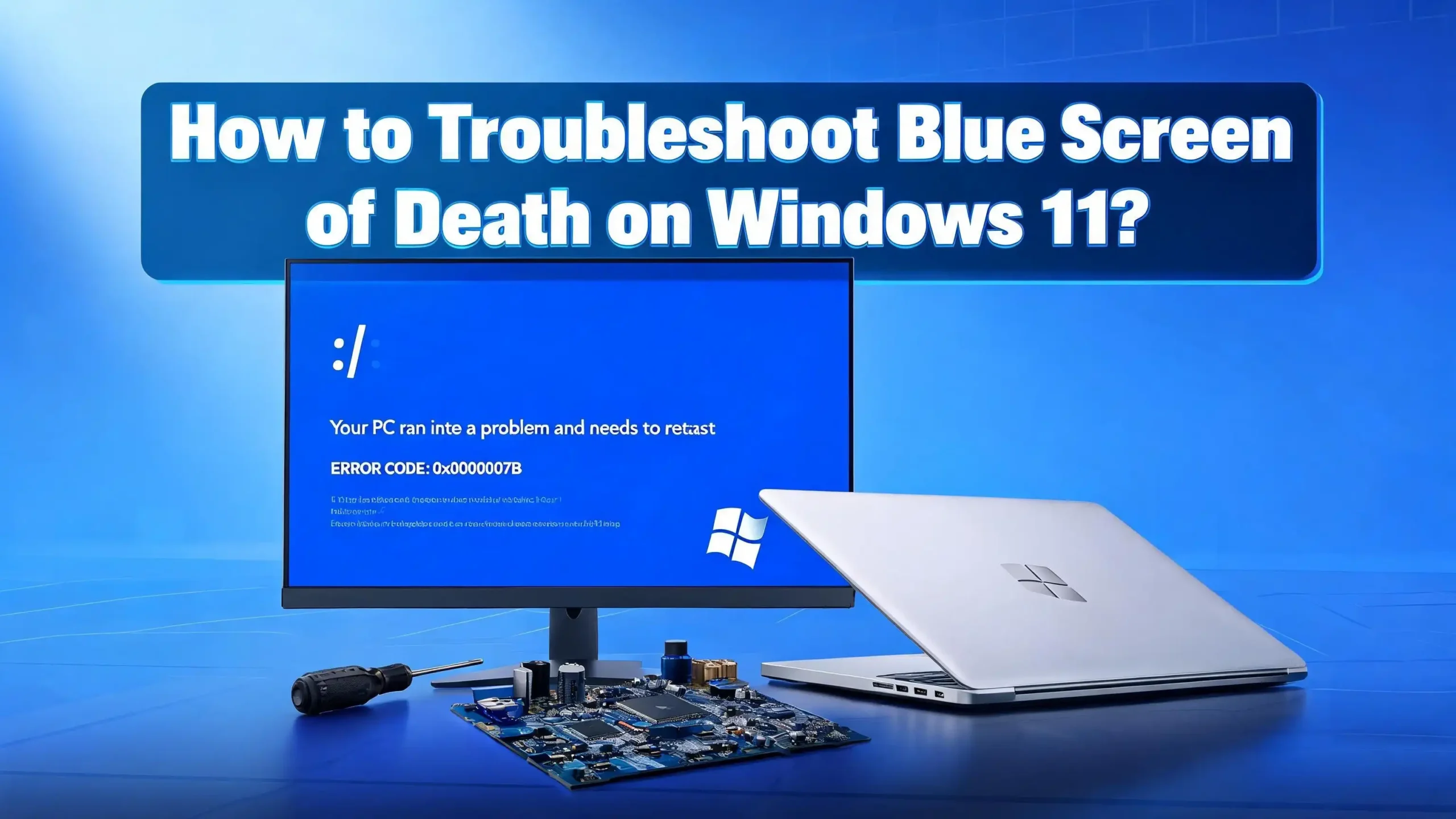
On Windows 11, the BSOD now shows a sad face icon, a short message, a QR code, and a stop code. The stop code is the most useful part. It tells you what type of failure occurred. Examples include DRIVER_IRQL_NOT_LESS_OR_EQUAL, PAGE_FAULT_IN_NONPAGED_AREA, and SYSTEM_SERVICE_EXCEPTION.
Each code points to a different cause. Driver related codes usually mean a hardware driver crashed. Memory codes point to RAM problems. Page fault codes often involve corrupt files or failing storage drives.
The QR code on the screen links to a Microsoft help page. You can scan it with your phone to get a basic explanation. Write down the stop code before restarting, because the screen disappears quickly on most systems. This small step saves you a lot of guesswork later.
Understanding that the BSOD is a diagnostic message rather than a fatal failure helps reduce panic. The computer is telling you something is wrong. Your job is to listen and fix it.
Restart Your PC and Watch for Patterns
The first and simplest fix is a clean restart. Sometimes a BSOD happens because of a one time glitch, a bad memory state, or a temporary driver hiccup. A full power cycle clears the RAM and reloads everything fresh.
Press and hold the power button for ten seconds to force a shutdown. Wait thirty seconds. Then power the system back on. If Windows 11 boots normally and runs without issues for a few hours, the problem may have been a random fluke.
But if the BSOD returns, start tracking the pattern. Ask yourself a few key questions. Does it crash when opening a specific app? Does it happen during gaming or video calls? Does it occur right after Windows starts? Does it appear when plugging in a USB device?
Patterns tell you where to look. A crash that always happens during gaming points to graphics drivers or overheating. A crash on startup points to a corrupted system file or a bad boot driver. A crash when using a printer points to that device’s driver.
Keep a simple text file or note on your phone. Write down the date, time, stop code, and what you were doing. This log becomes a roadmap for the fixes ahead. Without it, you are guessing in the dark.
Boot Into Safe Mode for Stable Troubleshooting
Safe Mode loads Windows 11 with only the bare minimum drivers and services. If your PC crashes constantly in normal mode, Safe Mode gives you a stable environment to run repairs.
To enter Safe Mode, hold the Shift key while clicking Restart from the Start menu. Your PC will reboot into the Windows Recovery Environment. From there, click Troubleshoot, then Advanced options, then Startup Settings, and finally Restart. After the reboot, press 4 for Safe Mode or 5 for Safe Mode with Networking.
If Windows 11 will not boot at all, force three failed boots in a row by holding the power button during startup. On the fourth try, Windows automatically opens the Recovery Environment.
Once inside Safe Mode, test your system. Does the BSOD still happen? If yes, the cause is likely Windows itself or hardware. If no, the cause is a third party driver or startup program.
Safe Mode lets you uninstall problem software, roll back drivers, run scans, and remove malware without interference. Treat Safe Mode as your repair workshop. It blocks the noise so you can focus on the real problem.
Once you finish your repairs, restart normally to test if the issue is solved.
Check and Update Your Device Drivers
Outdated or broken drivers cause more BSOD errors than any other single issue on Windows 11. Drivers control how your hardware talks to the operating system. When they go bad, the whole system crashes.
Open the Start menu and type Device Manager. Look for any device with a yellow warning triangle. These devices have driver problems. Right click each one and choose Update driver, then select Search automatically for drivers.
For graphics cards, do not rely only on Windows Update. Visit the official website of NVIDIA, AMD, or Intel and download the latest driver directly. Graphics drivers are the number one cause of gaming related crashes.
If a recent driver update caused the BSOD, roll it back. Right click the device in Device Manager, choose Properties, click the Driver tab, and select Roll Back Driver. This restores the previous working version.
Pay special attention to network adapters, storage controllers, and chipset drivers. These run constantly in the background and affect system stability. A single bad driver can crash your PC every few minutes.
Avoid driver updater apps from unknown sources. Many of them install wrong drivers or bundle adware. Stick to Windows Update, the device maker’s website, and trusted vendor tools like GeForce Experience or AMD Adrenalin.
Run the SFC and DISM Commands
System File Checker, known as SFC, and Deployment Image Servicing and Management, known as DISM, are two built in tools that repair damaged Windows files. Corrupted system files cause many BSOD errors, especially after power outages or interrupted updates.
Open the Start menu, type cmd, right click Command Prompt, and choose Run as administrator. Always run DISM first, because SFC depends on a healthy image to pull replacement files from.
Type this command and press Enter: DISM /Online /Cleanup-Image /RestoreHealth. The process takes ten to thirty minutes. Do not close the window. When it finishes, run the next command: sfc /scannow. This scans every protected system file and replaces broken ones.
If SFC finds errors it cannot fix, run DISM again, then SFC again. Sometimes two passes are needed for full repair. These two commands together fix a huge percentage of BSOD problems.
After both scans finish, restart your PC. Watch for the blue screen to see if the issue is gone. If you still see crashes, the problem is likely hardware or a third party driver, not Windows itself.
Keep in mind that SFC and DISM only repair Windows files. They do not touch your personal files, photos, or installed programs. They are completely safe to run.
Test Your RAM With Windows Memory Diagnostic
Bad RAM is a common cause of random BSOD crashes. When memory cells fail, they corrupt data being processed, and Windows shuts down to protect itself. Stop codes like MEMORY_MANAGEMENT and PAGE_FAULT_IN_NONPAGED_AREA often point to RAM issues.
Windows 11 includes a free tool called Windows Memory Diagnostic. Press the Windows key, type Windows Memory Diagnostic, and open the app. Click Restart now and check for problems. Your PC will reboot and run a memory test.
The basic test takes about fifteen minutes. For deeper checking, press F1 during the test and switch to Extended mode. This runs longer but catches more subtle errors.
If the test finds problems, you have bad RAM. The fix is to replace the faulty stick. If you have two or more RAM modules, test them one at a time by removing all but one. This method finds which exact stick is failing.
For even more thorough testing, use a free tool called MemTest86. It runs from a USB drive outside of Windows and stresses the RAM for hours. Many tech experts trust it more than the built in Microsoft tool.
If RAM is healthy but crashes continue, move on to checking your storage drive. Bad memory and bad storage cause similar BSOD symptoms.
Check Your Hard Drive or SSD Health
A failing storage drive can crash Windows 11 in seconds. When sectors go bad on a hard drive, or when an SSD reaches the end of its life, Windows cannot read the files it needs and triggers a BSOD.
Open Command Prompt as administrator and type: chkdsk C: /f /r. The /f flag fixes errors, and the /r flag locates bad sectors. You will be asked to schedule the scan for the next restart. Type Y and reboot.
CHKDSK can take anywhere from thirty minutes to several hours, depending on drive size. Let it finish completely. Do not power off during the scan.
For SSDs, check the SMART data using a free tool like CrystalDiskInfo. It shows the health status, temperature, and remaining lifespan. A Caution or Bad rating means the drive is failing and needs replacement soon.
Back up your data immediately if your drive shows signs of failure. A dying drive can stop working completely with no warning. Copy important files to an external drive or cloud service like OneDrive or Google Drive.
Modern NVMe SSDs sometimes need firmware updates from the manufacturer. Check the brand website, such as Samsung, Crucial, WD, or Kingston, for the latest firmware. A firmware bug can cause repeated BSODs that no Windows fix will solve.
Uninstall Recently Added Software or Updates
If your BSOD started right after installing a new program or Windows update, that is your prime suspect. Some apps install low level drivers, especially antivirus tools, VPN clients, and system tweakers, that can clash with Windows 11.
Open Settings, click Apps, then Installed apps. Sort by install date. Uninstall anything you added in the days before the BSOD began. Pay close attention to security software, screen recorders, virtual drive tools, and overclocking utilities.
For recent Windows updates, open Settings, go to Windows Update, click Update history, then Uninstall updates. Remove the latest cumulative update and see if the BSOD stops. Microsoft sometimes releases buggy updates that affect specific hardware combinations.
If a third party antivirus is causing crashes, uninstall it completely using the vendor’s removal tool. Standard uninstall sometimes leaves driver fragments behind. Windows Defender is built in and works well, so you do not need extra antivirus for most users.
After uninstalling, restart and test for a few hours. If the crashes stop, you found your culprit. Avoid reinstalling that program or wait for an updated version.
This step is especially important for users who like to try new software often. Less is more when it comes to system stability.
Use System Restore to Roll Back Changes
System Restore creates snapshots of your Windows 11 setup at key moments, such as before updates or driver installs. If your BSOD started recently, rolling back to an earlier restore point can undo the damage in minutes.
Press the Windows key, type Create a restore point, and open the result. Click System Restore, then Next. You will see a list of available restore points with dates and descriptions. Pick one from before the crashes started.
Click Scan for affected programs to see what will change. System Restore removes apps and drivers installed after that date. It does not delete personal files like documents, photos, or videos.
Confirm your choice and click Finish. Your PC will restart and apply the restore. The process takes ten to twenty minutes. Do not interrupt it.
System Restore is one of the safest recovery options because it is reversible. If the restore does not fix the BSOD, you can undo it and try a different point.
If you have no restore points listed, System Restore may have been turned off. Turn it on now for the future. Open the same window, click Configure, and turn on System Protection. Set the disk space to about five percent.
This small setup step saves you from many headaches down the road.
Check for Overheating Issues
Heat is a silent killer of PCs. When the CPU or GPU gets too hot, Windows 11 may trigger a BSOD to prevent damage. Stop codes like WHEA_UNCORRECTABLE_ERROR often point to thermal or power problems.
Download a free monitoring tool like HWMonitor or HWiNFO. Run it and watch the CPU and GPU temperatures during normal use and during gaming or video editing. A healthy CPU stays under 85 degrees Celsius under load. A healthy GPU stays under 80 degrees Celsius.
If temperatures climb higher, your cooling needs help. Open the case and clean out dust using compressed air. Pay special attention to the CPU fan, GPU fans, and case fans. Dust acts like a blanket and traps heat inside.
For laptops, use a cooling pad and keep the vents clear. Never use a laptop on a bed or blanket, because soft surfaces block airflow.
If cleaning does not help, the thermal paste between the CPU and the heatsink may be dried out. Replacing it requires opening the cooler, wiping off the old paste, and applying fresh paste. This can drop temperatures by ten to twenty degrees.
Also check that all your case fans are spinning. A failed fan often goes unnoticed until the system crashes during heavy use.
Scan for Malware and Viruses
Malware can damage system files, hijack drivers, and trigger BSOD crashes. Even careful users sometimes pick up infections from email attachments, sketchy downloads, or browser extensions.
Run a full scan with Windows Security. Open Settings, click Privacy and Security, then Windows Security, then Virus and threat protection. Click Scan options, select Full scan, and click Scan now. This checks every file on your drive and takes one to three hours.
For a second opinion, use the free Microsoft Safety Scanner or Malwarebytes Free. These tools catch threats that the main antivirus might miss. Never run two real time antivirus programs at the same time, because they fight each other and cause crashes themselves.
If malware is found, let the tool remove or quarantine it. Then restart and run another scan to confirm the system is clean.
For deep infections, boot into Safe Mode and run scans there. Some malware blocks antivirus tools in normal mode but cannot hide in Safe Mode.
Prevention is easier than cleanup. Keep Windows 11 updated, avoid pirated software, use a standard user account for daily use, and think twice before clicking unknown links. These habits stop most malware before it ever reaches your system.
Reset or Reinstall Windows 11 as a Last Resort
When nothing else works, resetting Windows 11 gives you a fresh start. This option reinstalls the operating system while letting you keep personal files if you choose. It removes corrupted system files, bad drivers, and stubborn software conflicts in one move.
Open Settings, click System, then Recovery. Under Reset this PC, click Reset PC. You will see two choices: Keep my files or Remove everything. The first keeps your documents and photos but removes apps. The second wipes the drive completely.
Choose Cloud download for a clean copy from Microsoft, or Local reinstall if you have a slow internet connection. The cloud option is fresher and avoids using a possibly damaged local image.
The reset takes thirty minutes to two hours. Your PC may restart several times. Do not interrupt the process.
Back up everything important before starting. Even the Keep my files option can lose data if something goes wrong. Copy your files to an external drive or cloud first.
After the reset, install drivers from your PC manufacturer’s website, update Windows fully, and reinstall only the apps you truly need. A clean system stays stable longer than a cluttered one.
If BSOD still happens after a full reset, the problem is almost certainly hardware. At that point, take the PC to a repair shop or contact the manufacturer.
When to Seek Professional Help
Some BSOD problems go beyond what home fixes can solve. If you have tried every step above and crashes continue, it is time to call in a professional. Hardware diagnosis often requires special tools and spare parts.
Signs that point to a hardware failure include random crashes with different stop codes each time, crashes during PC startup before Windows loads, strange noises from the case such as clicking or grinding, burning smells, and visible damage on the motherboard or power supply.
Most computer repair shops offer free diagnostics. They can test the power supply, motherboard, CPU, and GPU with equipment most home users do not own. A failing power supply, for example, can cause endless BSOD errors that look like software bugs.
If your PC is still under warranty, contact the manufacturer first. Dell, HP, Lenovo, ASUS, and other brands offer remote support and onsite repair for many issues. Do not open the case if it voids your warranty.
For custom built PCs, contact the seller of the specific part you suspect. Most reputable brands offer two to ten years of warranty on RAM, SSDs, and motherboards.
Knowing when to stop troubleshooting saves you time and prevents further damage. There is no shame in asking for help.
Frequently Asked Questions
What is the most common cause of BSOD on Windows 11?
The most common cause is outdated or corrupted drivers, especially graphics, storage, and network drivers. Bad RAM and corrupted system files come close behind. Keeping Windows 11 fully updated and using official drivers solves most cases.
Can a BSOD damage my PC permanently?
A single BSOD does not damage hardware. It is a safety feature that prevents damage. However, if the underlying cause is failing hardware like dying RAM or an overheating CPU, that hardware can fail further over time. Fix the root cause quickly.
How do I find the BSOD log after a crash?
Open Event Viewer by typing it in the Start menu. Go to Windows Logs, then System. Look for entries marked Error near the time of the crash. You can also check C:\Windows\Minidump for crash dump files, or use a free tool called BlueScreenView.
Why does my Windows 11 PC keep crashing with different stop codes?
Different stop codes on each crash usually point to failing hardware, most often bad RAM, a dying SSD, or a weak power supply. Run memory and drive tests first. If those pass, suspect the power supply or motherboard.
Does resetting Windows 11 delete my files?
The Keep my files option removes apps and settings but keeps your documents, photos, and downloads. The Remove everything option wipes the entire drive. Always back up important files before any reset, just in case something goes wrong during the process.
How long should I wait before assuming the BSOD is fixed?
Run your PC normally for at least three to seven days after applying a fix. Some BSOD triggers only appear under specific tasks or after the system has been on for hours. Patience confirms whether the fix actually worked or just delayed the problem.

Hi, I’m Lily — a tech enthusiast and the voice behind SmartResizerr.com. I love testing gadgets, breaking down specs into plain English, and helping everyday people find the right tech without the overwhelm.