How To Update NPU Drivers On Windows 11?
Neural Processing Units (NPUs) are changing how we use our PCs. From AI image generation to real-time translation, these dedicated chips handle tasks that used to slow down your CPU and GPU. But here’s the catch: your NPU is only as good as the driver running it.
Outdated NPU drivers can cause AI features to fail, apps to crash, and performance to drop. Many Windows 11 users don’t even realize their NPU driver needs updating because it’s still a relatively new component in most laptops and desktops.
This guide walks you through every method available to update your NPU driver. You’ll learn how to do it through Windows Update, Device Manager, manufacturer websites, and more. We also cover troubleshooting steps for common problems. Let’s get your NPU running at its best.
Key Takeaways
- NPU drivers control how your Neural Processing Unit communicates with Windows 11. Without the correct driver, AI features like Windows Studio Effects, live captions, and Copilot functions may not work properly or may not appear at all.
- Windows Update is the easiest way to get NPU driver updates. Microsoft often distributes verified NPU drivers through Windows Update, especially for Intel, Qualcomm, and AMD NPUs found in Copilot+ PCs.
- Device Manager lets you check your current NPU driver version and update it manually. You can find your NPU listed under “Neural processors” or “System devices” and force Windows to search for a newer driver.
- Manufacturer websites and tools provide the latest drivers faster than Windows Update. Intel Driver & Support Assistant, Qualcomm’s OEM packages, and AMD Software each offer direct downloads for NPU drivers before they reach Windows Update.
- Rolling back or reinstalling a driver can fix problems caused by a bad update. If a new NPU driver causes crashes or errors, Device Manager gives you the option to revert to the previous working version.
- Keeping your NPU driver updated improves AI performance, fixes bugs, and adds new features. Each driver update can bring speed improvements for AI workloads, better app compatibility, and patches for known issues.
What Is an NPU and Why Does It Need Driver Updates
An NPU, or Neural Processing Unit, is a specialized chip built to handle artificial intelligence and machine learning tasks. Unlike your CPU or GPU, an NPU is optimized for the specific math operations that AI models require. This makes it faster and more power efficient for these workloads.
Intel Core Ultra processors include an NPU as part of their chip design. Qualcomm’s Snapdragon X series features the Hexagon NPU. AMD has its own NPU block inside Ryzen AI processors. Each of these chips needs a software driver to communicate with Windows 11.
A driver acts as a translator between the hardware and the operating system. It tells Windows what the NPU can do and how to send tasks to it. Without the right driver, your NPU sits idle. AI features will either fall back to your CPU, run slowly, or fail entirely.
Driver updates matter because NPU technology is still evolving rapidly. Manufacturers release new drivers to fix bugs, improve performance, and add support for new AI frameworks. For example, a driver update might make your NPU compatible with the latest version of ONNX Runtime or DirectML, which popular AI apps use.
Microsoft also requires specific NPU driver versions for certain Windows 11 features. Windows Recall, Copilot, and Studio Effects all check for NPU availability through the driver. If your driver is outdated, these features may be grayed out or missing from your settings.
How To Check If Your PC Has an NPU
Before updating a driver, you need to confirm your PC actually has an NPU. Not every Windows 11 computer includes one. NPUs started appearing in consumer PCs in late 2023, primarily in laptops with Intel Core Ultra, Qualcomm Snapdragon X, or AMD Ryzen AI processors.
The quickest way to check is through Task Manager. Press Ctrl + Shift + Esc to open it. Click on the Performance tab. If your PC has an NPU with a working driver, you will see an “NPU” entry in the left sidebar alongside CPU, GPU, and Memory. Click on it to view usage stats.
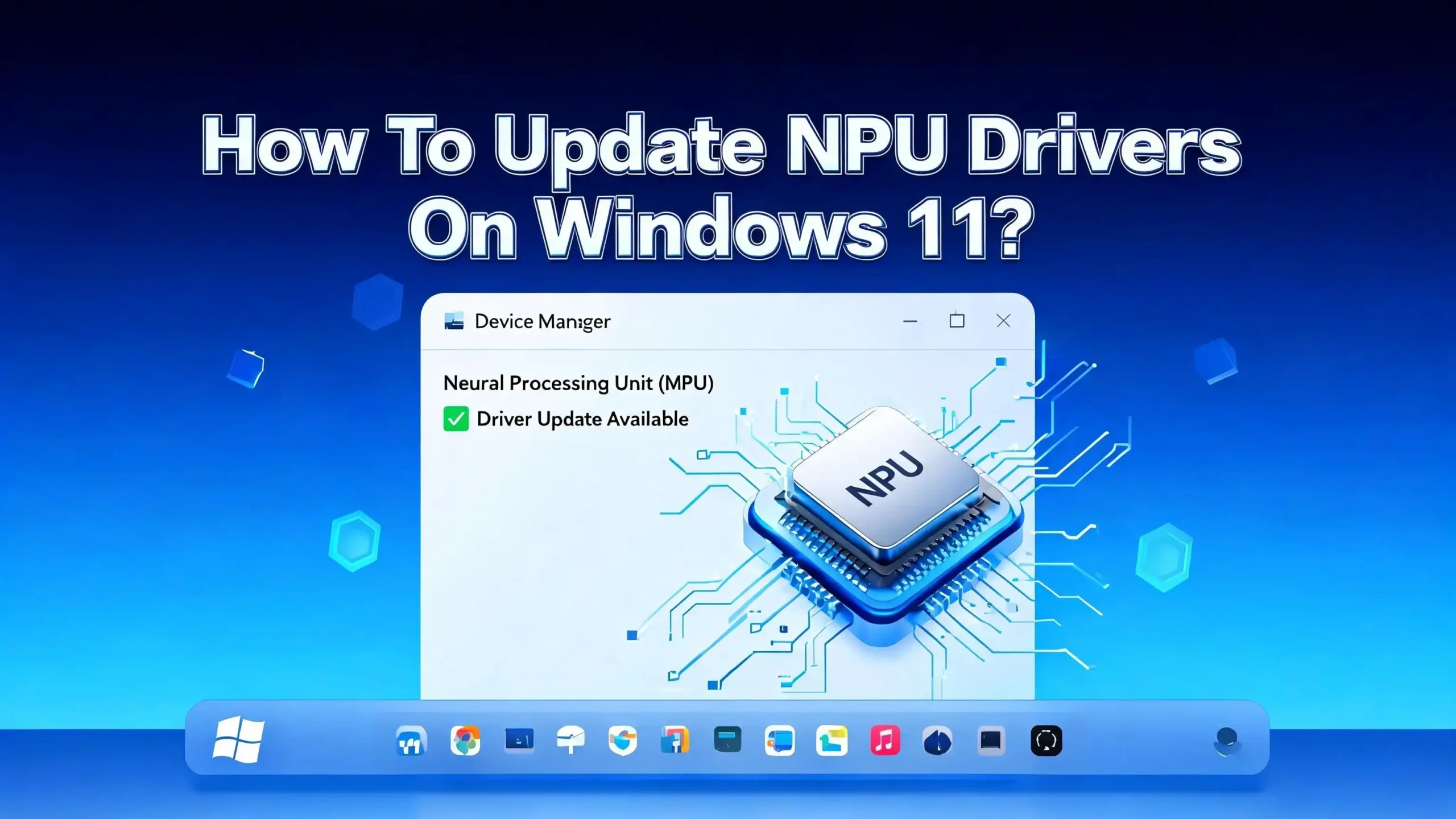
If you don’t see an NPU listed in Task Manager, try Device Manager next. Press Windows + X and select Device Manager from the menu. Look for a category called “Neural processors” in the device list. Expand it to see your NPU model. If this category does not exist, check under “System devices” for entries mentioning NPU, AI, or neural processing.
You can also check through System Information. Press Windows + R, type msinfo32, and press Enter. Browse the System Summary and Components sections for any mention of a neural processor.
If none of these methods reveal an NPU, your processor likely does not include one. You can verify this by looking up your exact processor model on the manufacturer’s website. Intel’s ARK database, AMD’s product pages, and Qualcomm’s spec sheets all list whether a chip has an NPU.
How To Check Your Current NPU Driver Version
Knowing your current driver version helps you determine if an update is available. It also helps with troubleshooting if something goes wrong after an update. The process takes just a few clicks.
Open Device Manager by pressing Windows + X and selecting it from the menu. Find and expand the “Neural processors” category. Right click on your NPU device and select “Properties.” Click the “Driver” tab in the window that opens.
This tab shows important details including the driver provider, driver date, driver version, and digital signer. Write down or take a screenshot of the driver version number. You will need this to compare against the latest version available from the manufacturer.
For Intel Core Ultra NPUs, the driver provider will typically show “Intel Corporation.” The version number follows a format like 32.0.100.xxxx. For Qualcomm Snapdragon NPUs, you might see “Qualcomm Technologies” as the provider. AMD Ryzen AI NPUs will show “Advanced Micro Devices” or similar.
You can also check via PowerShell for a more detailed view. Open PowerShell as administrator and run the command: Get-WmiObject Win32_PnPSignedDriver | Where-Object { $_.DeviceName -like “*NPU*” }. This returns driver information directly in your terminal.
Compare your installed version against the latest version listed on the manufacturer’s driver download page. If your version is older, it’s time to update.
How To Update NPU Drivers Using Windows Update
The simplest and safest method to update your NPU driver is through Windows Update. Microsoft works with hardware manufacturers to certify and distribute driver updates. These drivers have passed compatibility testing with Windows 11.
Open Settings by pressing Windows + I. Click on “Windows Update” in the left menu. Click the “Check for updates” button. Windows will scan for all available updates, including driver updates for your NPU.
Sometimes NPU drivers appear under optional updates instead of the main update list. After checking for updates, look for a link that says “Advanced options.” Click it, then click “Optional updates.” Expand the “Driver updates” section. If an NPU driver update is available, you will see it listed here.
Check the box next to the NPU driver and click “Download & install.” Windows will download the driver package and install it. You may need to restart your PC for the changes to take effect.
This method has a major advantage: Microsoft has tested the driver for stability. It is less likely to cause system problems compared to manually downloaded drivers. The downside is that Windows Update can lag behind. Manufacturers may release a new driver weeks or even months before it appears in Windows Update.
If you need the latest driver immediately, use one of the manual methods described in the sections below. But for most users, Windows Update provides a reliable and hassle free experience for keeping NPU drivers current.
How To Update NPU Drivers Through Device Manager
Device Manager gives you direct control over driver updates for specific hardware. This method is useful when Windows Update does not show a new driver or when you want to install a driver file you downloaded manually.
Press Windows + X and click “Device Manager.” Expand the “Neural processors” category. Right click your NPU and select “Update driver.” You will see two options.
The first option is “Search automatically for drivers.” Windows will look online and in its local driver store for a newer version. If it finds one, it will install it automatically. This method is quick but may not always find the very latest driver. Click this option first as it is the easiest approach.
The second option is “Browse my computer for drivers.” Use this when you have already downloaded a driver package from the manufacturer’s website. Click “Browse” and point it to the folder where you extracted the driver files. Windows will scan that folder, find the correct driver, and install it.
After installation, Device Manager may ask you to restart your PC. Always restart when prompted. A driver installation is not fully complete until the system reboots and loads the new driver into memory.
If Device Manager says “The best drivers for your device are already installed,” this does not always mean you have the latest version. It simply means Windows could not find anything newer in its current search scope. Check the manufacturer’s website directly to confirm whether a newer driver exists.
How To Update Intel NPU Drivers Manually
Intel provides a dedicated tool and a direct download page for updating NPU drivers on Core Ultra processors. Both methods are reliable and give you access to the newest drivers before they reach Windows Update.
Intel Driver & Support Assistant (DSA) is a free tool that scans your system and identifies all Intel components that need driver updates. Download it from Intel’s official support website. Install and run it. The tool opens in your web browser and lists all available updates. Look for entries related to “Intel AI Boost” or “NPU Driver” in the results.
Click the download button next to the NPU driver update. Run the downloaded installer. Follow the on screen instructions. The installer handles everything, including removing the old driver and installing the new one. Restart your PC when prompted.
If you prefer manual downloads without installing DSA, visit Intel’s download center at downloadcenter.intel.com. Search for “NPU driver” or “AI Boost driver.” Select the latest version that matches your processor generation and Windows 11 version. Download the ZIP or EXE file.
For ZIP files, extract the contents to a folder. Then use the Device Manager “Browse my computer for drivers” method described in the previous section to install it. For EXE files, simply double click and follow the prompts.
Intel often releases NPU driver updates alongside major Windows 11 feature updates. Check Intel’s website monthly or subscribe to their driver update notifications to stay current. Each release typically includes release notes that explain what changed, what bugs were fixed, and what new features were added.
How To Update Qualcomm NPU Drivers on Snapdragon X PCs
Qualcomm Snapdragon X Elite and X Plus processors power many Copilot+ PCs running Windows 11 on ARM. These chips include the Hexagon NPU, which handles AI tasks for features like Windows Studio Effects and third party AI apps.
Qualcomm NPU driver updates typically come through two channels: Windows Update and your PC manufacturer’s support page. Qualcomm does not offer a universal driver download tool like Intel’s DSA. Instead, OEM partners like Lenovo, HP, Dell, Samsung, and ASUS distribute Qualcomm drivers through their own support websites and update utilities.
Visit your laptop manufacturer’s support page first. Enter your exact model number. Look for driver downloads in the chipset, AI, or NPU category. Download the latest available driver package. Run the installer and follow the prompts. Restart your PC after installation.
Some manufacturers include built in update tools on their laptops. Lenovo has Lenovo Vantage, HP has HP Support Assistant, and Dell has Dell SupportAssist. Open your manufacturer’s app, scan for updates, and install any NPU driver updates it finds.
Windows Update remains a good option for Qualcomm NPU drivers because Microsoft and Qualcomm work closely on ARM Windows support. Check Windows Update and its optional driver updates section regularly.
If you are comfortable with manual installation, you can sometimes find Qualcomm NPU drivers on Microsoft’s Update Catalog at catalog.update.microsoft.com. Search for “Qualcomm NPU” and download the matching package. However, this method is more advanced and typically not needed for most users.
How To Update AMD NPU Drivers on Ryzen AI PCs
AMD includes NPU hardware in its Ryzen AI series processors, starting with the Ryzen 7040 series and expanding with newer generations. These NPUs support AI workloads through the AMD XDNA architecture.
AMD Software: Adrenalin Edition is AMD’s primary driver management tool. It handles GPU drivers and, in newer versions, also manages NPU drivers for Ryzen AI processors. Download it from AMD’s official website at amd.com/en/support. Install and launch it. The tool will detect your hardware and show available driver updates.
If AMD Software does not show your NPU, visit AMD’s driver download page directly. Select your processor model from the product list. Choose Windows 11 as your operating system. Download the chipset and NPU driver package. Run the installer and restart your PC.
AMD also offers a separate NPU driver package for developers and advanced users on their Ryzen AI developer page. This package includes the latest driver along with tools for running AI models on the NPU. You do not need this package for basic driver updates. It is intended for software developers building AI applications.
Your PC manufacturer’s support page is another reliable source. Look for AMD NPU or AI processor driver downloads specific to your laptop model. Manufacturers sometimes bundle NPU drivers with chipset driver packages.
Check AMD’s website at least once every few months for updates. Ryzen AI is a growing platform, and driver improvements can bring significant performance gains for AI tasks. Release notes on AMD’s download page explain what each update includes.
How To Reinstall an NPU Driver From Scratch
Sometimes a driver becomes corrupted or conflicts with other software. In these cases, a clean reinstall can fix the problem. This process removes the existing driver completely and installs a fresh copy.
Open Device Manager and expand “Neural processors.” Right click your NPU and select “Uninstall device.” A confirmation window appears. Check the box that says “Attempt to remove the driver for this device” or “Delete the driver software for this device.” Click Uninstall.
Your NPU will disappear from Device Manager. Do not panic. This is expected. The hardware is still physically present. It simply has no driver loaded.
Now restart your PC. After restarting, Windows 11 will attempt to automatically detect the NPU and install a default driver from its built in driver store. Check Device Manager again to see if the NPU reappears under Neural processors.
If Windows installs an older driver automatically, update it using any of the methods described earlier in this guide. Use Windows Update, Device Manager’s update function, or a manually downloaded driver from the manufacturer.
For a more thorough clean install, download the latest driver from the manufacturer’s website before uninstalling the old one. Save it to your desktop or a known folder. Uninstall the old driver, restart, then immediately run the new driver installer. This minimizes the time your NPU runs without an optimal driver.
Clean reinstallation fixes many issues including performance drops after Windows updates, error messages about the NPU, and AI features that stopped working suddenly.
How To Roll Back an NPU Driver Update
A new driver can sometimes introduce bugs or performance problems. If your NPU worked fine before the update but now causes issues, rolling back to the previous driver is the fastest fix.
Open Device Manager and expand “Neural processors.” Right click your NPU and select “Properties.” Go to the “Driver” tab. Click the “Roll Back Driver” button.
Windows will ask you why you want to roll back. Select the reason that best matches your situation, such as “My apps don’t work with this driver” or “The previous version of the driver seemed more reliable.” Click “Yes” to confirm.
The rollback process takes a few seconds. Windows will restore the previous driver version that was installed before the most recent update. You may need to restart your PC afterward.
If the Roll Back Driver button is grayed out, it means Windows does not have a previous driver version stored. This happens when the old driver files were deleted during a cleanup or when the device has only had one driver installed. In this case, you need to manually download the older driver version from the manufacturer’s website and install it using the Device Manager browse method.
After rolling back, pause Windows Update temporarily if you suspect it will reinstall the problematic driver. Go to Settings, Windows Update, and click “Pause updates” for one or two weeks. This gives the manufacturer time to release a fixed version.
Troubleshooting Common NPU Driver Problems
NPU driver issues show up in several ways. AI features may disappear from Windows settings. Apps that use the NPU may crash. Task Manager may show the NPU at 0% usage even during AI tasks. Here are solutions for the most common problems.
Problem: NPU does not appear in Device Manager. First, check if your processor actually has an NPU by looking up its specifications. If it does, open Device Manager and click “View” then “Show hidden devices.” The NPU might appear as a hidden or disabled device. Right click it and select “Enable device.” If it still does not appear, try scanning for hardware changes from the Action menu.
Problem: NPU driver installation fails. Run the installer as administrator. Right click the installer file and select “Run as administrator.” Also check that your Windows 11 version meets the driver’s requirements. Some NPU drivers require version 24H2 or later. Update Windows first, then try the driver installation again.
Problem: AI features are missing after a driver update. Some features require specific NPU performance levels. Open Settings, go to System, then “About” to verify your system meets the hardware requirements. Also confirm the feature is available in your Windows edition and region.
Problem: NPU shows errors in Device Manager. A yellow triangle icon means something is wrong. Double click the device to see the error code. Code 43 means the device reported a problem. Code 31 means Windows cannot load the driver. For both errors, try uninstalling and reinstalling the driver using the clean reinstall method described above.
Problem: Performance is worse after updating. Roll back the driver as described in the previous section. Report the issue on the manufacturer’s community forum so they can investigate.
Best Practices for Keeping NPU Drivers Updated
Maintaining your NPU driver does not require daily attention, but following a few good habits ensures your PC stays in top shape for AI workloads.
Create a system restore point before major driver updates. Open the Start menu, search for “Create a restore point,” and open it. Click “Create” and give it a name like “Before NPU driver update.” If the new driver causes problems, you can restore your entire system to this point.
Enable automatic driver updates in Windows Update for convenience. Go to Settings, Windows Update, Advanced options, and make sure optional updates are set to download. This way, you receive certified NPU drivers as soon as Microsoft approves them.
Check manufacturer tools monthly. Intel DSA, AMD Software, and OEM update utilities scan for the latest drivers and notify you of available updates. Running these tools once a month takes only a few minutes and keeps all your drivers current.
Read release notes before installing a new driver. Manufacturers publish notes that explain what changed. If the update only fixes a bug that does not affect you, you may choose to wait. If it improves performance for apps you use, install it right away.
Back up your current working driver before updating. Use a tool like Double Driver or DriverBackup to export your current driver files. If the new version causes issues and the rollback option is unavailable, you can reinstall your backup copy manually.
Avoid downloading drivers from unofficial websites. Always use the manufacturer’s official pages or Windows Update. Third party driver download sites often bundle unwanted software or distribute outdated files. Stick to Intel, AMD, Qualcomm, and your PC maker’s official support channels.
Frequently Asked Questions
What is an NPU driver and why do I need to update it?
An NPU driver is software that allows your Neural Processing Unit to communicate with Windows 11. You need to update it because new versions fix bugs, improve AI task performance, and add support for new Windows features. Without the correct driver, your NPU cannot function properly, and AI features on your PC may stop working or never appear in the first place.
How often should I update my NPU driver?
Check for updates once a month. Manufacturers release new NPU drivers every few weeks to few months depending on the platform. You do not need to update immediately every time, but staying within one or two versions of the latest release is a good practice. Critical security or stability fixes should be installed as soon as possible.
Can I update my NPU driver if I don’t see “Neural processors” in Device Manager?
If your processor includes an NPU but it does not appear in Device Manager, the driver may be missing entirely. Download the correct driver from your PC manufacturer’s website or the chip maker’s support page. Install it manually. The device should appear in Device Manager after installation and a restart.
Will updating my NPU driver improve AI performance on my PC?
Yes, in most cases. Driver updates often include performance optimizations for AI workloads. They can make features like Windows Studio Effects, live captions, and AI powered image editing run faster and more smoothly. The improvement depends on what changes the manufacturer included in the update.
Is it safe to use third party tools to update NPU drivers?
It is best to avoid third party driver update tools. Many of them are unreliable, bundle unwanted software, or install incorrect driver versions. Use official tools like Intel Driver & Support Assistant, AMD Software, your PC manufacturer’s update utility, or Windows Update. These sources provide verified and tested drivers for your specific hardware.
What should I do if my NPU stops working after a driver update?
Open Device Manager, right click your NPU, and select Roll Back Driver from the Driver tab. This restores the previous working version. If rollback is not available, uninstall the device with the option to delete driver files, restart your PC, and install a known good driver version from the manufacturer’s website.

Hi, I’m Lily — a tech enthusiast and the voice behind SmartResizerr.com. I love testing gadgets, breaking down specs into plain English, and helping everyday people find the right tech without the overwhelm.