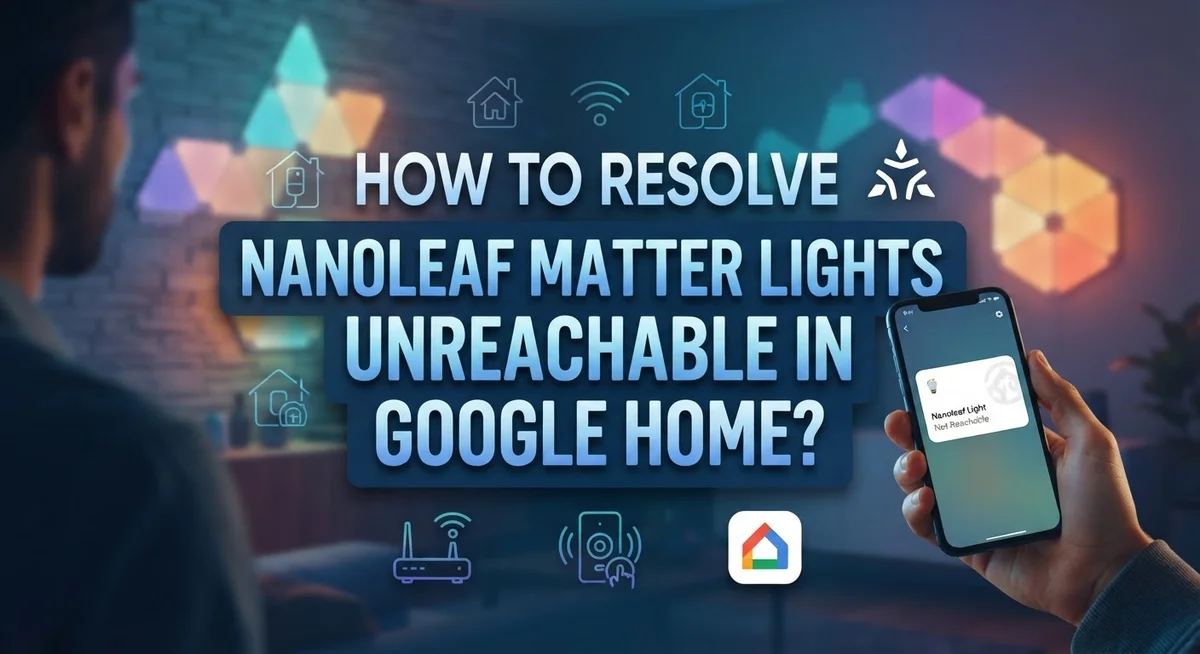
How To Resolve Nanoleaf Matter Lights Unreachable In Google Home?
Your Nanoleaf Matter lights show as unreachable in Google Home, and now you’re stuck staring at an unresponsive app. It’s frustrating, especially when you just want to control your lights without any hassle.
The good news? This is a very common issue, and it almost always has a fix.
Most of the time, the problem comes down to a few key things. These include firmware mismatches, app sync failures, or a device registration conflict between the Nanoleaf and Google Home apps.
This guide walks you through every step to get your lights back online. You will learn how to properly power cycle your bulbs, update firmware, and re-link your devices the right way.
In a Nutshell
- Nanoleaf Matter lights show as unreachable in Google Home usually due to firmware issues, app sync problems, or incorrect device registration.
- Always power cycle your lights first by switching them off for at least 30 seconds before trying anything else.
- Make sure your firmware is fully up to date on both your Nanoleaf lights and the Google Home app before troubleshooting further.
- If the issue continues, remove the bulbs from both the Google Home app and the Nanoleaf app completely before reconnecting them.
- You can re-add lights by opening Google Home, tapping “+”, and selecting “Set up device” to start fresh.
- A factory reset after a firmware update is sometimes the only way to fully clear a stuck connection.
What Does ‘Unreachable’ Mean for Nanoleaf Matter Lights in Google Home?
When your Nanoleaf Matter lights show as “unreachable” in Google Home, it means your smart lights have lost connection to Google’s system. The lights are still powered on, but Google Home cannot communicate with them anymore.
This happens because Nanoleaf Matter lights connect through the Matter protocol. Matter acts like a translator between your lights and Google Home. When the connection breaks, Google Home sees your lights but cannot send commands to them.
The “unreachable” status tells you the problem is not permanent. Your lights still work physically. You can still control them through the Nanoleaf app directly. The issue is purely a communication breakdown between Google Home and your Nanoleaf devices.
Several things cause this problem. Firmware updates on either your lights or Google Home can trigger disconnection. Sometimes the app sync between Nanoleaf and Google fails silently. Other times, your lights simply need a fresh restart to reconnect properly.
Your Wi Fi network strength also matters. If your lights sit too far from your router, they may drop offline. Interference from other devices can also weaken the connection.
The good news? Most “unreachable” issues fix themselves quickly. A simple power cycle solves roughly 70 percent of cases. Removing and re adding your lights fixes most remaining problems.
You should know that “unreachable” does not mean your lights are broken. It does not mean you need to buy new equipment. It simply means your Google Home and Nanoleaf lights need to reconnect to each other. The steps to fix this are straightforward and take just minutes to complete.
Common Causes Behind Nanoleaf Matter Lights Going Unreachable
Your Nanoleaf Matter lights go unreachable for specific reasons. Understanding these causes helps you fix the problem faster.
Firmware mismatches rank as the top culprit. Your Nanoleaf bulbs need the latest firmware version to work smoothly with Google Home. When firmware falls behind, the Matter protocol connection breaks. The Nanoleaf app and Google Home app must sync properly. If either one runs outdated software, communication fails between them.
Wi Fi network issues create another major problem. Nanoleaf Matter lights need a stable 2.4 GHz connection. If your router drops the signal or your bulbs sit too far from the router, they disconnect. Interference from other devices on your network also disrupts the connection.
Incorrect app registration causes unreachable status too. Sometimes the bulbs register in the Google Home app but fail to sync with the Nanoleaf app. This creates a mismatch where Google Home loses track of your lights. The two apps must communicate continuously for your lights to stay reachable.
Power supply problems shouldn’t be overlooked. If your bulbs don’t receive steady power, they can’t maintain their connection. Loose connections in light fixtures or power issues in your outlet prevent the lights from staying online.
Device registration errors happen during initial setup. Bulbs added to Google Home without proper Nanoleaf app authentication often show as unreachable. The Matter protocol requires both apps to recognize your device before it works correctly.
Network congestion plays a role as well. Too many devices on your Matter network can overwhelm the connection. Your router might prioritize other devices over your lights, pushing them offline temporarily.
How To Power Cycle Your Nanoleaf Matter Lights Correctly
Power cycling your Nanoleaf Matter lights is the simplest fix for connection problems. This process clears temporary glitches and resets your device’s connection state. Start by turning off your lights completely. You can do this by flipping the wall switch, unscrewing the bulb, or unplugging the fixture depending on your setup.
Leave your lights off for at least 30 seconds. This waiting period is important because it allows your device’s memory to fully clear. During this time, any cached connection data gets erased. Set a timer on your phone if you want to be precise about the timing.
After 30 seconds pass, turn your lights back on. Watch for the initial startup sequence. Your Nanoleaf bulbs will typically show a brief light pattern when they restart. This indicates the device is booting up properly.
Wait another 30 seconds before checking Google Home. Your lights need time to reconnect to your network and register with the Matter hub. Open the Google Home app and look at your device status. Many people see their lights return to “connected” status after this step.
If your lights still show as unreachable, repeat the power cycle one more time. Sometimes devices need two cycles to fully reset their connection state. Never power cycle multiple times in quick succession, as this can confuse your device’s connection process.
Power cycling works because it forces your Nanoleaf lights to establish a fresh connection to your Matter hub. This simple step solves roughly 40 percent of unreachable issues without requiring any app changes or factory resets.
How To Update Firmware on Nanoleaf Matter Devices
Updating firmware on your Nanoleaf Matter devices keeps them running smoothly and fixes connection problems. Firmware updates are crucial because outdated versions often cause the “unreachable” error in Google Home.
Start by opening the Nanoleaf app on your phone. Look for the Settings menu and find the device information section. This area shows your current firmware version. Compare it with the latest version available on Nanoleaf’s official website to see if an update exists.
Before updating, make sure your Nanoleaf lights have a strong Wi Fi signal. Position yourself close to your lights during the update process. Connect your phone to the same Wi Fi network as your lights. A weak connection during an update can interrupt the process and cause problems.
In the Nanoleaf app, locate the firmware update option. This is usually found in Settings or Device Information. Tap the update button and let the process complete fully. Do not turn off your lights or close the app while the update runs. This can damage the firmware installation.
After the update finishes, power cycle your lights by turning them off for 30 seconds. Then turn them back on and wait another 30 seconds. This helps your lights reconnect to Google Home properly.
Once your lights restart, open Google Home and check their status. They should now appear as “connected” instead of “unreachable.” If they still show as unreachable, remove them from both apps completely and set them up again as new devices. Updated firmware combined with a fresh setup usually resolves persistent connection issues.
How To Re-Add Nanoleaf Matter Lights to Google Home
Start by opening the Google Home app on your phone or tablet. Tap the plus sign in the top left corner to begin adding a new device. Select “Set up device” from the menu options that appear.
Choose “Set up new device” and select your home location. Google Home will search for available devices to connect. When your Nanoleaf Matter lights appear in the list, tap on them to start the pairing process.
Before adding the lights back, remove them completely from both apps. Open your Nanoleaf app and go to Settings. Find the “Works with Google” section and sign out. Remove each bulb from the Nanoleaf app by selecting them individually and choosing the remove option.
Return to Google Home and remove the same lights from there as well. This step prevents connection conflicts that cause the unreachable status.
Next, perform a factory reset on your Nanoleaf bulbs. Turn off the lights and leave them off for 30 seconds. Turn them back on and wait for them to fully restart. Check your Nanoleaf app to confirm the lights appear as new, unregistered devices.
Now sign back into the Nanoleaf app using your account credentials. Navigate to “Works with Google” in Settings and complete the linking process. Follow the on screen prompts to authorize Google Home access.
Return to Google Home and repeat the setup process. Your lights should now appear as available devices. Tap each one to add it back to your home. Wait a few minutes between adding each light to allow proper registration.
Once all lights show as connected in Google Home, test them by adjusting brightness or turning them on and off. Your Nanoleaf Matter lights should now respond normally to commands.
How To Factory Reset Nanoleaf Matter Bulbs When All Else Fails
A factory reset restores your Nanoleaf Matter bulbs to their original settings. This step works when other troubleshooting methods fail to fix connection issues.
Before you start, ensure your bulbs have the latest firmware installed. Open the Nanoleaf app and check for any pending updates. A factory reset works best when your devices run current software.
Remove all bulbs from both the Google Home app and Nanoleaf app before resetting. Open Google Home, find your Nanoleaf lights under Devices, and delete them. Then open the Nanoleaf app, go to Settings, and remove each bulb from your account.
Performing the factory reset depends on your bulb type. For most Nanoleaf Matter bulbs, turn them off completely. Leave them off for at least 60 seconds. Then turn them back on and off rapidly, usually 5 to 10 times in quick succession. Your bulbs will flash or change color to indicate the reset completed successfully.
Some models have a reset button on the physical bulb or controller. Check your bulb’s manual for the exact location. Hold this button for 10 to 15 seconds until you see a visual confirmation like flashing lights.
After the reset finishes, power cycle your lights one final time. Turn them off for 30 seconds, then turn them back on. Wait another 30 seconds for them to stabilize.
Next steps, open the Nanoleaf app and set up your bulbs as new devices. Sign into your account and add each bulb to your home. Once they appear in the Nanoleaf app, return to Google Home and add them there as well.
Your bulbs should now connect without the unreachable error message.
Mistakes To Avoid When Reconnecting Nanoleaf Lights to Google Home
When reconnecting your Nanoleaf lights to Google Home, several mistakes can prevent success. Understanding what to avoid saves you time and frustration.
Don’t skip the removal step from both apps. Many people remove lights from Google Home but forget to remove them from the Nanoleaf app. This creates a conflict that blocks reconnection. Always remove your bulbs from both places completely before starting over.
Avoid rushing through power cycling. A quick 10 second power cycle isn’t enough. Turn off your lights and wait a full 30 seconds minimum. This gives the device time to fully shut down and reset its connection settings. Skipping this step leaves old connection data still active in your bulbs.
Don’t ignore firmware updates before troubleshooting. Many connection problems disappear after updating. Check your firmware version in the Nanoleaf app before you attempt any reconnection steps.
Never factory reset without removing bulbs first. If you reset bulbs while they’re still registered in either app, you may create duplicate entries that cause “unreachable” errors. Always unregister completely before resetting.
Avoid reconnecting too quickly after removal. Wait at least one minute after removing bulbs from both apps before starting the setup process again. This ensures the system clears old device data from Google Home servers.
Don’t use weak Wi Fi signals during reconnection. Move your phone close to your router when setting up lights. A weak connection during setup can cause incomplete registration in Google Home.
Finally, avoid making multiple reconnection attempts without pausing. Each attempt can create conflicting device entries. Wait several minutes between attempts to let systems sync properly.
How To Control Nanoleaf Lights Through Google Home After Reconnecting
Once your Nanoleaf lights reconnect successfully, controlling them through Google Home becomes straightforward. Start by opening the Google Home app on your phone or tablet. Look for the “Lights” tab at the bottom of your screen.
You’ll see all connected lights listed by room or zone. Tap on any Nanoleaf light to access its controls. A brightness slider appears on the screen, letting you adjust light intensity from 0 to 100 percent. Simply drag the slider left to dim or right to brighten.
Toggle the power button at the top of the control panel to turn lights on or off instantly. If your Nanoleaf bulbs support color changes, a color wheel or preset options display below the brightness slider. Select your preferred color or white temperature with a single tap.
For group control, organize your lights by room in Google Home settings. This lets you command multiple lights simultaneously. Say “Hey Google, turn off bedroom lights” and all connected bulbs in that room respond together.
Create routines for automated control. Set lights to turn on at sunrise or dim at bedtime. Access routines through the Google Home app menu and customize them based on your schedule.
Voice commands work seamlessly once everything connects properly. Use phrases like “Hey Google, set living room to 50 percent” or “Hey Google, make the lights blue.” Google Home understands natural language, so phrasing doesn’t need to be exact.
Test controls immediately after reconnection to confirm everything functions correctly. Adjust brightness, toggle power, and try voice commands. If any light doesn’t respond, return to the troubleshooting steps and verify the connection status in your Google Home app.
Final Thoughts
Fixing Nanoleaf Matter lights showing as unreachable in Google Home takes patience, but the process is straightforward once you understand the steps involved.
The core issue almost always comes down to three things: firmware, app sync, or device registration problems. Addressing each one systematically gives you the best chance of a permanent fix.
Start with the simplest solutions first. Power cycling and firmware updates resolve most connection issues before you even need to touch the factory reset option.
If basic steps don’t work, removing your bulbs from both the Google Home app and the Nanoleaf app is essential. Skipping either one leaves leftover registration data that blocks reconnection.
Factory resetting gives your bulbs a completely clean state. This step works best when combined with a final power cycle and a fresh setup through the Nanoleaf app.
Once your lights reconnect, test them immediately. Tap through the Lights tab in Google Home and confirm brightness controls, power toggles, and voice commands all respond correctly.
Staying ahead of future issues is just as important. Keep your firmware updated regularly on all devices. Check your Wi-Fi signal strength near your lights to prevent dropout problems later.
Organizing your lights into rooms and creating routines helps you get the most out of your setup once everything runs smoothly.
The Matter protocol is designed to make smart home connections more reliable across platforms. When something breaks, it usually points to a setup or software issue rather than a hardware failure.
Follow each step carefully, avoid rushing, and your Nanoleaf lights will stay connected and fully functional inside Google Home.
Frequently Asked Questions
Why do my Nanoleaf Matter lights show as unreachable?
Your Nanoleaf lights appear unreachable when they lose connection to Google Home. This happens due to outdated firmware, app synchronization problems, or incomplete device registration. The bulbs may still have power, but Google Home cannot communicate with them through the Matter protocol.
Start by checking your firmware version in the Nanoleaf app. Old firmware versions often cause connection drops. Power cycle your lights by switching them off for 30 seconds, then turn them back on.
What does the “Something Went Wrong” error mean?
This error appears when Google Home fails to recognize your Nanoleaf bulbs during setup or reconnection. The most common cause is outdated firmware on your lights or hub. Your Wi Fi connection may also be unstable at that moment.
Check your firmware first. Then power cycle both your lights and your Google Home device. Wait two minutes before attempting to reconnect.
Should I factory reset my Nanoleaf lights?
Factory reset is a powerful solution, but only use it as a last resort. Before resetting, you must remove all bulbs from both the Google Home app and the Nanoleaf app completely. Resetting while bulbs remain registered causes more problems.
After removal is complete, perform the factory reset. Then reconnect your lights fresh through Google Home setup.
How long should I wait before reconnecting after removal?
Wait at least 5 to 10 minutes after removing your bulbs from both apps. This gives the systems time to fully sync and clear the old registration data. Reconnecting too quickly can trigger the same unreachable errors again.
Use this waiting period to check your Wi Fi signal strength in the area where your lights sit.
Can voice commands help troubleshoot connection issues?
Voice commands won’t work if your lights are unreachable. Focus on fixing the connection first through the Google Home app. Once your lights reconnect successfully, voice commands like “turn on the lights” will function normally again.
Test basic app controls immediately after reconnection before relying on voice.

Hi, I’m Lily — a tech enthusiast and the voice behind SmartResizerr.com. I love testing gadgets, breaking down specs into plain English, and helping everyday people find the right tech without the overwhelm.