How To Fix Smart Pet Feeder Camera Not Connecting To App?
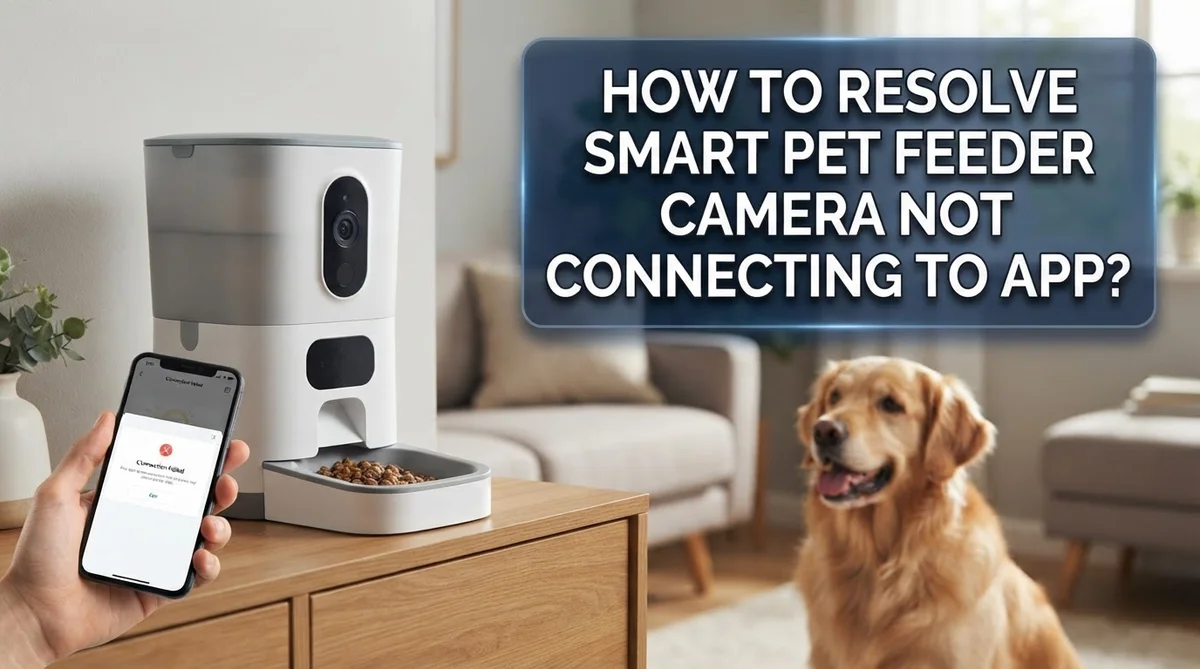
Your smart pet feeder camera stopped connecting to the app, and now you have no idea if your furry friend has been fed. That’s a stressful situation, especially when you’re away from home and relying on the device to keep your pet on schedule.
This is actually a very common problem that many pet owners face. The good news is that most connection issues have simple fixes you can do yourself in just a few minutes.
In this guide, you’ll learn exactly why your smart pet feeder camera loses its app connection. You’ll also get clear, step-by-step solutions that actually work.
We’ll cover everything from basic power cycling and app restarts to network settings and factory resets. Each fix is explained in plain language so anyone can follow along.
In a Nutshell
- Power cycle your feeder first. Unplug it, wait 30 to 45 seconds, then plug it back in. This clears minor glitches fast.
- Restart the app completely. Do not just minimize it. Close it fully and reopen it to refresh the connection.
- Check your Wi-Fi setup. Your feeder only works on a 2.4GHz network. Make sure it is within range and network isolation is turned off.
- Use the reset button if needed. Hold it for 5 seconds to perform a hard reset. A blinking blue light means the feeder is ready to connect.
- Update or reinstall the app. An outdated app version is a surprisingly common cause of connection failures. Delete and reinstall if updates do not help.
- Factory reset as a last resort. Remove the batteries and perform a full reset to start fresh. This usually solves persistent connection problems that nothing else fixes.
Why Your Smart Pet Feeder Camera Loses App Connection
Your smart pet feeder camera loses connection for several specific reasons. Understanding these causes helps you fix the problem faster.
Wi-Fi signal strength is the most common culprit. Your feeder needs a strong 2.4GHz signal to stay connected. If your feeder sits too far from the router, the signal weakens and drops. Walls, metal objects, and other electronics can also block the signal. Move your feeder closer to the router to test if this solves the issue.
Network settings often cause hidden problems. Many home networks use network isolation, which prevents devices from communicating with apps on your phone. Your feeder cannot send data back to the app when this feature is active. You may need to create a separate network just for smart home devices, or disable isolation in your router settings.
Power supply issues are surprisingly common. A loose power adapter or faulty connection means your feeder loses power briefly. This causes it to disconnect from Wi-Fi without you noticing. Check that your adapter is firmly plugged in and the cord shows no damage.
Outdated app versions create compatibility problems. Your app and feeder firmware must work together. An older app version cannot communicate with a newer feeder, or vice versa. This mismatch prevents connection even when everything else works fine.
Temporary software glitches happen regularly. Your feeder’s internal software can freeze or get confused. The app on your phone can also develop minor bugs. These glitches prevent the two devices from recognizing each other, even though both devices are working normally.
Before You Begin: Essential Pre-Checks
Before you start troubleshooting, take a few minutes to check the basics. These simple steps often solve connection problems without needing advanced fixes.
First, verify your power connection. Check that the power adapter is fully plugged into both the wall outlet and the feeder itself. Look for any loose cables or damaged cords. A feeder without proper power cannot connect to your app, no matter what else you try.
Next, confirm your Wi-Fi setup. Your smart pet feeder only works on 2.4GHz networks, not 5GHz. Many modern routers broadcast both frequencies. Log into your router settings and check which band your feeder is connecting to. If it’s on 5GHz, you’ll need to switch it to 2.4GHz or create a separate 2.4GHz network.
Check the feeder’s location. Make sure your feeder sits within reasonable Wi-Fi range of your router. Walls, metal objects, and distance all weaken signals. If your feeder is in a garage or far corner of your home, try moving it closer to your router temporarily to test the connection.
Update your app version. Open your app store and check if updates are available. An outdated app version frequently causes connection failures. Install any pending updates before proceeding with other fixes.
Look at the indicator light. A blinking blue light on your feeder means it’s trying to connect. No light at all suggests a power issue. A steady light means it’s already connected.
These pre-checks take just five minutes but catch most common problems. You’ll save significant time by confirming these basics first.
How To Power Cycle Your Smart Pet Feeder
A power cycle is your first line of defense when your smart pet feeder camera stops responding to the app. This simple process refreshes the feeder’s internal systems and clears temporary glitches that block connection.
Here’s exactly how to do it: Locate the power adapter connected to your feeder. Unplug it completely from the wall outlet. Wait between 30 to 45 seconds. This waiting period is crucial because it allows the feeder’s internal memory to fully discharge.
After the wait time passes, plug the adapter back into the wall outlet. The feeder will power on again. You should see lights illuminate on the device, indicating power has returned successfully.
Why this works: Power cycling forces your feeder to restart from scratch. It clears any stuck processes or connection errors that prevent communication with your app. Think of it like rebooting a computer when things freeze up.
Important timing note: Do not skip or shorten the waiting period. Some users plug the feeder back in after just 10 or 15 seconds, but this isn’t long enough. The full 30 to 45 seconds ensures a complete reset happens.
Next steps after power cycling: Once your feeder powers back on, open your app and check if the connection restores. Give it about 30 seconds to establish connection. If you still see a connection error, the feeder may need additional troubleshooting steps beyond this basic power cycle.
Most connection problems resolve with just this single action, so try it before moving to more complex solutions.
How To Reset Your Smart Pet Feeder Camera
A hard reset clears temporary connection problems without erasing your feeder’s settings. This method works when power cycling alone doesn’t fix your camera connection issue.
Locate the reset button on your feeder. Most models have a small reset button on the back or bottom panel. Some feeders use a tiny reboot hole instead of a button. You’ll need a straightened paperclip or pin to access these holes.
Press and hold the reset button for 5 seconds. Use steady pressure without jamming the button. Count slowly to five to ensure you hold it long enough. The feeder may beep or flash lights during this process. This is normal behavior.
For pin access models, insert the pin straight into the reboot hole. Push gently until you feel slight resistance. Hold the pin in place for exactly 5 seconds. Remove the pin slowly and wait for the feeder to respond.
Wait 30 seconds after releasing the button or pin. Your feeder needs time to restart its internal systems. Don’t unplug or touch the device during this waiting period.
Check the indicator light on your feeder. A blinking blue light means the reset worked. Your feeder is now ready to reconnect to your app.
Open your app and attempt reconnection. The feeder should appear as a new device available to connect. Follow your app’s pairing instructions to restore the connection.
A hard reset is gentler than a factory reset because it preserves your existing settings and schedules. If your camera still won’t connect after a hard reset, then you can consider more advanced troubleshooting steps or a factory reset.
Fixing Wi-Fi and Network Configuration Issues
Your Wi-Fi network setup plays a critical role in getting your smart pet feeder connected. Many connection failures happen because of network configuration issues rather than feeder problems.
Start by checking your router’s frequency band. Your feeder needs a 2.4GHz network to work properly. Some routers broadcast both 2.4GHz and 5GHz signals at the same time. Your feeder cannot connect to 5GHz bands, so verify your router is transmitting on 2.4GHz. If you only have a 5GHz network available, you’ll need to enable the 2.4GHz band in your router settings.
Next, check if network isolation is turned on. Some routers have a security feature that prevents devices from communicating with each other. This feature blocks your feeder from connecting to your app even when both are on the same network. Look for settings labeled “AP Isolation,” “Client Isolation,” or “Network Isolation” in your router menu. Disable this feature if it’s active.
Consider creating a separate network for your smart devices. If your router supports it, set up a dedicated IoT network just for your feeder and other smart home devices. This keeps your main devices separate and often improves connection stability. Make sure network isolation is disabled on this IoT network.
Enable Enhanced IoT Connectivity if available. Some routers have special settings designed to help smart home devices connect more easily. Check your router’s advanced settings menu for this option and turn it on.
If problems continue after adjusting these settings, restart your router completely. Unplug it for 30 seconds, then plug it back in. This refreshes your entire network and often resolves stubborn connection issues.
How To Troubleshoot and Reinstall the App
When your app won’t connect to your pet feeder camera, reinstalling the app often solves the problem. Start by fully closing the app on your device. Don’t just minimize it. Swipe it away from your recent apps list or force close it completely from your device settings.
Next, delete the app entirely from your device. Go to your app store and search for the app. Select the option to uninstall or remove it. Wait about 30 seconds before taking the next step.
Now download the app fresh from your app store. Install it like you would any new app. Once installed, open it and sign in with your account credentials. The app should now have a clean start without any corrupted files or outdated code.
Before reconnecting, check that your smart pet feeder is powered on. Look for the indicator light. A blinking blue light shows the feeder is ready to pair. If you don’t see any light, verify the power adapter is firmly connected to both the wall outlet and the feeder.
Make sure your feeder is within Wi-Fi range of your router. Most smart feeders work best when they’re within 30 feet of the router. Move closer if needed during setup.
Update your app to the latest version if you already have it installed. App developers release updates to fix connection bugs. Go to your app store and check for available updates.
If problems persist after reinstalling, perform a hard reset on your feeder. Hold the reset button for 5 seconds, then wait 30 seconds. This clears temporary glitches while keeping your settings intact. Then try the app connection process again from the beginning.
Common Mistakes That Prevent a Successful Reconnection
Many connection problems come from simple mistakes that are easy to fix. Understanding these errors helps you reconnect your smart pet feeder camera quickly.
Insufficient power cycling is the most common error. People unplug their feeder for only 10 to 15 seconds, then plug it back in. Your feeder needs 30 to 45 seconds of complete power disconnection to clear its memory properly. This longer wait allows the device to fully shut down and restart fresh.
Not closing your app completely causes persistent connection failures. Simply tapping the home button doesn’t close the app. You must swipe it away from your recent apps list or force close it entirely. Then wait 10 seconds before reopening it.
Feeder placement matters more than you think. Many people assume their feeder works anywhere in the house. Your feeder must stay within direct Wi-Fi range of your router. Thick walls, metal objects, and distance all weaken your signal strength.
Using an outdated app version prevents successful reconnection. The app store may not automatically update your app. Check your app store settings to confirm you have the latest version installed. Older versions often lack bug fixes that enable proper connections.
Improper reset button technique creates frustration. Jamming the button too hard or holding it for wrong durations confuses the device. Press and hold with steady, gentle pressure for exactly 5 seconds. For pin access models, insert the pin straight without forcing it.
Skipping the Wi-Fi range check wastes your time troubleshooting. Before attempting any fixes, verify your feeder sits close enough to receive your router’s signal. Move your feeder closer to your router temporarily to test connectivity.
How To Verify Your Feeder Camera Is Properly Connected
Before you troubleshoot further, you need to confirm your feeder camera actually has power and is attempting to connect. This verification step saves time and prevents unnecessary resets.
Start by checking the power adapter. Make sure the cord is firmly plugged into both the feeder and the wall outlet. If you’re using batteries as a backup power source, verify they have charge remaining. A feeder without adequate power won’t communicate with your app, no matter what else you try.
Next, look at the indicator light on your feeder. This small light tells you the device’s current status. A blinking blue light means your feeder is actively trying to connect to your network. A solid red light typically indicates a connection problem. If you see no light at all, your feeder likely lacks power.
Check your feeder’s physical location. The device must be within your Wi-Fi router’s range. Distance matters significantly. Walls and obstacles between your router and feeder can weaken the signal. If your feeder sits too far away, move it closer to your router temporarily to test the connection.
Clean the camera lens with a dry cloth. Dust or pet hair on the lens won’t prevent connection, but it will affect video quality once you reconnect.
Finally, verify your app is fully updated. Open your device’s app store and search for your feeder’s app. If an update is available, install it before attempting any connection steps. An outdated app version creates compatibility issues that prevent successful pairing with your feeder hardware.
Final Thoughts
Getting your smart pet feeder camera to connect to your app can feel frustrating, but most problems have simple solutions.
The key is to work through each fix systematically. Start with the basics like power cycling and checking your Wi-Fi range before moving to more advanced steps.
Power cycling, resetting, and reinstalling the app solve the majority of connection issues. These steps take only a few minutes and require no technical knowledge.
Your network setup matters more than most people realize. A 2.4GHz connection, disabled network isolation, and a stable router create the best environment for your feeder to stay connected.
Always check the indicator light on your feeder. A blinking blue light tells you the device is actively trying to connect. No light usually means a power issue that needs to be addressed first.
Don’t skip the small details. Closing your app completely, keeping it updated, and placing your feeder within strong Wi-Fi range are easy wins that prevent unnecessary frustration.
If basic troubleshooting doesn’t work, a factory reset is your next best option. It clears any corrupted settings and gives your feeder a clean start for reconnection.
Patience and a step-by-step approach will get your feeder camera back online. Jumping between random fixes without a clear process usually makes things take longer.
Your pet depends on this device for feeding, so keeping it connected is a real priority. Once you identify the root cause, future connection issues become much easier to handle quickly.
With the right steps, your smart pet feeder camera will be back up and running smoothly in no time.
Frequently Asked Questions
Why does my feeder camera show a blinking blue light but won’t connect to the app?
A blinking blue light means your feeder is trying to connect. This usually happens when the app isn’t communicating properly with the device. Close your app completely and reopen it fresh. If that doesn’t work, unplug the feeder for 30 to 45 seconds, then plug it back in. The feeder needs time to reset its connection.
Make sure your phone is on the same Wi-Fi network as your feeder. Sometimes your phone connects to a different network without you noticing. Check your phone’s Wi-Fi settings to confirm.
Should I do a hard reset or factory reset first?
Start with a hard reset before trying a factory reset. A hard reset is gentler and fixes most connection issues. Hold the reset button for 5 seconds until you see the light change. For models with a reboot hole, use a pin to press it for 5 seconds.
Only do a factory reset if the hard reset doesn’t work. A factory reset removes all your settings and requires you to set up the feeder again from scratch. Remove the batteries, wait a minute, then reinsert them to perform a full factory reset.
Why does my feeder keep disconnecting from Wi-Fi?
Your feeder may be too far from your router. Move it closer and try reconnecting. Walls, metal objects, and other devices can block the signal.
Another common cause is network isolation settings. Some routers separate IoT devices from your main network. Disable network isolation in your router settings to let your feeder stay connected.
What should I check if nothing else works?
Verify your power adapter is plugged in securely. A loose connection stops the feeder from working properly. Check that your app is the latest version by visiting your app store.
If issues continue, delete the app completely and reinstall it fresh. This removes any corrupted files that might prevent connection.

Hi, I’m Lily — a tech enthusiast and the voice behind SmartResizerr.com. I love testing gadgets, breaking down specs into plain English, and helping everyday people find the right tech without the overwhelm.