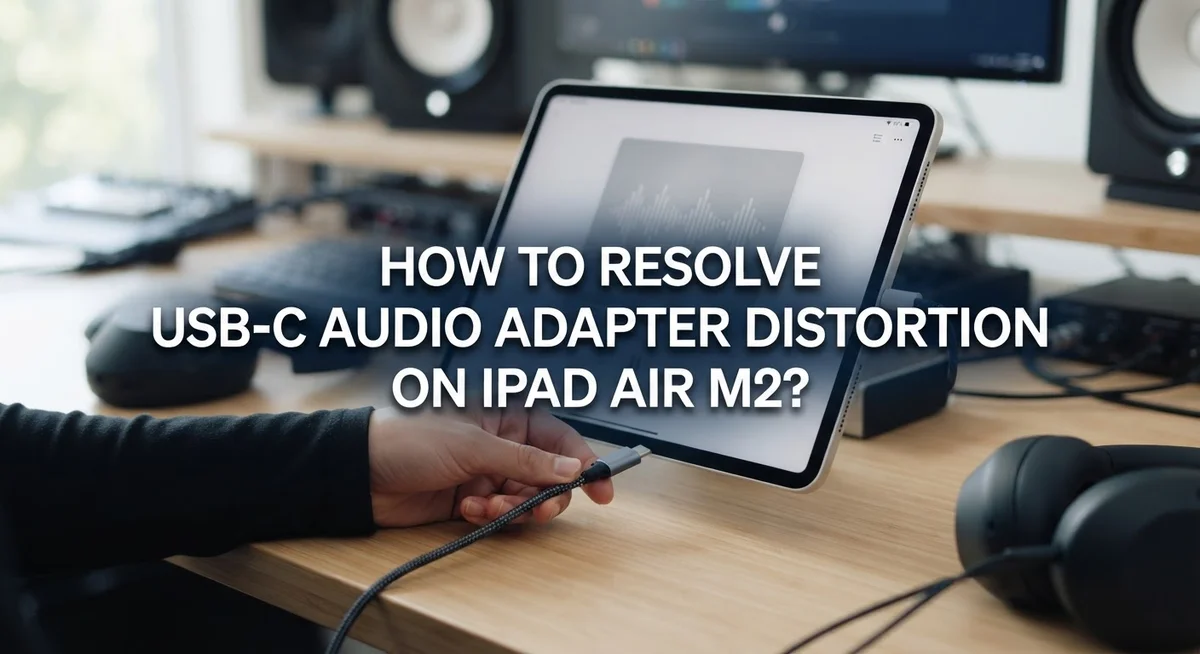
How To Resolve USB-C Audio Adapter Distortion On iPad Air M2?
Does your iPad Air M2 sound crackly or distorted through a USB-C audio adapter? You are not alone.
Many iPad Air M2 users notice strange buzzing or crackling sounds. This happens right after connecting headphones or speakers through a USB-C adapter.
The good news is that this problem is usually fixable. It rarely means your device is broken.
Sometimes a recent iPadOS update causes the trouble too. Your adapter might also lack the power it needs to work smoothly with your iPad.
This guide walks you through every fix, step by step. You will learn how to adjust key sound settings on your iPad.
Let’s get your sound back to normal.
In a Nutshell
- Turn off “Reduce Loud Sounds”. Go to Settings > Sounds & Haptics and disable this feature. It often causes unwanted audio changes.
- Check your adapter type. Genuine Apple adapters work best with your iPad Air M2. Third party adapters can cause power and connection issues.
- Update your iPadOS. Make sure your software is current. If distortion started right after an update, consider rolling back to the previous version.
- Use a powered adapter. Powered USB-C adapters reduce interference and ground loop problems. This is especially true for high impedance headphones or speakers.
- Skip the Y-cable splitters. These cables increase your risk of ground loop noise. Stick to a single, direct connection instead.
- Restart your device first. Many audio cutouts come from simple connection glitches. A quick restart often clears these up.
Understanding Why USB-C Audio Distortion Happens
USB-C audio distortion on your iPad Air M2 happens for specific reasons. Understanding these causes helps you fix the problem faster.
Ground loop interference is the main culprit. Your iPad connects to power, your audio adapter, and possibly other devices. These connections create electrical loops that produce buzzing or crackling sounds. USB-C ports are particularly sensitive to this issue because they carry both power and data signals simultaneously.
Software settings also cause distortion. Your iPad has audio protection features that sometimes degrade sound quality. These settings activate automatically to prevent hearing damage, but they can make your audio sound compressed or unclear.
Adapter compatibility matters greatly. Non-genuine adapters often lack proper shielding and electrical components. They cannot handle power delivery correctly, which increases interference and distortion. Your iPad expects specific voltage and current levels that cheap adapters simply do not provide.
Recent iPadOS updates occasionally introduce distortion problems. New software versions sometimes conflict with audio drivers or change how your device handles USB-C connections. If distortion started after an update, this is likely your issue.
Unpowered adapters create additional problems. When your audio adapter draws power from your iPad instead of having its own power source, it struggles to maintain clean audio signals. This struggle shows up as crackling or buzzing.
Y-cable splitters make distortion worse. These cables split your USB-C connection into multiple ports. The split creates more ground loops and electrical noise, amplifying your audio problems.
Power delivery issues also play a role. Your iPad needs stable electrical current to process audio cleanly. Weak or fluctuating power causes your device to struggle with audio processing, resulting in distorted sound output.
Checking Adapter Compatibility and Power Delivery
Your iPad Air M2 needs the right adapter to work properly. Compatibility and power delivery are two separate but connected issues that directly affect audio quality.
First, check if your adapter is genuine. Apple makes official USB-C audio adapters with proper shielding inside. Non-genuine adapters often lack these protective components, which causes ground loop interference and crackling sounds. You can verify authenticity by checking the packaging and connector quality. Genuine adapters feel solid and have consistent build quality.
Power delivery matters more than many people realize. Your adapter needs enough power to work without drawing extra energy from your iPad. Unpowered adapters strain your device and create electrical noise that you hear as distortion. This is especially true when you connect high-impedance headphones or speakers.
Check your adapter specifications. Look for adapters that provide adequate power output. Some adapters list power delivery ratings on the packaging or manual. Higher power ratings generally mean better performance and less interference.
Avoid using Y-cable splitters or multi-port USB-C hubs with your audio adapter. These setups increase ground loop problems and create more noise paths. Stick to direct connections whenever possible.
Test your current adapter by connecting it to different audio devices. If distortion happens across multiple devices, your adapter likely has compatibility issues. If distortion only happens on your iPad, the problem might be software related instead.
Keep your adapter away from power cables and other electronics. Physical distance reduces electromagnetic interference. Store adapters separately and use them in clean, interference-free environments when possible.
Replace adapters that show visible damage, loose connectors, or corrosion. Damaged adapters cannot maintain proper power delivery and will cause persistent distortion problems.
Adjusting iPadOS Sound Settings to Eliminate Distortion
Your iPad Air M2 has several sound settings that directly affect audio quality. When distortion happens, these settings are often the real problem, not your hardware.
Start by going to Settings on your iPad. Tap Sounds & Haptics. Look for an option called “Reduce Loud Sounds.” This feature compresses audio to protect your hearing. It can make music sound muffled or distorted. Turn this setting off if it is enabled.
Next, check your volume level. Maxing out the volume can cause distortion with any adapter. Try lowering your volume to 75 percent or less. See if the distortion disappears at lower volumes. This tells you whether the problem is a power issue or a settings issue.
Go back to Settings and find Accessibility. Open Audio/Visual. Check if any audio effects are turned on. Features like mono audio or balance adjustments can create unexpected sound problems. Disable any effects you do not need.
Look at your notification sounds and system sounds. Sometimes these are set to play at extreme volumes. Tap Sounds & Haptics again. Lower the volume for ringtones and notifications. Keep these separate from your media volume.
Restart your iPad completely. Hold the power button until you see the shutdown slider. Turn it off fully. Wait 30 seconds. Turn it back on. This clears temporary software glitches that affect audio processing.
After restarting, test your audio adapter again. Many distortion problems disappear once you adjust these settings. If distortion continues, the issue likely involves your adapter or a deeper software problem. You will need to check those next.
Step-by-Step Fix: Resetting and Reconnecting Your Audio Setup
Start by powering down your iPad Air M2 completely. Hold the power button until you see the shutdown slider, then swipe to turn it off. Wait about 30 seconds before turning it back on. This simple restart clears temporary software glitches that often cause audio distortion.
Once your iPad restarts, disconnect your USB-C audio adapter. Wait 10 seconds, then reconnect it firmly into the port. Make sure the connection feels solid and secure. Sometimes a loose connection creates crackling or muffled sound.
Next, check your volume levels. Open Settings and go to Sounds & Haptics. Look for the “Reduce Loud Sounds” toggle and make sure it’s turned off. This setting can significantly degrade audio quality and create distortion even when your volume is moderate.
Go back to Settings and select General. Tap Software Update to see if your iPad needs the latest iPadOS version. Outdated software sometimes conflicts with USB-C audio adapters. If an update is available, install it while connected to WiFi and power.
After updating, restart your iPad again. Reconnect your audio adapter and test the sound quality.
If distortion persists, try your adapter with a different audio app. Open both the Music app and a video player to compare sound quality. This helps you determine if the problem is app specific or universal across your system.
Finally, inspect your adapter cable and connector closely. Look for visible damage, bent pins, or corrosion. A damaged adapter often produces crackling or intermittent sound. If you find damage, the adapter likely needs replacement.
These reconnection steps resolve most distortion issues within minutes.
Diagnosing Ground Loop Interference Issues
Ground loop interference happens when electrical current flows through multiple paths in your audio system. Your iPad Air M2’s USB-C connection can pick up these unwanted signals, causing buzzing or humming sounds.
Ground loops form when your adapter, iPad, and audio device create a circular electrical path. The USB-C port on your iPad connects to power sources and data lines simultaneously. This combination makes ground loops more likely than with older audio jacks.
To diagnose ground loop issues, listen carefully to your audio. A constant hum or buzz that changes with volume levels indicates ground loop problems. If the noise disappears when you unplug other USB devices, ground loops are likely the culprit.
Check your physical setup first. Move your USB-C adapter away from power cables, chargers, and wireless routers. Electromagnetic fields from these devices trigger ground loops. Keep at least 12 inches of distance between your audio adapter and power sources.
Test your adapter in different locations around your home. Ground loops vary based on electrical wiring in your walls. Some rooms have cleaner electrical power than others.
Disconnect any USB hubs or multi-port splitters you’re using. These devices increase ground loop risk significantly. Use your adapter directly with your iPad instead.
If you hear distortion only when your iPad charges, power delivery interference is the issue. Disconnect your charger and test again. If distortion stops, you’ve found the problem source.
Try your adapter with a different iPad or device if possible. This tells you whether the ground loop originates from your iPad’s electrical system or the adapter itself. Document what you discover to help narrow down your next troubleshooting steps.
Managing iPadOS Updates and Audio Driver Conflicts
iPadOS updates can introduce audio driver conflicts that cause distortion with your USB-C adapter. When Apple releases a new version, changes to audio processing sometimes affect how your iPad communicates with external devices.
Check your current iPadOS version first. Go to Settings, then General, then Software Update. If an update is available, install it in a safe location with stable WiFi and sufficient battery power. Sometimes the latest version fixes known audio issues automatically.
If distortion started after you updated iPadOS, consider whether the timing matches. This pattern suggests a driver conflict rather than a hardware problem. Restart your iPad completely after any update to allow all system processes to reinitialize properly.
Disable “Reduce Loud Sounds” in your audio settings. This feature compresses audio output and often causes distortion with USB-C adapters. Navigate to Settings, Sounds and Haptics, then toggle off “Reduce Loud Sounds.” Test your adapter immediately after making this change.
Check that your adapter itself is genuine. Counterfeit adapters lack proper driver support and perform poorly with iPadOS updates. Genuine adapters receive firmware updates through iPadOS that improve compatibility over time.
If distortion persists after updating and adjusting settings, try these steps in order: restart your iPad, reconnect your adapter, test with a different audio app, and retry in a different location. These actions isolate whether the problem stems from iPadOS conflicts or physical interference.
Document when distortion occurs. Does it happen immediately after connecting? During specific apps? While charging? This information helps identify whether the issue relates to driver conflicts or power delivery interference from your update.
Common Mistakes That Worsen Audio Distortion
Using non-genuine adapters is one of the biggest mistakes people make. Counterfeit or third-party USB-C audio adapters lack proper shielding and quality components. This causes electrical noise to leak into your audio signal, creating that annoying crackling or buzzing sound.
Leaving “Reduce Loud Sounds” enabled in your settings worsens distortion significantly. This feature compresses your audio output to protect hearing. However, compression on an already distorted signal makes the problem much worse. Disable this setting in Settings > Sounds & Haptics to hear immediate improvement.
Connecting unpowered adapters to high-impedance audio devices creates serious problems. Your iPad’s USB-C port doesn’t always provide enough power for audio processing. When your adapter lacks its own power source, it struggles to maintain clean audio signals. Powered adapters eliminate this issue entirely.
Ignoring the timing of your distortion problems is another critical mistake. Many users don’t realize their audio problems started right after an iPadOS update. Software conflicts between new drivers and your adapter happen frequently. Document when distortion began so you can identify whether an update caused it.
Using Y-cable splits or multi-port USB hubs increases ground loop risk dramatically. These setups create multiple electrical paths that interfere with each other. Keep your audio adapter connected directly to your iPad’s USB-C port without splitters.
Finally, people often assume distortion means hardware failure. Most audio problems stem from software settings or compatibility issues, not broken equipment. Try troubleshooting steps before considering replacement. Start with settings adjustments, then test different adapters, and verify your iPadOS version is current.
Advanced Troubleshooting for Persistent Distortion
When distortion persists after basic fixes, you need a systematic approach. Start by testing your audio output in isolation. Connect your adapter directly to your iPad without any USB hubs, splitters, or charging cables nearby. This removes variables that complicate diagnosis.
Check your adapter’s power delivery capability. Unpowered adapters struggle with high-impedance headphones or speakers. If your adapter lacks its own power source, it may not provide enough current for quality audio output. Powered adapters include a separate power connection and deliver more stable performance.
Next, verify your iPadOS version matches the latest release. Go to Settings, then General, then Software Update. Outdated software can contain audio driver bugs that cause persistent distortion. If you’re current on updates but distortion appeared after a recent update, consider rolling back to the previous version if possible.
Disable all audio enhancement features. Beyond “Reduce Loud Sounds,” check Settings > Sounds & Haptics for any other audio processing options. These features compress or alter your audio signal and often introduce distortion.
Test your adapter with different audio apps. Open Apple Music, YouTube, and a podcast app separately. If distortion only happens in specific apps, the problem is software related, not your adapter hardware. Restart those apps or reinstall them if distortion persists.
Finally, inspect your USB-C port for debris or damage. Dust inside the port creates poor connections that cause crackling and distortion. Use a flashlight to look inside. If you see buildup, gently clean the port with compressed air.
If distortion continues after these steps, your adapter likely has a hardware defect requiring replacement.
Final Thoughts
Audio distortion on your iPad Air M2 usually comes from simple causes. Software settings, adapter quality, and update timing play the biggest roles. You rarely need to worry about hardware failure right away.
Start with the easy fixes first. Check your sound settings and confirm your adapter works properly with your device. These two steps solve most distortion problems quickly.
Genuine adapters matter more than people expect. Cheap or unofficial accessories often lack proper power delivery. This creates the exact interference that causes crackling and static.
Pay attention to when your distortion began. If it started right after an update, that timing gives you a clear clue. Software conflicts are easier to fix than hardware issues.
Work through troubleshooting steps in order. Jumping straight to complicated fixes wastes time and effort. A systematic approach saves you frustration and gets results faster.
Remember that ground loops cause many audio problems with USB-C connections. Avoiding splitters and multi-port hubs reduces this risk significantly. Simple, direct connections work best for clean audio.
Most distortion issues respond well to basic troubleshooting. Only a small number of cases need adapter replacement. Testing methodically helps you find the real cause.
Your iPad Air M2 handles audio output well when everything works correctly. Distortion usually points to a specific, fixable problem rather than a broken device. Stay patient and test one change at a time.
Trust the process, and most audio distortion issues resolve within minutes. Keep your settings simple and your adapters reliable. This combination gives you clear, consistent sound every time you connect your headphones or speakers.
Frequently Asked Questions
Why does my audio cut out completely when using the USB-C adapter?
Audio cutouts usually mean your connection is loose or unstable. First, reconnect the adapter firmly to your iPad’s USB-C port. Make sure nothing blocks the port. If cutouts continue, restart your iPad completely. This refreshes your device’s audio drivers and often solves connection issues instantly.
Try a different audio app to test if the problem is app specific. If cutouts happen everywhere, your adapter or port may have a hardware problem.
Can I use any USB-C audio adapter with my iPad Air M2?
Not all adapters work equally well. Genuine adapters perform significantly better than off-brand options. Non-genuine adapters often lack proper power delivery and shielding, which causes distortion and connection problems.
Check your adapter’s specifications. Powered adapters work better than unpowered ones, especially with headphones that need more power. Always verify compatibility before connecting unfamiliar adapters to your device.
Does my distortion mean the hardware is broken?
Most likely, no. Hardware failure is rare compared to software and settings issues. Ground loop interference, incorrect audio settings, and adapter incompatibility cause 90 percent of distortion problems.
Work through basic troubleshooting first. Check your “Reduce Loud Sounds” setting. Verify your iPadOS is current. Test different adapters and audio apps. Only after these steps should you consider hardware damage.
What should I do if distortion started after an iPadOS update?
iPadOS updates sometimes cause audio conflicts. Check if distortion began right after you updated your system. If yes, verify you’re running the latest version, as newer patches often fix audio bugs.
If distortion persists, try disabling audio enhancements in Settings. Restart your device after any changes. Contact Apple Support if problems continue after a full restart and settings reset.

Hi, I’m Lily — a tech enthusiast and the voice behind SmartResizerr.com. I love testing gadgets, breaking down specs into plain English, and helping everyday people find the right tech without the overwhelm.