Why Is My Ray-Ban Meta Smart Glasses Camera Blurry?
You just took a photo with your Ray-Ban Meta smart glasses and expected something sharp and stunning. Instead, you got a blurry mess. You are not alone. Thousands of Ray-Ban Meta owners report the same frustrating issue.
The camera on these glasses can produce surprisingly good results, but it can also deliver blurry, foggy, or soft images that make you question your purchase. The good news is that most causes of blurry photos and videos are fixable right at home.
This post breaks down every reason your Ray-Ban Meta camera might produce blurry results and gives you clear, actionable steps to fix each one. Read on to save yourself a trip to the store and start capturing sharp content again.
In a Nutshell
- A dirty camera lens is the most common cause of blurry images. Fingerprints, dust, and smudges collect quickly on the small camera lens near the left temple. A quick wipe with a microfiber cloth often solves the problem instantly.
- Poor lighting forces the small sensor to struggle. The Ray-Ban Meta camera has a 12MP sensor that is much smaller than your smartphone camera sensor. It needs good lighting to produce clear results.
- Outdated firmware can cause camera performance issues. Meta regularly releases firmware updates that improve camera quality. Running an old version may mean you are missing key improvements.
- Movement during capture leads to motion blur. These glasses do not have optical image stabilization. Any head movement during a photo or video will cause blur.
- Software bugs in the Meta AI app can affect image processing. Clearing the app cache, reinstalling, or performing a factory reset on the glasses can resolve persistent quality problems.
- Moisture and fogging on the camera lens create hazy results. Temperature changes between indoor and outdoor environments can cause condensation on the tiny camera lens, which makes every shot look soft and unclear.
Understanding the Ray-Ban Meta Camera System
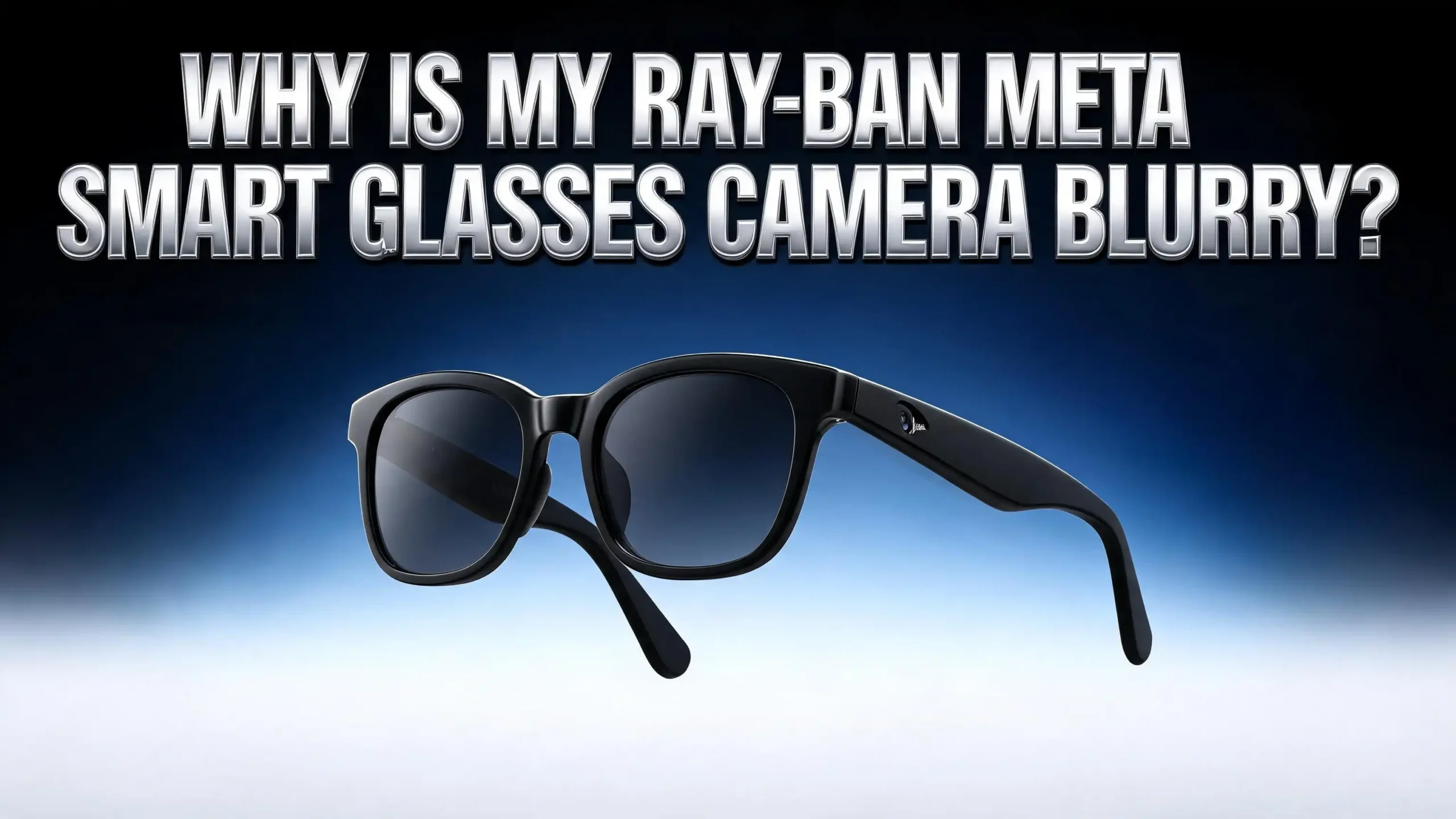
The Ray-Ban Meta smart glasses use a 12MP ultra wide camera located on the front left side of the frame. This camera captures both photos and videos. It is important to understand that this is not a smartphone camera. The sensor size is significantly smaller than what you find in modern phones.
A smaller sensor means the camera collects less light. Less light equals more noise and less detail, especially in dim conditions. The camera lens itself is also tiny, which limits its ability to focus in certain situations. The fixed focus system works best at distances of about three feet and beyond.
Objects closer than two feet may appear soft because the lens cannot adjust its focal point. This is a hardware limitation, not a defect. If you are trying to photograph text on a box or a close object, you need to hold it at the right distance for the fixed focus to work properly.
The camera also processes images through software on both the glasses and the Meta AI app. Any bug or glitch in this processing chain can reduce the final image quality. Understanding these basics helps you set realistic expectations and identify the true cause of your blurry photos.
Dirty Camera Lens: The Number One Culprit
The single most common reason for blurry photos on Ray-Ban Meta glasses is a dirty camera lens. The camera lens sits on the front left temple area of the frame. It is small and exposed to everything your face encounters throughout the day.
Fingerprints from adjusting your glasses, skin oils, dust, and environmental grime build up on this lens quickly. Even a thin film of oil can scatter light and make your photos look hazy or soft. Many users do not even realize the camera lens exists as a separate element from the main eyeglass lenses.
To clean the camera lens properly, use the microfiber cloth that came with your glasses. Gently wipe the small camera lens on the left side of the frame. Do not use paper towels, tissues, or your shirt, as these can scratch the lens coating. If the smudge is stubborn, lightly dampen the microfiber cloth with water and a tiny drop of mild soap. Avoid alcohol, solvents, or chemical cleaning sprays.
Meta’s official care guide states you should avoid holding the glasses under running water and always dry them completely before placing them in the charging case. Make it a habit to clean the camera lens every time you clean the main lenses. This one simple step eliminates the blurry photo problem for most users.
Poor Lighting Conditions and Camera Limitations
Lighting plays a massive role in the quality of photos from your Ray-Ban Meta glasses. The small camera sensor inside these glasses needs adequate light to produce a sharp and detailed image. In bright outdoor sunlight, the camera can deliver impressive results. In dim rooms, restaurants, or nighttime settings, the quality drops fast.
When the sensor does not receive enough light, it compensates by increasing the ISO or slowing down the shutter speed. A higher ISO adds grain and noise to the image. A slower shutter speed increases the chance of motion blur. Both of these outcomes make photos look blurry and unclear.
The best strategy is to shoot in well lit environments whenever possible. Natural daylight produces the best results. If you are indoors, position yourself near windows or under bright overhead lights. Avoid shooting directly into bright light sources like the sun or a lamp, as this causes the camera to expose for the bright area and darken everything else.
For video calls through WhatsApp or Messenger, users report that the small sensor produces noticeably softer video compared to a phone’s front camera. This is expected behavior, not a defect. The camera performs best when viewing objects at a moderate distance in good light. Close reading of small text or viewing fine details in low light will always be a challenge for this sensor size.
Firmware Updates You Might Be Missing
Meta frequently releases firmware updates for the Ray-Ban Meta glasses that include camera improvements. These updates can adjust image processing algorithms, improve white balance, reduce noise, and enhance overall photo clarity. If you have not updated your glasses recently, you might be running software that produces lower quality images than what is currently possible.
To check for firmware updates, open the Meta AI app on your phone. Go to Settings, then select your glasses. The app will show you the current firmware version and notify you if an update is available. Make sure your glasses are charged above 50% and connected to your phone during the update process.
Some users have reported that specific firmware versions introduced camera bugs. Version 19.2, for example, was flagged by community members for causing issues. If you suspect a recent update caused the blurriness, check community forums to see if others report the same problem. Meta typically releases a fix within a few weeks.
Keep both the Meta AI app and your phone’s operating system up to date. Compatibility issues between an old app version and a new phone OS can cause unexpected camera behavior. Enable automatic updates for the Meta AI app to avoid falling behind on important fixes.
Motion Blur from Head Movement
Unlike your smartphone camera, the Ray-Ban Meta glasses do not have optical image stabilization (OIS). This means any movement of your head during a photo or video capture will translate directly into blur in the final image. Even a slight nod or turn can ruin a shot.
When you tap the capture button on the top of the right temple, your hand movement alone can shift the glasses enough to cause blur. The best technique is to hold your head completely still for a moment after tapping the button. Think of it like taking a photo with a traditional camera. You need to be steady.
For video recording, try to keep your head movements slow and deliberate. Quick head turns create a jarring, blurry effect in the footage. Walk smoothly and avoid sudden movements for the best video quality.
One helpful trick is to use the voice command to capture photos instead of the physical button. Say “Hey Meta, take a photo.” This eliminates the slight shake caused by pressing the button. Your head stays still, and the result is a sharper image. Practice this habit, and you will see an immediate improvement in your photo clarity.
Moisture and Fogging on the Camera Lens
Temperature changes can cause condensation to form on the camera lens. This is especially common when you move from an air conditioned building into hot, humid outdoor air, or vice versa. The moisture creates a thin film on the lens that makes every photo look foggy and soft.
Some users in humid climates report persistent fogging issues. The camera lens is small and sits close to the warm skin of your face, which can contribute to moisture buildup. Unlike main eyeglass lenses, the camera lens does not benefit from anti fog coatings unless specifically applied.
To fix fogging, gently wipe the camera lens with a dry microfiber cloth. If the condensation keeps returning, let the glasses acclimate to the new temperature for a few minutes before shooting. Avoid breathing directly on the lens area, as your warm breath will fog it immediately.
Meta’s official guidance warns against using chemical anti fog sprays on the glasses. One user reported that a standard anti fog cleaner damaged the frame finish. Stick to dry wiping and natural acclimation. If you live in a very humid area, store your glasses in a dry environment and consider using a small silica gel packet in your storage area to absorb excess moisture.
Camera Settings in the Meta AI App
The Meta AI app gives you some control over your camera settings, and incorrect settings can lead to lower quality captures. Many users never explore these options and miss out on simple adjustments that can improve their photos.
Open the Meta AI app and go to your glasses settings. Look for the camera or capture settings section. Make sure you are using the highest available resolution for both photos and videos. Some settings may default to lower quality to save storage space or battery life.
Check if there is a video resolution option available. Higher resolution recordings produce clearer and more detailed footage, though they use more storage. If you have enough space on your phone and in the app, always choose the highest quality setting.
Review any image processing options as well. Some firmware versions offer adjustments for HDR or other processing features. Turning HDR on can help with dynamic range in bright scenes, but it may also introduce slight softness if the processing is not perfectly tuned. Test both settings and compare the results.
If your settings look correct but photos are still blurry, try toggling the camera off and on in the app settings. This can reset the camera processing pipeline and clear any temporary glitch that is affecting image quality.
Factory Reset as a Last Resort Fix
If you have tried every other solution and your photos are still blurry, a factory reset can resolve persistent software issues. This process erases all captures stored on the glasses and restores them to their original settings. It is a clean slate that eliminates any corrupted data or buggy configurations.
Here is how to factory reset your Ray-Ban Meta glasses. First, make sure the glasses are out of their charging case, charged, and powered on. Fold both arms closed. With the arms folded, press the capture button rapidly five times. The LED will turn orange. Then press and hold the capture button and release it when the LED starts flashing.
After the reset, you will need to unpair and re-pair your glasses with the Meta AI app on your phone. Open the app, follow the pairing instructions, and set up your preferences again. Download any firmware updates that become available during the setup process.
A factory reset also helps with video call blurriness. Some users found that WhatsApp and Messenger video quality improved after a full reset. The Meta Store Support team recommends this step if the issue affects multiple apps and the blurry images are consistent across different capture methods.
Prescription Lens Installation and Camera Alignment
If you recently installed prescription lenses in your Ray-Ban Meta glasses, this could be related to your camera quality issue. The camera lens itself sits separate from the main eyeglass lenses. Prescription lenses should not directly affect the camera. However, the installation process can sometimes cause problems.
An improperly seated prescription lens can shift the frame slightly. If the frame is bent or misaligned during lens installation, it could affect the camera’s position or angle. Thick prescription lenses can also interfere with sensors if they are not specifically made for the Ray-Ban Meta frame.
Community members on Reddit have confirmed that the glasses lenses are independent from the camera system. The camera does not look through the glasses lenses. It has its own separate lens on the side of the frame. So changing your prescription lenses should not change your photo quality.
If your photos became blurry right after a lens swap, the most likely explanation is that the camera lens was smudged or scratched during installation. Carefully clean the small camera lens on the left temple. If cleaning does not help, the installer may have accidentally damaged the camera lens during the process. Contact your lens provider or Meta support for further help.
Video Call Blurriness: A Separate Issue
Blurry video calls are one of the most reported complaints from Ray-Ban Meta owners. The issue often appears on WhatsApp, Messenger, and Instagram video calls. The person on the other end sees a soft, unclear image that looks worse than a standard phone camera.
This is partly a hardware limitation. The video call feature uses the small camera sensor and streams it over a compressed video connection. The combination of a small sensor, video compression, and variable network speeds produces a lower quality image than a direct photo capture.
However, you can improve the situation. Make sure you have a strong Wi-Fi or cellular connection during video calls. A weak connection forces the software to compress the video more aggressively, which increases blur. Stand in a well lit area. The more light the camera receives, the sharper the streamed video will appear.
If the blur is extreme and not just slightly soft, try a factory reset. Some users reported a bug that caused unusually blurry video calls, which a reset fixed. Also check that the Meta AI app is updated to the latest version, as video call quality improvements are often included in app updates.
Protecting the Camera Lens Long Term
Prevention is always better than repair. Keeping your camera lens clean and protected will save you from most blurry photo issues. Build a few simple habits into your daily routine with your Ray-Ban Meta glasses.
Always store your glasses in the charging case when you are not wearing them. The case protects the lenses and the camera from dust, scratches, and accidental damage. Avoid placing the glasses face down on surfaces, as this can scratch both the camera lens and the main lenses.
Carry a small microfiber cloth with you. A quick wipe before an important photo takes two seconds and can make the difference between a blurry image and a sharp one. Avoid touching the camera lens area with your fingers when adjusting the glasses on your face.
If you spend time in dusty, sandy, or humid environments, consider lens protectors for your glasses. Be cautious about applying any coatings or films directly over the camera lens, as these can reduce clarity rather than improve it. Check with Meta support before using any aftermarket accessories that cover or modify the camera area.
Clean the charging contacts on the nose bridge regularly as well. While these do not directly affect camera quality, dirty contacts can prevent proper charging, which can cause the glasses to operate in a low power mode that affects camera performance.
When to Contact Meta Support
Sometimes the problem is beyond what you can fix at home. If you have cleaned the lens, updated the firmware, adjusted your settings, performed a factory reset, and the camera is still blurry, you may have a hardware defect.
Contact Meta support if you notice any of these signs: the camera lens appears physically scratched or cracked, the blurriness appeared suddenly without any changes to your routine, or the issue persists across all lighting conditions and settings. These symptoms suggest a problem with the camera hardware itself.
Before contacting support, gather some helpful information. Note your glasses’ serial number, which you can find in the Meta AI app under Settings and Device Info. Take screenshots of blurry photos to share with the support team. Write down when the problem started and whether anything specific triggered it, like a firmware update, a drop, or water exposure.
Meta offers a warranty for manufacturing defects within the first year. If your camera issue is confirmed as a hardware defect, you may receive a replacement pair. Keep your original receipt and purchase documentation ready. You can reach Meta support through the Meta AI app or through the Meta Store website.
Frequently Asked Questions
Why are my Ray-Ban Meta photos blurry even after cleaning the lens?
If cleaning the lens does not fix the blur, the cause is likely poor lighting, head movement during capture, or a software issue. Try shooting in bright light while keeping your head completely still. If the problem continues, update your firmware and reset your glasses. A combination of good lighting and steady positioning solves the issue for most users.
Can prescription lenses cause blurry photos on Ray-Ban Meta glasses?
No. The camera lens is separate from the main eyeglass lenses. The camera does not look through your prescription lenses. However, if the prescription lens installation process bent the frame or smudged the camera lens, this could affect photo quality. Clean the camera lens and check for physical damage after any lens swap.
How do I update the firmware on my Ray-Ban Meta glasses?
Open the Meta AI app on your phone. Go to Settings and select your glasses. The app will display the current firmware version and prompt you to update if a newer version is available. Keep your glasses charged above 50% and connected to your phone throughout the update. The process usually takes a few minutes.
Why are Ray-Ban Meta video calls so blurry?
Video calls compress the camera feed and send it over your network connection. The small sensor, combined with compression and possible network limitations, produces a softer image than a direct photo capture. Use a strong Wi-Fi connection, position yourself in good lighting, and update both the app and glasses firmware for the best results.
Should I factory reset my Ray-Ban Meta glasses to fix blurry photos?
A factory reset is worth trying if other solutions have not worked. It clears all stored data and resets the software to its original state. This can fix software bugs that affect camera processing. Remember to back up any important captures before resetting, as the process deletes everything on the glasses.
Is the Ray-Ban Meta camera good enough for professional photography?
No. The Ray-Ban Meta camera is designed for casual, hands free captures. Its 12MP sensor is much smaller than a smartphone camera sensor. It works well in good lighting for social sharing and quick snapshots. For professional quality photos, a dedicated camera or a modern smartphone will always produce better results.

Hi, I’m Lily — a tech enthusiast and the voice behind SmartResizerr.com. I love testing gadgets, breaking down specs into plain English, and helping everyday people find the right tech without the overwhelm.