How To Resolve Nothing Phone 2a Glyph Interface Not Syncing?
The Nothing Phone 2a Glyph Interface is one of the most unique features on any smartphone today. Those glowing lights on the back are designed to show notifications, alerts, and more. But what happens when they simply stop working as expected?
Glyph syncing issues are more common than you might think. Some users notice the lights not responding to notifications. Others find the entire Glyph system feels unresponsive or out of sync with their apps.
The good news is that most of these problems have simple fixes. You do not need any technical expertise to get things working again.
This article walks you through every practical step to resolve the Nothing Phone 2a Glyph Interface not syncing. You will learn how to check your settings, fix common mistakes, and understand how the Glyph system actually behaves.
In a Nutshell
Toggle the Glyph Interface off and on in your Settings to refresh the connection and fix basic syncing problems.
Check your Accessibility settings and make sure “Remove animations” is turned off, as this is one of the most overlooked causes of Glyph not working.
Notification permissions must be enabled for each app you want to trigger Glyph lights, so always verify these are turned on.
Glyph notifications only show when your device is locked — this is normal behavior, not a bug, so do not panic if lights stay off while using the phone.
Adjust Glyph brightness if the lights appear too dim or seem like they are not responding at all.
Always restart your phone after making changes to settings, as many fixes only take full effect after a proper reboot.
What Is the Glyph Interface on Nothing Phone 2a?
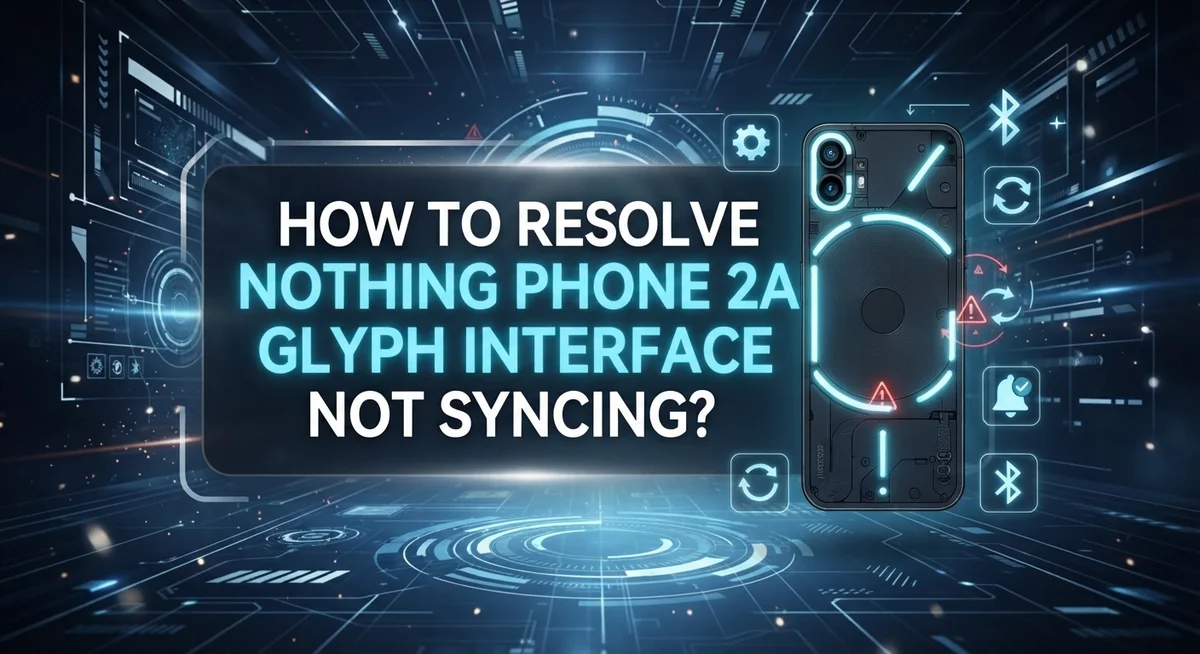
The Glyph Interface on Nothing Phone 2a is a distinctive notification system that uses lights around the camera module and edges of your phone. These lights communicate with you through different patterns and colors without needing to unlock your device or turn on the screen.
The Glyph system works as a visual language for your phone. Each app can have its own unique light pattern. When someone calls you, the lights flash in one way. When you get a message, they might pulse differently. This lets you know what’s happening at a glance.
The lights appear only when your device is locked. This is intentional behavior, not a problem. Once you unlock your phone, the Glyph lights turn off automatically. This design choice helps save battery and prevents distraction when you’re actively using your device.
Glyph notifications sync with your phone’s notification system. This means the interface pulls information from apps and displays it through the lights. When syncing works properly, you see instant visual feedback for incoming calls, messages, alarms, and app alerts.
The brightness and intensity of these lights can be customized. You can make them subtle or more noticeable depending on your preferences. Some people like bright, obvious notifications, while others prefer gentle, dim indicators.
Understanding Glyph is essential before troubleshooting. Many users think the lights should work while their phone is unlocked, or they expect notifications for every single app. Knowing the correct behavior helps you identify real syncing problems versus normal operation.
The Glyph Interface transforms how you interact with notifications, making your phone more intuitive and responsive to your needs.
Why the Glyph Interface Stops Syncing
The Glyph Interface stops syncing for several key reasons. Understanding these causes helps you fix the problem faster.
Accessibility settings block Glyph lights. The “Remove animations” option in your Accessibility menu disables all motion effects on your phone. This includes Glyph notifications. When this setting is on, your lights won’t display even if everything else works correctly.
Notification permissions are turned off. Apps need explicit permission to send notifications to your Glyph Interface. If you haven’t granted these permissions, the lights won’t respond to incoming messages or alerts. Each app requires individual permission setup.
The Glyph Interface needs a refresh. Software glitches happen. Sometimes the Glyph system simply loses connection with your phone’s notification system. A quick toggle off and on usually solves this.
Brightness settings are too low. Your Glyph lights might be syncing perfectly, but you cannot see them because brightness is set to minimum. The lights appear very faint at low levels.
Your phone is unlocked. This is the most common misunderstanding. Glyph notifications only display when your device is locked. This is intended behavior, not a malfunction. Many users think their Glyph is broken when it simply follows this design rule.
Software needs updating. Outdated phone software can cause syncing problems. Updates fix bugs and improve Glyph performance.
Restart hasn’t happened yet. After changing settings, your phone needs a restart to apply changes properly. Many users skip this crucial step and think their fixes didn’t work.
Each of these issues has a straightforward solution. The next sections cover exactly how to address each one.
How to Toggle the Glyph Interface Off and On
Toggling the Glyph interface off and on is one of the quickest ways to fix syncing problems. This simple reset often clears software glitches that prevent your lights from working properly.
Start by opening the Settings app on your Nothing Phone 2a. Look for the Glyph settings option, which you’ll usually find under Display or Notifications. Tap on it to access the Glyph control panel.
You’ll see a toggle switch for the Glyph interface. Tap this switch to turn it off completely. Wait about 10 seconds while the system processes this change. This brief pause allows your phone to fully disable the Glyph system.
Now tap the toggle again to turn it back on. Your phone will reinitialize the Glyph interface and reconnect it with your notification system. This restart often resolves minor syncing issues that cause lights to stop responding.
After toggling the interface back on, restart your entire phone. Go to Settings, select System, and choose Restart. A full device restart ensures all Glyph settings take effect properly and sync with your apps.
Once your phone restarts, test the Glyph lights by locking your device and opening an app that sends notifications. You should see the lights respond to incoming messages or alerts.
If the lights still don’t sync after this process, move on to checking your Accessibility settings. Sometimes other phone settings interfere with Glyph functionality. The toggle method works best when combined with other troubleshooting steps for complete results.
How to Fix the Remove Animations Accessibility Setting
The “Remove animations” setting in your Accessibility menu can completely block your Glyph lights from working. This feature disables all motion and animation effects on your phone, which includes the Glyph interface lighting system.
Here’s how to fix this issue. Open your Settings app and scroll down to find Accessibility. Tap on it to enter the Accessibility menu.
Look for an option called “Color and Motion” or similar wording. Your phone may organize this differently depending on your software version. Tap this option to view all animation related settings.
Find the toggle for “Remove animations” and check if it’s currently enabled. If the toggle shows blue or appears switched on, this is blocking your Glyph lights.
Tap the toggle to turn off the “Remove animations” setting. This action allows your phone to display motion effects again, including your Glyph notifications.
After disabling this setting, go back to your main Settings menu. Navigate to System and select Restart. Let your phone fully restart and complete its boot sequence.
Once your phone powers back on, lock your device to test the Glyph interface. Open an app that sends notifications, like a messaging or social media app. You should now see light patterns appearing around your camera module.
If you still don’t see Glyph lights, verify that notifications are actually arriving. Check that individual apps have permission to send notifications in your notification settings.
Test with different apps to confirm the Glyph interface is syncing properly. Some apps may not trigger Glyph lights if they don’t have notification permissions enabled. Repeat this test across multiple apps to ensure consistent performance.
How to Check and Enable Notification Permissions for Glyph
Notification permissions are essential for your Glyph Interface to work properly. Without them, apps cannot send signals to your Glyph lights, even if everything else is configured correctly.
Start by opening your Settings app. Look for the Notifications section. You’ll see a list of all installed apps on your device. Each app has its own permission status.
Tap on any app you want to receive Glyph notifications from. Check if notifications are turned on for that specific app. The toggle should be switched to the on position. If it’s off, tap it to enable notifications.
Some apps have additional notification settings you can customize. Look for options like “Allow notifications” or “Show notifications.” Make sure these are enabled as well. You might also see sound and vibration options here.
Important: Not all apps support Glyph lighting. Only apps that send notifications can trigger your Glyph Interface. Social media apps, messaging apps, and communication tools typically work best with Glyph.
After enabling permissions for your chosen apps, lock your device. Open one of those apps or have someone send you a message. Your Glyph lights should respond with a visual notification.
If Glyph still doesn’t sync after enabling permissions, check your Accessibility settings again. The “Remove animations” option might still be blocking your lights. Return to Settings, find Accessibility, and look for “Color and Motion.” Make sure “Remove animations” stays turned off.
Test each app individually. This helps you identify which permissions work correctly and which ones need adjustment. You can always return to Settings and modify permissions for any app at any time.
How to Adjust Glyph Brightness and Restart Your Device
Adjusting your Glyph brightness helps ensure the notification lights display at a comfortable level for your eyes. Start by opening the Settings app on your Nothing Phone 2a and look for the Display section. You’ll find brightness options specifically for your Glyph interface here.
Tap on Glyph brightness settings to see your available options. Most devices offer a slider that lets you increase or decrease the light intensity. Test different levels to find what works best for you in various lighting conditions. A higher setting works better in bright environments, while lower settings suit darker rooms.
After adjusting the brightness, make sure you apply your changes by confirming the new settings. This step is important because some adjustments don’t take effect until you confirm them.
Now restart your device to complete the process. Go to Settings, select System, and choose Restart. Your phone will power down and turn back on with the new brightness settings applied. This restart helps your phone fully recognize and implement the brightness changes you made.
Once your device powers back on, lock your phone to test the Glyph lights. Open an app that sends notifications, such as a messaging or email app. You should see your Glyph interface light up with the new brightness level you selected.
If the lights still don’t appear after restarting, the brightness might not be the issue. Return to your Settings and double check that animations aren’t disabled in your Accessibility menu. Sometimes other settings interfere with Glyph functionality even when brightness is properly adjusted.
Test your notifications again after checking these settings to confirm everything works correctly.
Common Mistakes That Prevent Glyph From Syncing Properly
Many users make simple errors that stop their Glyph interface from working. Understanding these mistakes helps you fix the problem faster.
The first mistake is forgetting to restart your phone after making changes. You toggle settings on and off, but the changes don’t take effect until your device restarts. Always restart your phone after adjusting any Glyph or accessibility settings.
Another common error is not checking whether notifications are actually enabled for your apps. Your Glyph won’t light up if the apps don’t have permission to send notifications. You need to go into each app’s settings and enable notifications individually.
Many people assume the Glyph should light up when their phone is unlocked. This is incorrect. The Glyph interface only displays notifications when your device is locked. If you keep your phone unlocked while testing, you won’t see any lights. Always lock your device to test the Glyph properly.
Some users overlook the “Remove animations” setting in Accessibility. When this option is enabled, it blocks all motion effects, including Glyph lighting. Disabling this setting is essential for proper Glyph function.
Another mistake is ignoring brightness settings. If your Glyph brightness is set too low, the lights may appear invisible. Check your brightness settings and adjust them to a comfortable level.
Finally, people sometimes expect all apps to support Glyph lighting. Not every app triggers the Glyph interface. Only apps that send system notifications can activate your Glyph lights. Test with apps you know send notifications to verify your setup works correctly.
Understanding When Glyph Notifications Are Supposed to Appear
Your Nothing Phone 2a’s Glyph interface works best when you understand exactly when it should display notifications. This knowledge helps you troubleshoot sync issues more effectively.
Glyph notifications only appear when your device is locked. This is the intended behavior by design. When you unlock your phone, the Glyph lights turn off automatically. Many users think their Glyph isn’t syncing when they’re actually looking at a locked screen expectation issue.
When your phone is locked and you receive a notification from an app with Glyph support enabled, the lights should flash or illuminate around your camera area. Different apps may trigger different light patterns or colors depending on their notification type.
The timing matters too. Glyph notifications display immediately when the message arrives. If you’re expecting delayed notifications, that’s not a sync problem. Real sync issues happen when notifications arrive but the lights don’t respond at all.
Test your Glyph by locking your device first. Ask a friend to send you a message through an app you’ve enabled for Glyph notifications. Watch if the lights react. This simple test reveals whether your issue is a sync problem or just a misunderstanding of when Glyph should work.
Remember that not every app supports Glyph lighting. Social media apps, messaging services, and communication tools typically work with Glyph. However, some utility apps may not trigger the lights even if notifications are enabled.
Understanding these basic expectations prevents you from chasing false solutions. Once you know Glyph should only work on a locked screen, you can focus on actual sync problems more efficiently.
Final Thoughts
Fixing your Nothing Phone 2a Glyph interface syncing issues is simpler than it might seem at first.
The steps covered in this guide give you a clear path to follow. Start with the basics, like toggling the Glyph interface off and on before moving to deeper settings.
Always remember to restart your device after making any changes. This single step fixes many syncing problems that users struggle with for days.
The “Remove animations” setting in Accessibility is one of the most overlooked causes of Glyph not working. Disabling it often resolves the issue instantly.
Check your notification permissions regularly. Apps need proper permissions enabled before Glyph can respond to their alerts.
Keep in mind that Glyph only activates when your phone is locked. This is normal behavior, not a bug. Testing with a locked device saves you a lot of confusion.
Brightness settings also play a role. If your Glyph brightness is set too low, the lights may appear to not be working at all. A quick brightness adjustment can make a noticeable difference.
If one fix does not work, move on to the next step. Each troubleshooting step targets a different potential cause, so patience pays off.
The most important habit is to test after every single change you make. This helps you identify exactly which setting was causing the problem.
Most Glyph syncing issues have straightforward solutions. You do not need technical expertise to get your lights working again.
Follow this guide step by step, stay consistent, and your Glyph interface should be syncing and lighting up exactly the way it was designed to.
Frequently Asked Questions
Why isn’t my Glyph interface lighting up at all?
The most common reason is the “Remove animations” setting in Accessibility. Check Settings > Accessibility > Color and Motion and make sure this option is turned off. Your Glyph needs animations to display properly.
Also verify that notifications are actually enabled for the apps you’re testing. Toggle your Glyph interface off and back on in Settings to refresh the connection. After making any changes, restart your phone to apply the updates.
When should Glyph notifications actually appear?
Glyph notifications only display when your device is locked. This is the intended design. When your phone is unlocked, the Glyph stays silent even if you receive messages or alerts.
To test this properly, lock your device first. Then have someone send you a message through an app with Glyph support enabled. The lights should flash on your phone’s back.
How do I adjust Glyph brightness settings?
Go to your Settings and find the Glyph options. You can control the brightness level to suit your preference. If brightness is set too low, the lights may appear not to work at all.
After adjusting brightness, lock your phone and test with an incoming notification. Test after every change you make to see if it helps.
Why does Glyph work for some apps but not others?
Not every app supports Glyph lighting. Check which apps you’ve actually enabled for Glyph notifications in your Settings. You may need to manually enable Glyph support for specific apps you want to use it with.
Some apps simply don’t have Glyph compatibility built in. Stick to testing with popular messaging apps first.
Do I need to restart my phone after toggling Glyph settings?
Yes. Always restart your device after making any changes to Glyph settings or notification permissions. This allows your phone to properly apply the new settings and sync the Glyph interface correctly.
Skipping this step is one of the most common reasons fixes don’t work.

Hi, I’m Lily — a tech enthusiast and the voice behind SmartResizerr.com. I love testing gadgets, breaking down specs into plain English, and helping everyday people find the right tech without the overwhelm.