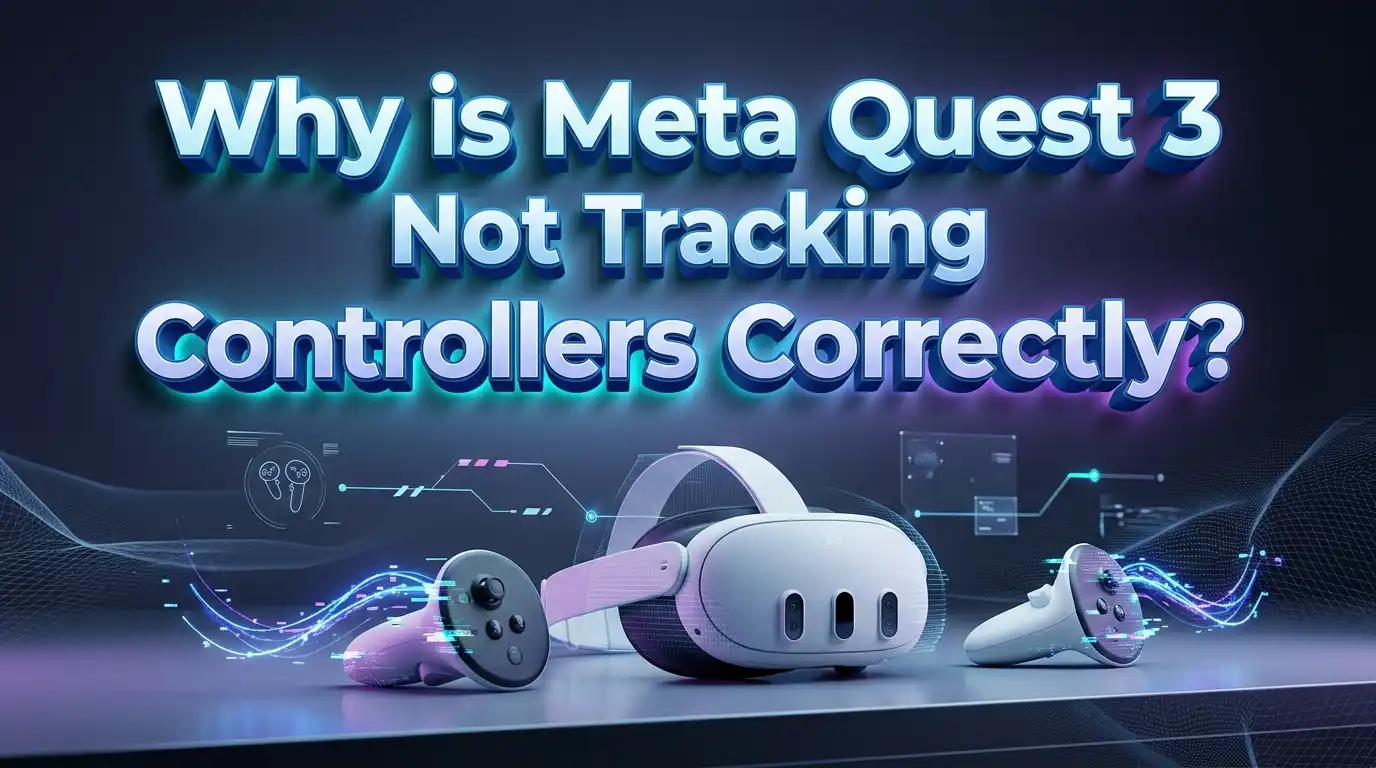
Why Is Meta Quest 3 Not Tracking Controllers Correctly?
Your Meta Quest 3 controllers should feel like natural extensions of your hands. But sometimes they drift, freeze, jump around, or stop responding mid game. This problem frustrates many users, and it can ruin an immersive session in seconds.
The good news is that most tracking issues have simple causes. You can fix the majority of them at home without any tools.
This guide walks you through every common reason your Quest 3 loses controller tracking. You will learn practical steps you can follow right now. We cover lighting, batteries, firmware, cleaning, pairing, and more.
Each section gives you clear actions in plain language. By the end, your controllers should track smoothly again. Let us solve this together, one step at a time.
Key Takeaways
- Lighting matters most. Poor light, direct sunlight, and small LED lights all confuse the cameras. A well lit room with even light gives you the best tracking.
- Dirty cameras cause silent failures. The four tracking cameras on your headset must stay clean. Smudges and dust block the controller view.
- Weak batteries break tracking. Low or cheap batteries make controllers lag or drop out. Fresh quality batteries often fix the problem instantly.
- Software needs updates. Outdated firmware and skipped controller updates create tracking bugs. Keeping everything current solves many issues.
- Reset steps work in order. Restart, re pair, recalibrate, then factory reset as a last resort. Follow the steps in sequence for the best result.
- Your play space affects everything. Mirrors, glass, and reflective floors trick the sensors. A clear and matte space helps the cameras stay locked on.
How Quest 3 Controller Tracking Actually Works
Understanding the system helps you fix it faster. The Meta Quest 3 uses inside out tracking. This means the cameras sit on the headset itself, not in your room. Four cameras watch your controllers and your surroundings at all times.
Each Touch Plus controller has infrared LED markers built inside the ring and body. The headset cameras see these lights and calculate the exact position. The controllers also contain motion sensors called an IMU. The IMU tracks movement when the cameras briefly lose sight.
This combined system is smart, but it depends on clear vision. When the cameras cannot see the controller markers, tracking breaks. The headset then guesses your position using only the motion sensors. These guesses drift quickly, which is why your hands seem to float or jump.
The Quest 3 also adds predictive tracking. The software predicts where your hand will move next. This makes fast motions feel smooth in most cases. But the prediction fails during very fast swings, like in boxing or tennis games. The controller can briefly fly off in the wrong direction.
Knowing this, you can see why light, cleanliness, and clear sight lines matter so much. Almost every fix in this guide improves what the cameras can see. Keep this mental picture in mind as you work through each solution below.
Check Your Room Lighting First
Lighting is the number one cause of Quest 3 tracking problems. The cameras need light to see your controllers. A room that is too dark will lose tracking again and again. A room with harsh sunlight will overload the sensors.
Start by turning on a few lights. Aim for a room where you can read a book comfortably. This level of brightness suits the cameras well. Avoid playing in near darkness, because the controllers will drift constantly.
Direct sunlight causes a different problem. Bright sun confuses the infrared sensors and washes out the controller markers. Close your curtains or blinds during daytime play. Sunlight can also damage the lenses over long sessions, so this step protects your hardware too.
Watch out for small point lights as well. Christmas lights, LED strips, candle flames, and standby lights trick the cameras. These tiny bright spots look like controller markers to the system. The headset may try to track the wrong light source.
Aim for even, soft lighting across the whole room. Overhead ceiling lights work great. Avoid having one bright lamp on one side and darkness on the other. Balanced light gives stable tracking in every direction. Test your play after adjusting the lights, and you may find the problem already solved.
Clean Your Headset Tracking Cameras
Dirty cameras are a hidden cause that many people miss. The four tracking cameras sit on the front and corners of your headset. Over time they collect dust, fingerprints, and smudges. Even a thin film blocks the controller markers from view.
Pick up your headset and look at the camera lenses closely. You may see fine smudges that you never noticed before. A dirty lens makes tracking unreliable even in a perfectly lit room.
Use a clean, dry microfiber cloth to wipe each lens gently. Never use water, alcohol wipes, or paper towels on the lenses. These can scratch the glass or leave residue that makes tracking worse. A soft optical cloth is all you need.
Wipe in small circular motions and check your work. Hold the headset toward a light to spot any remaining marks. Clean all four cameras, not just the ones you can see easily. The corner cameras often gather the most grime.
While you are at it, check that nothing covers the cameras during play. Some headset accessories, face covers, or prescription lens inserts can block the view. Make sure your hair or clothing does not drift in front of the sensors either. A clean and clear camera view fixes a surprising number of tracking complaints. This simple step takes one minute and often delivers instant results.
Replace or Reseat the Controller Batteries
Battery problems cause tracking issues more often than people expect. The infrared markers need steady power to shine brightly. When the battery runs low, the markers dim and the cameras struggle to see them. Your controller then drifts or drops out.
Start by checking the battery level in the Meta Quest app or in your headset settings. If either controller sits below twenty percent, replace the battery right away. Low power directly weakens tracking performance.
Try reseating the battery as a quick test. Open the battery door, remove the AA battery, and wait at least thirty seconds. Then place it back in and close the door. This resets the controller connection and often clears a glitch.
Battery quality also makes a real difference. Cheap batteries cause weak and unstable tracking. Use fresh, name brand alkaline or rechargeable batteries for the best results. Avoid mixing an old battery with a new one across your two controllers.
If you use rechargeable batteries, make sure they hold a strong charge. Old rechargeables lose capacity over time and may read full while delivering weak power. Swap in a known good battery to test. Many users report that simply changing the battery fixed a controller that had drifted for weeks. This is one of the easiest and cheapest fixes you can try.
Update Your Headset Software
Outdated software creates many tracking bugs. Meta releases regular updates that improve controller tracking and fix known problems. Running an old version can leave you stuck with issues that are already solved.
Check your software version inside the headset. Go to Settings, then System, then Software Update. The headset will tell you if a new version is ready. Install any pending update right away.
Your headset usually updates while charging and connected to WiFi. But the process sometimes stalls or skips. Plug your headset in, connect to your network, and leave it on to encourage the download. Updates can take several minutes to install fully.
Keep in mind that some updates change tracking behavior. A few users notice tracking problems right after a major update. Meta often pushes a follow up fix within days. If a recent update caused your issue, check again soon for a newer patch.
Restart your headset after every update completes. This makes sure the new tracking code loads correctly. A fresh restart clears out old data that may conflict with the new version. After updating and restarting, test your controllers in a simple app. Many tracking glitches vanish once both the headset and controllers run the latest software together.
Update Your Controller Firmware
Your controllers have their own firmware that needs updates too. People often forget this part. The headset software and the controller firmware are separate things. Both must stay current for smooth tracking.
Controller firmware usually updates automatically. The process happens in the background while you use your headset. But the update only runs when the controllers have enough charge. Low batteries can block a firmware update from finishing.
Make sure both controllers hold a strong battery charge. Then leave them powered on and near the headset. Keep the whole setup connected to WiFi and give it time. The controllers may need to sit idle for the update to complete.
Sometimes a firmware update gets stuck partway. You might see it freeze at zero percent or fail to finish. If this happens, force restart the affected controller. Hold the Oculus or Menu button for eight to fifteen seconds until it powers down. Then turn it back on.
After a restart, the controller often resumes the update properly. A half finished firmware update causes erratic tracking and strange behavior. Check the controller status in your settings to confirm the version. Once both controllers run matching, current firmware, tracking usually becomes stable and predictable again across all your games.
Restart and Force Power Cycle Your Controllers
A simple restart fixes many temporary glitches. When a controller acts up suddenly, this should be your first quick action. It clears software hiccups without changing any settings.
To restart a single controller, remove and reinsert the battery. Wait about thirty seconds before putting it back. This forces the controller to reconnect fresh to the headset. A clean reconnection often restores tracking instantly.
For a stronger reset, perform a force power cycle. Hold down the Oculus or Menu button for eight to fifteen seconds. You will feel the controller power down. Then turn it back on by pressing the same button.
After the restart, move the controller around slowly. Slow movement helps the cameras lock on and rebuild tracking. Do not swing it fast right away, because the system needs a moment to find the markers.
You can also restart the headset itself at the same time. Hold the power button and select Restart from the menu. A full headset restart clears memory and refreshes the tracking system. This combination of restarting both the headset and the controllers solves a large share of sudden tracking problems. Try this before moving on to more involved fixes, since it takes only a minute and risks nothing.
Unpair and Re Pair Your Controllers
When restarting does not work, try re pairing. Pairing problems can cause one or both controllers to track poorly. A fresh pairing rebuilds the connection from scratch.
Open the Meta Quest app on your phone or use the headset settings. Go to the Devices section and select your controllers. Choose the option to unpair the controller that gives you trouble. Confirm the action when asked.
Once unpaired, the controller drops its link to the headset. Now you pair it again. Follow the on screen prompts to reconnect the controller. You may need to hold a button combination to enter pairing mode.
For the right controller, hold the A button and the Oculus button. For the left controller, hold the X button and the Menu button. Keep holding until the LED flashes to start pairing. Release once the headset detects the controller.
After re pairing, test the controller carefully. A fresh pairing clears corrupted connection data that builds up over time. This step often fixes a controller that lagged, dropped out, or refused to track. If only one controller had trouble, re pair just that one. Re pairing both is fine too and may help if the issue affects each hand differently.
Recalibrate the Thumbsticks to Stop Drift
Stick drift is a specific type of tracking problem. Your character moves on its own even when you do not touch the thumbstick. This differs from position tracking, but it ruins gameplay just the same.
Meta added a built in tool to fix this. Go to Settings, then Devices, then Controllers. Find the option called Thumbstick range and deadzone. Select the thumbstick that drifts.
Follow the on screen instructions to recalibrate. The tool measures your thumbstick movement and sets a proper neutral zone. This often stops minor drift right away. The process takes only a moment.
If drift continues, set a larger deadzone. A bigger deadzone ignores small unwanted movements near the center. Your character will stop wandering on its own. The trade off is slightly less sensitivity for tiny inputs, which most people never notice.
Physical dirt can also cause stick drift. Dust under the thumbstick base interferes with the sensor. Blow gently around the stick base with clean air. Some users carefully clean around the stick to remove grime. Recalibration combined with cleaning resolves most drift cases. If your stick still drifts heavily after these steps, the hardware may have worn out and need repair or replacement.
Improve and Clear Your Play Space
Your physical environment shapes tracking quality every second. Reflective surfaces are a major hidden enemy. Mirrors, glass cabinets, polished floors, and shiny marble all confuse the cameras. They create false reflections that look like controllers.
Look around your play area with fresh eyes. Cover or move any mirrors within view of your headset. Close glass cabinet doors or face away from them. A blanket over a mirror works fine as a quick fix.
Clutter also hurts tracking. Objects between you and your controllers block the camera view. Clear furniture, boxes, and decorations from your play space. Give yourself an open area to move freely.
Plain matte walls help the cameras a lot. Bright patterns and busy backgrounds can confuse the tracking system in some cases. A simple, clear room gives the most stable results.
Avoid playing too close to large windows during the day. Shifting outdoor light changes the lighting balance and disrupts tracking. Keep your space consistent every time you play. Setting up a dedicated, clear, and matte play area solves many recurring tracking troubles. Once your environment cooperates with the cameras, your controllers will hold their position far more reliably during fast and slow movements alike.
Remove Third Party Accessories and Covers
Aftermarket accessories often break tracking without warning. Sleeves, covers, grips, and stickers can block the infrared markers on your controllers. The cameras then lose sight of your hands.
Meta clearly warns against unsupported accessories. If you added a cover or skin, remove it and test your tracking again. Many people discover that a cheap silicone sleeve was the whole problem.
Some covers block the ring lights only partly. This causes intermittent tracking that comes and goes. You might track fine while still, then lose tracking during movement. The cover hides the markers at certain angles.
Stickers placed on the ring are especially risky. Anything covering the LED markers directly blocks the cameras. Even a small decoration in the wrong spot causes trouble. Keep the tracking ring clean and clear.
Battery door grips and full body covers can also interfere. Test your controllers in their bare form first. If tracking improves without the accessory, you found your answer. You can then look for a tracking friendly accessory that leaves the markers exposed. The rule is simple. Keep the infrared ring and markers fully visible to the cameras at all times. When the markers shine freely, the headset tracks your every move with confidence.
Fix Fast Movement Tracking Loss
Some users only lose tracking during quick motions. Boxing, tennis, rhythm games, and sword fighting push the system hardest. The controller may fly off in the wrong direction for a split second.
This happens because the cameras lose sight during fast swings. The motion sensors take over and guess your position. Their guesses are less accurate than camera tracking. The controller then snaps back when the cameras find it again.
Good lighting helps fast tracking the most. Brighter, even light lets the cameras capture quick motion more reliably. If you struggle with fast games, improve your room light first. This single change often makes a big difference.
Keep your movements within the camera view when possible. Swinging far behind your back or above your head moves the controller out of sight. The system then relies fully on the motion sensors. Try to keep your hands roughly in front of you during play.
Make sure your firmware and software are current too. Meta improves fast motion prediction through updates. An older version handles quick movement worse. Combine bright even lighting, current software, and movements within view. Together these steps reduce fast motion tracking loss a great deal. Some hardware limits remain for extreme speed, but most players see clear improvement after these adjustments.
Clear the Boundary and Guardian Cache
A corrupted boundary can cause tracking trouble. The Guardian system maps your play space. When this data gets confused, it sometimes drags controller tracking down with it.
You can reset your boundary easily. Go to Settings and find the Guardian options. Choose to clear or redraw your boundary. This wipes the saved play space data and lets you start fresh.
After clearing, set up your boundary again. Draw a clean and accurate play area with your controller. Take your time and trace a smooth outline. A clean boundary gives the system solid reference data.
Some advanced users clear deeper cache files for stubborn issues. This step is more technical and not always needed. For most people, redrawing the boundary through settings is enough. Start with the simple option first.
A confused Guardian can make your view drift or your controllers feel off. Resetting the boundary often clears these odd glitches. It also fixes cases where the floor height seems wrong or your play space jumps around. If your tracking trouble started after moving to a new room, this step is especially helpful. Clearing the boundary gives the headset a clean slate to map your space and lock onto your controllers accurately again.
Perform a Factory Reset as a Last Resort
When nothing else works, a factory reset is your final option. This step erases everything on your headset and returns it to its original state. Save it for true emergencies only.
A factory reset removes all your games, saves, and settings. Back up anything important first. Cloud saves protect many games, but check before you reset. You will need to set up the headset again from scratch.
To reset, go to Settings, then System, then Reset. Choose the Factory Reset option and confirm. You can also reset using the hardware buttons if your headset is unresponsive. Hold the power and volume down buttons to reach the boot menu.
After the reset, set up your headset fresh. Update the software fully during setup. Then pair your controllers again as new. This clean start removes deep software problems that survive other fixes.
A factory reset solves rare, stubborn tracking bugs that resist every other step. It clears corrupted system files completely. Because it wipes your data, treat it as a true last resort. Work through all the earlier steps in this guide first. If your controllers still track poorly even after a fresh reset, the problem may be hardware related. In that case, contact Meta Store Support for repair or replacement help.
When to Contact Meta Support or Seek Repair
Sometimes the problem is the hardware itself. If you tried every step and tracking still fails, your controller or headset may have a fault. Knowing when to ask for help saves you time.
Watch for clear hardware signs. A controller that never tracks even with fresh batteries and clean cameras may be defective. Visible damage to the tracking ring also points to a hardware issue. Cracks near the markers hurt tracking.
Check your warranty status before paying for anything. Meta offers warranty coverage for a set period after purchase. A faulty controller within warranty may qualify for free replacement. Contact Meta Store Support with your purchase details.
Describe your problem clearly when you reach out. List every fix you already tried. This helps support skip basic steps and reach a solution faster. Mention your software version and how long the issue has lasted.
For out of warranty hardware, you have options. Repair services and replacement controllers are available. Stick drift from worn parts often needs physical repair. Persistent tracking failure after a factory reset usually means hardware. Do not keep struggling with a broken unit. Reaching out to support gets you back to smooth play sooner. The team can confirm whether a repair or replacement is the right path for your situation.
Frequently Asked Questions
Why does my Quest 3 controller drift when I am not touching it?
This is usually thumbstick drift or low light tracking loss. Recalibrate the thumbstick through Settings, Devices, Controllers. Set a larger deadzone if drift continues. Improve your room lighting and clean the cameras too. Worn thumbstick hardware can also cause drift and may need repair.
Can I use my Quest 3 controllers in a dark room?
No, the controllers track poorly in darkness. The cameras need light to see the controller markers. The headset has some low light help, but it cannot track in full darkness. Always play in a well lit room with even, soft light for the best results.
Why did my controllers stop tracking after a software update?
Updates sometimes change tracking behavior and cause temporary bugs. Restart your headset and controllers after any update. Check for a follow up patch, since Meta often fixes these quickly. Re pair your controllers if the problem continues after restarting and updating.
Do cheap batteries really affect controller tracking?
Yes, weak batteries directly hurt tracking. Low power dims the infrared markers so the cameras struggle to see them. Use fresh, quality batteries in both controllers. Avoid mixing old and new batteries. Many users fix drift and dropout simply by swapping in a strong battery.
How often should I clean my headset cameras?
Clean them whenever tracking feels off, or about once a week with regular use. Use a dry microfiber cloth only. Never use water or alcohol on the lenses. Dust and fingerprints build up faster than you expect and quietly weaken your tracking over time.
Will a factory reset definitely fix my tracking problem?
Not always. A factory reset fixes deep software bugs, but it cannot repair hardware faults. Try every simpler step first since the reset erases all your data. If tracking still fails after a fresh reset and full update, the issue is likely hardware. Contact Meta Support at that point.
Tracking problems feel annoying, but most have simple fixes. Start with lighting and clean cameras, then work through batteries, software, and pairing. Take the steps in order and test after each one. With a little patience, your Quest 3 controllers will track smoothly and your VR sessions will feel seamless again.

Hi, I’m Lily — a tech enthusiast and the voice behind SmartResizerr.com. I love testing gadgets, breaking down specs into plain English, and helping everyday people find the right tech without the overwhelm.