How To Fix iOS 18 Satellite Messaging Stuck On Searching For Signal?
Satellite messaging on iOS 18 is a lifesaver when you lose cellular or WiFi connection. But what happens when your iPhone gets stuck on “Searching for Signal”? It can be frustrating, especially when you need to send an urgent message.
This issue is more common than you might think. It usually happens after your iPhone loses its satellite connection, like when your phone slips into your pocket mid-conversation.
The good news is that this problem is almost always fixable. You do not need any special tools or technical skills to solve it.
In this guide, you will learn exactly why this happens and how to fix it step by step. We cover everything from basic checks to resetting your network settings and running a force restart.
In a Nutshell
- Satellite messaging gets stuck on “Searching for Signal” when your iPhone loses its satellite connection mid-conversation, often because the phone was placed in a pocket or bag.
- Only iPhone 15 and later models support satellite messaging on iOS 18, so always check your device first.
- Go to Settings > Apps > Messages > Satellite Connection Demo to test whether your iPhone can actually connect to a satellite signal right now.
- Keep a clear, open view of the sky while using satellite messaging. Obstructions like rooftops, trees, or even your own hand can break the connection.
- Reset your network settings on both your device and the recipient’s device if the issue keeps happening.
- Force restart your iPhone by pressing Volume Up, then Volume Down, then holding the Side button until the Apple logo appears. This clears most stuck states quickly.
- Always make sure your iPhone is running iOS 18.1 or later for the best satellite messaging performance.
What Is iOS 18 Satellite Messaging and How Does It Work?
iOS 18 satellite messaging is a feature that lets your iPhone send and receive messages without cellular or WiFi. Your phone connects directly to satellites orbiting Earth instead.
This feature activates automatically when you lose your regular connection. Your iPhone searches for available satellites and establishes a link with them. Once connected, you can send texts and emergency messages even in remote areas with no cell towers nearby.
The satellite connection works through a special antenna in your iPhone. Your device communicates with satellites passing overhead. The connection quality depends on your location, weather conditions, and whether you have a clear view of the sky.
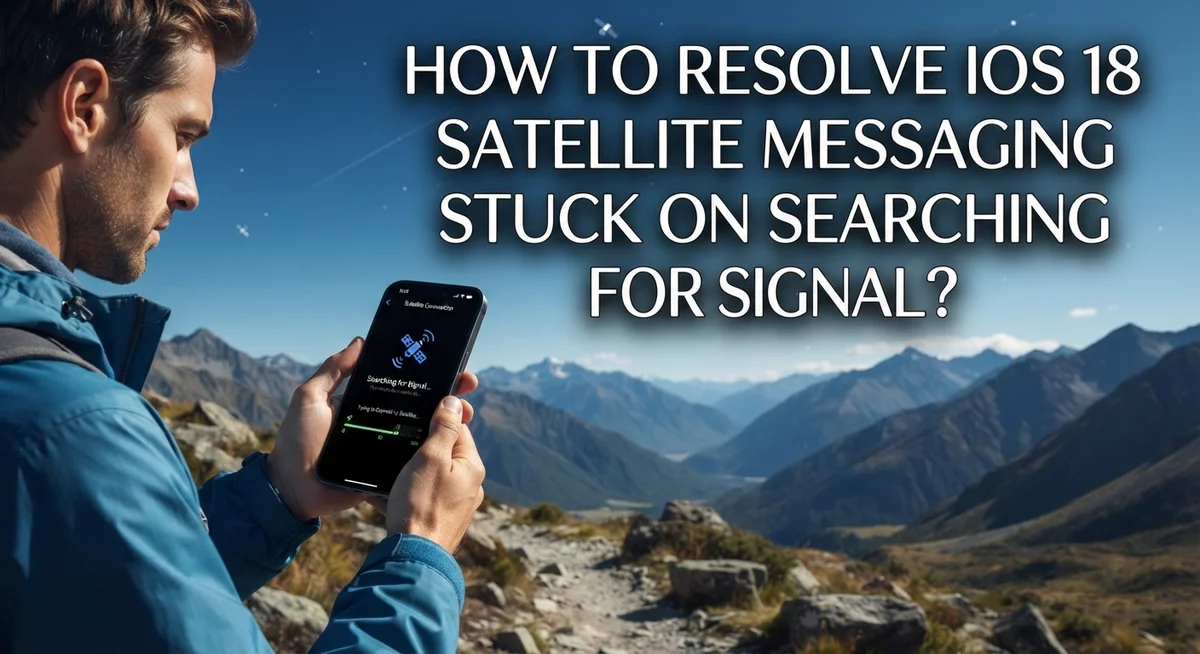
When you see “Searching for Signal,” your phone is actively looking for satellites to connect with. This state happens after your device loses an existing satellite connection. Maybe you moved your phone into a pocket or bag. Perhaps you turned your device at an angle that blocked the sky view. Your iPhone then attempts to find and reconnect to available satellites.
The messaging process is straightforward. You compose your message like normal. Your iPhone routes the message through a satellite instead of a cell tower. The recipient receives your message through standard cellular or internet networks. Responses come back the same way, traveling through satellites to reach you.
This feature only works on iPhone 15 and newer models. Older iPhones cannot access satellite messaging even with iOS 18 installed.
Battery usage increases when using satellite messaging. Your phone works harder to maintain the connection. Signal strength indicators show you how strong your satellite connection is at any moment.
Weather affects satellite messaging performance. Heavy rain, snow, or dense clouds can weaken or block your connection. The best conditions are clear skies and open outdoor spaces away from buildings and trees.
Which iPhone Models Support Satellite Messaging on iOS 18?
Apple added satellite messaging support starting with the iPhone 15 generation. If you own an iPhone 15, iPhone 15 Plus, iPhone 15 Pro, or iPhone 15 Pro Max, you have access to this feature on iOS 18.
The iPhone 16 lineup also supports satellite messaging. This includes the iPhone 16, iPhone 16 Plus, iPhone 16 Pro, and iPhone 16 Pro Max. All of these models come equipped with the necessary hardware to connect to satellites.
Older iPhone models do not support satellite messaging. If you own an iPhone 14 or earlier, this feature will not work on your device. The satellite antenna hardware simply isn’t built into those phones. Upgrading to iOS 18 alone won’t enable satellite messaging on unsupported devices.
Why does model compatibility matter when troubleshooting? When your phone gets stuck on “Searching for Signal,” you first need to confirm your iPhone actually supports the feature. Many users assume their device is broken when the real issue is incompatibility.
Check your iPhone model by going to Settings > General > About. Look for your device name in the “Model” field. You’ll see something like “iPhone 15 Pro” or “iPhone 16 Plus.”
If you’re using an unsupported model, satellite messaging simply won’t activate. The “Searching for Signal” message won’t even appear because the feature doesn’t exist on your phone.
For supported models, “Searching for Signal” indicates your phone is actively hunting for satellite connections. This happens when you lose WiFi or cellular coverage. Your iPhone needs a clear view of the sky to connect successfully.
The iPhone 15 and 16 families represent the only phones capable of satellite messaging on iOS 18. Make sure you own one of these models before attempting other troubleshooting steps. This simple check saves time and prevents frustration.
Why Does iOS 18 Satellite Messaging Get Stuck on Searching for Signal?
When your iPhone displays “Searching for Signal” during satellite messaging, your phone has lost its satellite connection. This happens more often than you might think. Understanding why this occurs helps you fix it faster.
Satellite connections are fragile. Your iPhone needs a clear line of sight to the sky to maintain contact with satellites. When you place your phone in your pocket, bag, or even hold it at certain angles, you block this connection. The device then enters search mode, constantly trying to reconnect.
Environmental factors play a huge role too. Trees, buildings, tunnels, and dense clouds can interrupt your satellite link. Unlike cellular towers that broadcast signals in multiple directions, satellites transmit from above. Your phone must have an unobstructed view upward to stay connected.
Movement also causes disconnections. If you’re walking indoors or moving between locations, your phone may lose the satellite signal momentarily. The device automatically searches for a new connection, which takes several seconds to complete.
Network configuration issues create problems as well. Sometimes your device’s network settings become outdated or corrupted. This prevents your phone from properly recognizing available satellites even when conditions are perfect. The phone keeps searching because it cannot establish the proper connection parameters.
Software glitches occasionally trigger this state too. Temporary bugs in iOS 18 can cause the messaging app to get stuck searching even when satellites are available. Your device needs a fresh start to clear these errors.
Battery status matters more than people realize. When your battery drops too low, your iPhone reduces power to non essential features, including satellite messaging. This forces the device into search mode as it conserves energy.
Finally, iOS version compatibility affects this feature. Older iOS 18 versions had more connection issues. Updating to the latest version often resolves persistent searching problems automatically.
How To Test Your Satellite Connection Using the Built-In Demo
The Satellite Connection Demo is a built-in tool that helps you verify whether your iPhone can actually connect to satellites. This feature exists specifically to troubleshoot “Searching for Signal” problems without sending real messages.
To access the demo, open the Settings app on your iPhone. Navigate to Apps, then select Messages. Look for the option labeled Satellite Connection Demo. Tap it to begin the test sequence.
When you launch the demo, your phone will attempt to establish a satellite connection just like it would during an emergency message. The demo shows you real-time connection status. You’ll see whether your device successfully locks onto satellite signals or remains in searching mode.
Pay attention to your location during testing. Step outside to an open area with a clear view of the sky. Avoid standing near buildings, trees, or other structures that block satellite signals. The demo works best when you have an unobstructed view overhead.
The test typically takes one to two minutes to complete. If the connection succeeds, you’ll see confirmation that your satellite link is active. If it stays stuck on searching, this confirms the problem isn’t a one-time glitch but rather a persistent connectivity issue.
Document what happens during the demo. Note whether the connection fails immediately or after several seconds. This information helps you understand if the problem relates to your location, device settings, or hardware.
After running the demo, try it again in different locations. Move to various spots around your home and yard. This reveals whether the issue happens everywhere or only in specific areas. Some locations have better satellite visibility than others due to geography and obstacles.
If the demo consistently fails across multiple locations, proceed with other troubleshooting steps like network resets or force restarts. A successful demo indicates your hardware works properly, pointing toward configuration issues instead.
Step-by-Step Fixes for Satellite Messaging Stuck on Searching for Signal
Here are the practical fixes you can try right now if your satellite messaging stays stuck on “Searching for Signal.”
Start with a force restart. Press Volume Up, then Volume Down quickly. Hold the Side button until the Apple logo appears on your screen. Keep holding for about 10 seconds after the logo shows. This clears temporary software glitches that often cause the stuck state.
Reset your network settings next. Go to Settings, then General, then Transfer or Reset. Choose Reset and tap Reset Network Settings. Your phone will restart and clear all saved WiFi networks and cellular configurations. This fixes connection problems that prevent satellite reconnection.
Check for iOS updates immediately. Open Settings, tap General, then Software Update. Install any available updates, especially version 18.1 or later. Updates patch bugs that cause satellite messaging failures.
Test your location and positioning. Move to an open outdoor area with a clear sky view. Satellite connections require zero obstructions between your phone and the sky. Remove your phone from your pocket or bag. Hold it in your hand with the screen facing upward at a slight angle.
Verify both devices are compatible. Only iPhone 15 and newer models support satellite messaging. If you’re sending to someone with an older iPhone, they won’t receive satellite messages.
Force close and reopen Messages. Swipe up from the bottom of your screen, find Messages, and swipe it away. Wait 10 seconds, then reopen the app. This refreshes the satellite connection attempt.
Try the Satellite Connection Demo. Open Settings, go to Apps, select Messages, then tap Satellite Connection Demo. This tool tests whether your phone can actually connect to satellites. Run it in an open outdoor space. If the demo fails, your phone has a deeper hardware or software issue.
If these steps don’t work, your device may need service from an authorized technician.
Best Practices for Maintaining a Stable Satellite Connection
Maintaining a stable satellite connection requires consistent attention to several key factors. Your iPhone performs best when you follow specific practices that keep the link active and strong.
Position your phone correctly at all times. Hold your device with the screen facing upward toward the sky. Avoid placing your phone in your pocket, bag, or under furniture. The satellite signal travels from space directly down to your device. Any obstruction between your phone and the sky weakens or breaks this connection.
Stay in open outdoor areas whenever possible. Buildings, trees, and dense structures block satellite signals. Move away from walls and covered spaces. Even standing near a window indoors may not provide enough signal strength. Open areas with an unobstructed view of the sky give you the best results.
Keep your device stationary during messaging. Movement causes the connection to drop. When you’re walking or changing locations, your phone loses and regains the signal repeatedly. This creates that frustrating “Searching for Signal” state. Sit down in a stable position before sending important messages.
Monitor your battery level closely. Your iPhone reduces power to satellite features when battery drops below certain thresholds. Keep your device charged above 20 percent for reliable connectivity. Low battery mode can disable satellite messaging entirely.
Check weather conditions before relying on satellite messaging. Heavy rain, snow, and thick cloud cover interfere with signal transmission. Clear skies provide the most consistent connections.
Test your connection regularly using the built-in demo. This tool helps you understand your current signal quality. Run the demo in different locations around your home and work areas. You’ll learn which spots offer reliable satellite coverage and which ones don’t.
Update your iOS software immediately when new versions release. Apple continuously improves satellite connectivity with software updates. Staying current ensures your device has the latest fixes and optimizations.
Common Mistakes That Cause Satellite Messaging to Stop Working
Using an unsupported iPhone model is the first major mistake people make. Satellite messaging only works on iPhone 15 and newer devices. If you have an older model, the feature simply won’t activate, no matter what you try.
Losing your satellite connection mid conversation without reconnecting is another frequent error. Your phone needs a clear line of sight to the sky to maintain the signal. When you put your phone in your pocket or bag, the connection drops immediately.
Not resetting network settings on both devices causes persistent problems. If you’re sending a message to someone else, their phone also needs proper network configuration. Many users only reset their own device and wonder why the issue continues.
Positioning your phone incorrectly prevents satellite connection from working. Your iPhone must have the screen facing upward toward the sky. Holding it sideways or at an angle blocks the signal significantly.
Staying indoors or in covered areas stops satellite messaging from functioning. Buildings, trees, and dense structures create barriers that block satellite signals completely. You must move to an open outdoor space with a clear sky view.
Ignoring iOS updates leaves your phone running outdated software. Satellite messaging features receive important fixes and improvements in newer iOS versions. Always check for available updates before troubleshooting connection issues.
Not testing your connection properly masks the real problem. The Satellite Connection Demo in your Messages settings lets you verify if your phone can actually reach satellites. Skipping this test means you might waste time on unnecessary fixes.
Expecting satellite messaging to work during poor weather conditions sets you up for failure. Heavy rain, snow, and thick cloud cover interfere with satellite signals. Check your local weather before relying on this feature for important messages.
Final Thoughts
Satellite messaging on iOS 18 is a powerful feature, but it needs the right conditions to work properly. When your iPhone gets stuck on “searching for signal,” the fix is almost always straightforward.
Start with the basics every time. Check your surroundings, confirm your iPhone model supports the feature, and ensure you have a clear view of the sky. These three steps alone resolve most cases.
The “searching for signal” loop usually means your phone lost its satellite connection. It does not always mean something is broken. A simple force restart or network settings reset often brings everything back to normal.
Use the Satellite Connection Demo inside Settings to test whether your device can actually connect. This tool removes all guesswork and tells you immediately if the problem is your location or your device settings.
Keeping your iOS updated is just as important as your physical positioning. Apple regularly pushes fixes for satellite-related bugs in updates like iOS 18.1 and beyond. Running outdated software keeps known issues alive on your device.
Both devices in a conversation need proper settings. If the recipient has a network configuration issue, messages may not go through even when your connection is strong. Always consider both ends of the conversation.
Patience matters with satellite messaging. This technology works differently from cellular or WiFi. It requires stillness, open skies, and a charged battery to perform at its best.
The most important takeaway is this: satellite messaging is designed for emergencies and remote situations. Treat it accordingly, and it will serve you well when you need it most.
Apply the troubleshooting steps consistently, avoid the common mistakes, and follow the best practices covered throughout this guide. Doing so gives you the best possible chance of staying connected, even when traditional networks are completely unavailable.
Frequently Asked Questions
Why is my iPhone stuck on “Searching for Signal” during satellite messaging?
Your phone lost its satellite connection. This happens when you move indoors, put your device in a pocket, or shift position. The satellite link needs a clear view of the sky to work.
The “searching” state means your iPhone is trying to reconnect. It’s not a permanent problem. Simply move to an open area and keep your phone steady.
How do I test if my satellite connection actually works?
Open Settings on your iPhone. Go to Apps, then Messages. Tap Satellite Connection Demo. This tool shows you whether your device can connect to satellites right now.
The demo gives you real feedback about your current location and conditions. Run it before you need satellite messaging for something important.
What should I do if the demo test fails?
First, force restart your iPhone. Press Volume Up, then Volume Down. Hold the Side button until you see the Apple logo appear.
Next, reset your network settings. Go to Settings > General > Transfer or Reset > Reset > Reset Network Settings. This clears connection issues on your device.
Do both people in a conversation need the same settings?
Yes. Both the sender and recipient need proper network configuration. If the other person has outdated iOS or incorrect settings, messages may not go through.
Ask the other person to update their iOS and check their satellite messaging settings too.
Why does my connection drop after I send a message?
Movement causes disconnection. Even slight shifts in phone position break the satellite link. Keep your device still and pointed toward open sky while messaging.
Also check your battery level. Low power reduces satellite feature performance.

Hi, I’m Lily — a tech enthusiast and the voice behind SmartResizerr.com. I love testing gadgets, breaking down specs into plain English, and helping everyday people find the right tech without the overwhelm.