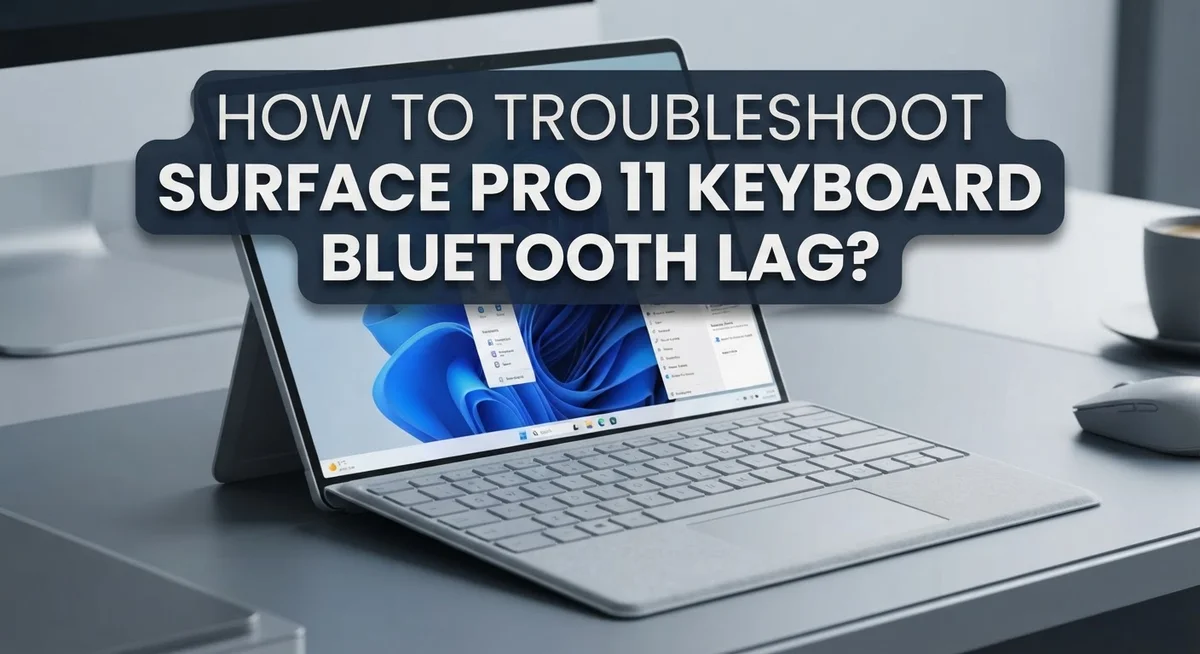
How To Troubleshoot Surface Pro 11 Keyboard Bluetooth Lag?
Typing on your Surface Pro 11 and noticing a delay between keystrokes and what appears on screen? Bluetooth keyboard lag is frustrating, especially when you need to stay productive.
The good news is that this problem is usually fixable. Most causes come down to a few common issues like driver problems, low battery, dirty connectors, or a faulty Bluetooth pairing.
This guide walks you through every step to diagnose and fix the lag. You will learn how to inspect your keyboard connection, check for important updates, and reset your Bluetooth pairing properly.
By the end, you will have a clear action plan to get your Surface Pro 11 keyboard running smoothly again. Let’s get started.
In a Nutshell
- Bluetooth lag on the Surface Pro 11 keyboard is most often caused by driver issues, low battery, dirty connectors, or a failed pairing connection.
- Detaching and reattaching the keyboard is one of the first and most effective steps to try.
- Check your keyboard’s battery level by going to Settings, then Bluetooth & devices, or by opening the Surface app.
- Unpairing and reconnecting the keyboard will automatically reinstall the drivers, which often clears up lag and freezing.
- Always check for Windows updates and Surface app updates before assuming the issue is hardware related.
- Skipping connector inspection and ignoring tablet mode status are two of the most common mistakes people make during troubleshooting.
What Causes Bluetooth Keyboard Lag on Surface Pro 11?
Bluetooth keyboard lag on your Surface Pro 11 happens for several clear reasons. Understanding what causes the problem helps you fix it faster.
Driver issues are the most common culprit. Your keyboard communicates with your Surface through software drivers. When these drivers become outdated or corrupt, your keyboard responds slowly or freezes randomly. Windows updates sometimes break driver compatibility, leaving your keyboard in a confused state.
Low battery drains your keyboard’s performance. Your keyboard automatically enters low power mode when the battery drops. This mode reduces responsiveness to save power. A nearly dead battery means slower keystrokes and frequent disconnections.
Dirty connectors create connection problems. The magnetic connectors between your keyboard and Surface Pro 11 collect dust and debris over time. This buildup prevents proper electrical contact. Your Surface then struggles to communicate with the keyboard, causing lag.
Bluetooth pairing failures occur when your device forgets the keyboard connection. This happens after sleep mode, restarts, or system updates. Your Surface tries to reconnect but fails to establish a stable link.
Tablet mode also triggers lag issues. When your Surface enters tablet mode, the system sometimes disables keyboard drivers to save resources. You get lag or complete unresponsiveness even though your keyboard is charged and clean.
Windows and Surface app updates can introduce compatibility problems. New updates sometimes conflict with existing keyboard drivers. Your system needs both the latest Windows patches and the latest Surface app version to work correctly.
These causes are all fixable. Each one responds well to specific troubleshooting steps. The key is identifying which cause affects your device, then applying the right solution. Most lag issues disappear after addressing one or two of these problems.
How To Inspect and Clean the Keyboard Connectors
Your Surface Pro 11 keyboard connectors gather dust and debris over time. This buildup blocks the electrical connection between your keyboard and device. Cleaning them is a quick fix that solves many lag problems.
Start by detaching your keyboard from the Surface Pro 11. Look at the connector pins on both the keyboard and the device. You should see small metal contacts. Inspect them carefully for dust, lint, or discoloration.
Use a soft, dry cloth to gently wipe the connectors. A microfiber cloth works best because it won’t scratch the metal. Wipe in one direction only. Never use water, alcohol, or cleaning solutions on the connectors. These liquids can damage the electronics inside.
Check the keyboard connector port on your Surface Pro 11 next. Look inside the port for any visible debris. If you see dust, use a clean, dry cloth or a soft brush to remove it. Be gentle and avoid pushing anything deep into the port.
Inspect the connectors for any bent pins or visible damage. Bent pins prevent proper electrical contact. If pins are bent, you may need to have the keyboard serviced professionally.
After cleaning, reattach your keyboard firmly to the Surface Pro 11. You should hear a click or feel resistance when it locks into place. Power on your device and test the keyboard response.
Wait a few minutes for the connection to stabilize. Type a few sentences to check if the lag has improved. Clean connectors often restore normal keyboard performance right away.
Make connector cleaning part of your monthly maintenance routine. Regular cleaning prevents debris buildup and keeps your keyboard responsive.
How To Check and Update Keyboard Battery Level
Your keyboard battery level directly affects how your device responds to your commands. A low battery causes lag, freezing, and connection drops. Check your battery regularly to prevent these issues.
Open Settings on your Surface Pro 11. Click the Start button, then select Settings from the menu. You can also press the Windows key and type “Settings” to find it faster.
Navigate to Bluetooth & devices in the Settings menu. This section shows all your connected wireless devices. Your keyboard appears here with its current battery percentage displayed.
Look for your keyboard’s name in the list. The battery level shows next to it. Most keyboards display battery as a percentage. Green means good, yellow means low, and red means critically low.
You can also check battery through the Surface app. Download it from your device if you don’t have it already. The app provides detailed information about all Surface accessories, including your keyboard battery status.
Monitor your battery weekly. Replace or charge your keyboard when it drops below 20 percent. Low battery makes your keyboard unresponsive and sluggish.
Set a reminder to check battery monthly. This simple habit prevents most lag problems before they start. You’ll know exactly when your keyboard needs attention.
If your battery shows adequate but lag continues, the problem lies elsewhere. Move forward with driver updates or connector cleaning. Battery level is just one piece of the troubleshooting puzzle.
Keep your keyboard plugged in or charged consistently. A healthy battery keeps your Surface Pro 11 keyboard working smoothly every single day.
How To Update Windows and Surface App Drivers
Windows and driver updates fix most keyboard lag issues on your Surface Pro 11. Outdated drivers prevent your keyboard from communicating properly with your device.
Start by checking Windows updates manually. Click the Start button and open Settings. Select “Update & Security” or “System” depending on your Windows version. Click “Check for updates” to see if new versions are available. Install any updates you find and restart your Surface Pro 11 afterward.
Next, update your Surface app drivers specifically. The Surface app manages all hardware connections on your device. Open the Microsoft Store and search for “Surface.” Download the latest version if updates are available. This step is critical because Surface app updates often include keyboard driver improvements.
After installing Windows updates, restart your device completely. Don’t just put it to sleep. A full restart ensures all driver changes take effect properly.
Open Device Manager to verify driver status. Right click the Start button and select “Device Manager.” Look for “Keyboards” in the list and expand it. Your Surface keyboard should appear without any warning symbols. If you see a yellow exclamation mark, right click the keyboard and select “Update driver.” Choose “Search automatically for updated driver software.”
Wait at least 10 minutes after updating drivers before testing your keyboard. Drivers need time to fully install and activate. If lag persists after these steps, the issue likely involves pairing or hardware problems rather than drivers.
Check your Windows version to ensure compatibility. Older Windows versions may not support the latest keyboard drivers. Consider upgrading if you’re running an outdated version.
How To Unpair and Re-Pair Your Surface Pro 11 Keyboard
Unpairing and re-pairing your keyboard often fixes Bluetooth lag instantly. This process forces your Surface Pro 11 to reinstall the keyboard drivers and refresh the connection.
Start by opening Settings on your Surface Pro 11. Click the Start button, then select Settings from the menu. Navigate to Bluetooth & devices in the left sidebar.
Look for your keyboard in the list of paired devices. You should see your Type Cover or keyboard listed by name. Click on it to select it.
Select the “Remove device” or “Unpair” option. A confirmation window will appear asking if you want to remove this device. Click “Yes” to confirm the action.
Wait about 10 seconds after unpairing. This pause allows your Surface to fully clear the old connection data.
Now it’s time to re-pair your keyboard. Detach your keyboard from the Surface Pro 11 if it’s still connected. Wait another 5 seconds, then reattach it firmly to the device.
Your Surface should automatically detect the keyboard and begin the pairing process. You may see a notification asking to confirm the connection. Click “Yes” or “Connect” when prompted.
Wait at least 30 seconds for the full pairing to complete. During this time, drivers reinstall automatically in the background. Avoid using your keyboard until the pairing finishes.
Test your keyboard by typing a few words. The lag should be noticeably reduced or completely gone. If you still experience issues after re-pairing, move on to checking your Device Manager for driver problems or testing in Safe Mode to rule out software conflicts.
How To Verify Tablet Mode and Device Manager Settings
Tablet mode can cause your keyboard to behave strangely or stop responding properly. Your Surface Pro 11 enters tablet mode when you detach the keyboard, and this setting sometimes remains active even after you reattach it. Check your tablet mode status first before diving into other troubleshooting steps.
To verify tablet mode, open Settings on your Surface Pro 11. Click the Start button and select Settings. Look for “System” in the left menu. Select “Tablet” from the options available.
You’ll see a toggle switch for tablet mode. If it’s turned on, switch it off immediately. Your keyboard should respond better once you disable this setting. Tablet mode disables certain keyboard features intentionally, which explains the lag you’re experiencing.
Next, check your Device Manager for driver issues. Right click the Start button and select “Device Manager” from the menu. Look for “Keyboards” in the list and expand it.
Your keyboard should appear without any warning symbols. A yellow exclamation mark means the driver needs attention. Right click on your keyboard and select “Update driver.” Choose the option to search automatically for updated drivers.
If you see an unknown device listed, this indicates a driver problem. Right click it and select “Update driver” as well. After updating, restart your Surface Pro 11 completely.
Device Manager shows the real health of your hardware connections. Checking this tool regularly prevents most lag problems. If drivers appear up to date but lag persists, the issue likely stems from Bluetooth pairing problems rather than settings or drivers.
Common Mistakes To Avoid When Fixing Keyboard Lag
Many people make simple mistakes when fixing keyboard lag. These errors waste time and prevent your Surface Pro 11 from working properly.
Skipping connector inspection is the first major mistake. Dirt, dust, or debris on the keyboard connectors blocks the electrical connection. You should detach your keyboard, look at both the keyboard connectors and the Surface connectors closely, and wipe them gently with a soft, dry cloth. This step takes two minutes but often solves lag completely.
Ignoring Windows and Surface app updates is another common error. Many users assume their device is already updated. You must check manually. Go to Settings, select Update and Security, and click Check for Updates. Then open your Surface app separately and verify those drivers are current too. Updates fix driver conflicts that cause lag.
Not checking tablet mode catches many people off guard. Your keyboard behaves differently or stops responding when tablet mode is active. Open Settings and toggle tablet mode off. This simple action resolves mysterious lag that other fixes cannot touch.
Failing to unpair and repair before troubleshooting wastes valuable time. Some users skip this step because it seems too basic. Unpairing forces your Surface to reinstall keyboard drivers automatically. This process often fixes lag instantly. Always unpair, wait 10 seconds, then repair your keyboard before trying other solutions.
Finally, people rush through troubleshooting without waiting between steps. After updating drivers, wait at least 10 minutes before testing. After repairing your keyboard, wait 30 seconds for drivers to reinstall completely. Patience during troubleshooting prevents confusion about what actually fixed your problem.
When To Use Windows Recovery Options for Persistent Lag
When your Surface Pro 11 keyboard lag continues after basic fixes, Windows recovery options become your next step. Persistent lag often signals deeper system issues that simple restarts cannot resolve.
Before using recovery options, understand what they do. Windows recovery tools reset system files and settings without removing your personal data. This process reinstalls core system components that control Bluetooth functionality.
You should consider recovery options when lag persists after you have unpaired and re-paired your keyboard. You should also try this if lag continues after updating all drivers and Windows itself. If your keyboard disconnects randomly despite multiple troubleshooting attempts, recovery options may help.
To access recovery options, open Settings on your Surface Pro 11. Click System, then select Recovery from the menu. You will see several options available.
Start with “Reset this PC” while keeping your files intact. This option removes problematic system files while preserving your documents and photos. The process takes 20 to 30 minutes to complete.
Wait for the reset to finish completely. Do not interrupt the process or close your Surface. Your device will restart several times during this operation.
After the reset completes, reconnect your keyboard. Pair it fresh using the standard Bluetooth pairing process. Test the keyboard responsiveness immediately.
If lag returns after recovery, the issue may involve hardware rather than software. In this case, you should inspect the keyboard connectors for physical damage or debris.
Recovery options work best when lag stems from corrupted drivers or system files. They rarely fix hardware problems like battery issues or connector damage. Use recovery as your second to last troubleshooting step before seeking hardware repair options.
Final Thoughts
Fixing Surface Pro 11 keyboard Bluetooth lag takes patience and a clear process. Most issues resolve with basic steps like cleaning connectors, checking battery, and updating drivers.
Start simple before jumping to advanced fixes. Detach and reattach your keyboard first, then inspect the connectors for dust or debris. These small actions solve more problems than people expect.
Always keep Windows and your Surface app updated. Outdated drivers are a hidden cause of lag that many users overlook entirely. Running updates regularly prevents most keyboard issues before they start.
Monitor your keyboard battery level through Settings. A low battery triggers power-saving behavior that makes the keyboard feel slow or unresponsive. This is easy to miss but simple to fix.
If basic steps fail, unpair and repair your keyboard. This forces a fresh driver installation and clears any corrupted pairing data. Give the process at least 30 seconds to complete fully.
Check tablet mode and Device Manager when lag continues. These two tools reveal hidden conflicts that basic troubleshooting cannot catch. A warning symbol in Device Manager tells you exactly where the problem lives.
Windows recovery options exist for persistent cases. Use them only after exhausting every other step. Recovery fixes deep software conflicts that regular updates cannot resolve.
If lag returns after a full reset, the issue may be hardware-related. At that point, contacting Microsoft support is your best path forward.
Consistency matters most throughout this process. Work through each step carefully and wait between actions. A calm, methodical approach gives you the best chance of solving Surface Pro 11 keyboard lag for good.
Frequently Asked Questions
Why does my keyboard lag when the battery is low?
Your keyboard enters low-power mode automatically when the battery drops. This mode slows down response times to save power. Check your battery level in Settings by going to Bluetooth & devices or opening the Surface app.
Low battery drains faster during heavy typing sessions. Charge your keyboard regularly to avoid this issue. A full charge typically lasts several weeks with normal use.
Can tablet mode cause keyboard lag?
Yes. When your Surface Pro 11 switches to tablet mode, the keyboard may disconnect or respond slowly. Check if tablet mode is active in your Settings.
Disable tablet mode if you use your keyboard regularly. Your Surface detects when you detach the keyboard, so make sure you are not accidentally triggering this mode through gestures or settings changes.
How often should I clean the keyboard connectors?
Clean your connectors every two to four weeks. Dust and debris block the connection between your keyboard and Surface Pro 11.
Use a soft, dry cloth to gently wipe the connectors. Avoid liquid cleaners or excessive pressure. Inspect the connectors for visible damage while you clean them.
What should I do if the keyboard disconnects after waking my Surface?
Unpair your keyboard completely, then repair it. This forces Windows to reinstall the connection and drivers.
Go to Settings, select Bluetooth & devices, find your keyboard, and choose Remove. Wait a few seconds, then reconnect it. Your Surface will automatically reinstall the necessary drivers.
Does my keyboard need a specific Windows version to work properly?
Your keyboard works best with the latest Windows updates. Older versions may have compatibility issues that cause lag.
Check for updates regularly in Settings. The Surface app also provides firmware updates for your keyboard. Install these updates and restart your device afterward.

Hi, I’m Lily — a tech enthusiast and the voice behind SmartResizerr.com. I love testing gadgets, breaking down specs into plain English, and helping everyday people find the right tech without the overwhelm.