How To Resolve Lutron Caseta Smart Switch Not Responding To App?
You tap the Lutron app on your phone. You wait. Nothing happens. Your Lutron Caseta smart switch sits there, completely ignoring every command you send. The lights stay frozen, and your smart home suddenly feels very dumb.
This is one of the most common frustrations Caseta owners face. The switch might work fine with its physical buttons, but the app acts like it has no idea the switch exists. Or maybe everything was working perfectly for months, and then one day, the connection just disappeared.
The good news is that this problem is almost always fixable. The Lutron Caseta system uses a Smart Hub (formerly called Smart Bridge) to communicate between your switches and the app. Most app response failures trace back to a handful of causes: a disconnected hub, a Wi Fi issue, a signal range problem, or a simple software glitch.
This post walks you through every solution, from the quickest 30 second fixes to the deeper resets that solve stubborn issues. You will learn exactly why your Caseta switch stops responding to the app and what to do about it every single time.
Key Takeaways
- The Smart Hub is the central link between your Caseta switches and the Lutron app. If the hub loses its network connection or power, none of your switches will respond to app commands, even though they still work manually.
- A simple power cycle fixes most issues. Unplug your Smart Hub for 30 seconds, restart your router, and reopen the Lutron app. This clears temporary glitches in about 80% of cases.
- Your phone must be on the same Wi Fi network as the Smart Hub for local control. If you recently changed your router, password, or network settings, the hub may have lost its connection.
- The FASS (Front Accessible Service Switch) on the bottom of your Caseta switch acts as a physical power reset. Pulling this tab out for 10 seconds and pushing it back in can revive an unresponsive switch instantly.
- Clear Connect RF signal has a range of about 30 to 60 feet. Switches installed far from the hub may drop communication. A Caseta plug in dimmer or repeater can extend your signal range.
- Firmware updates for both the hub and individual switches can resolve persistent connectivity bugs. Always check the Lutron app for available updates before attempting more advanced troubleshooting.
Understanding Why Your Caseta Switch Stops Responding
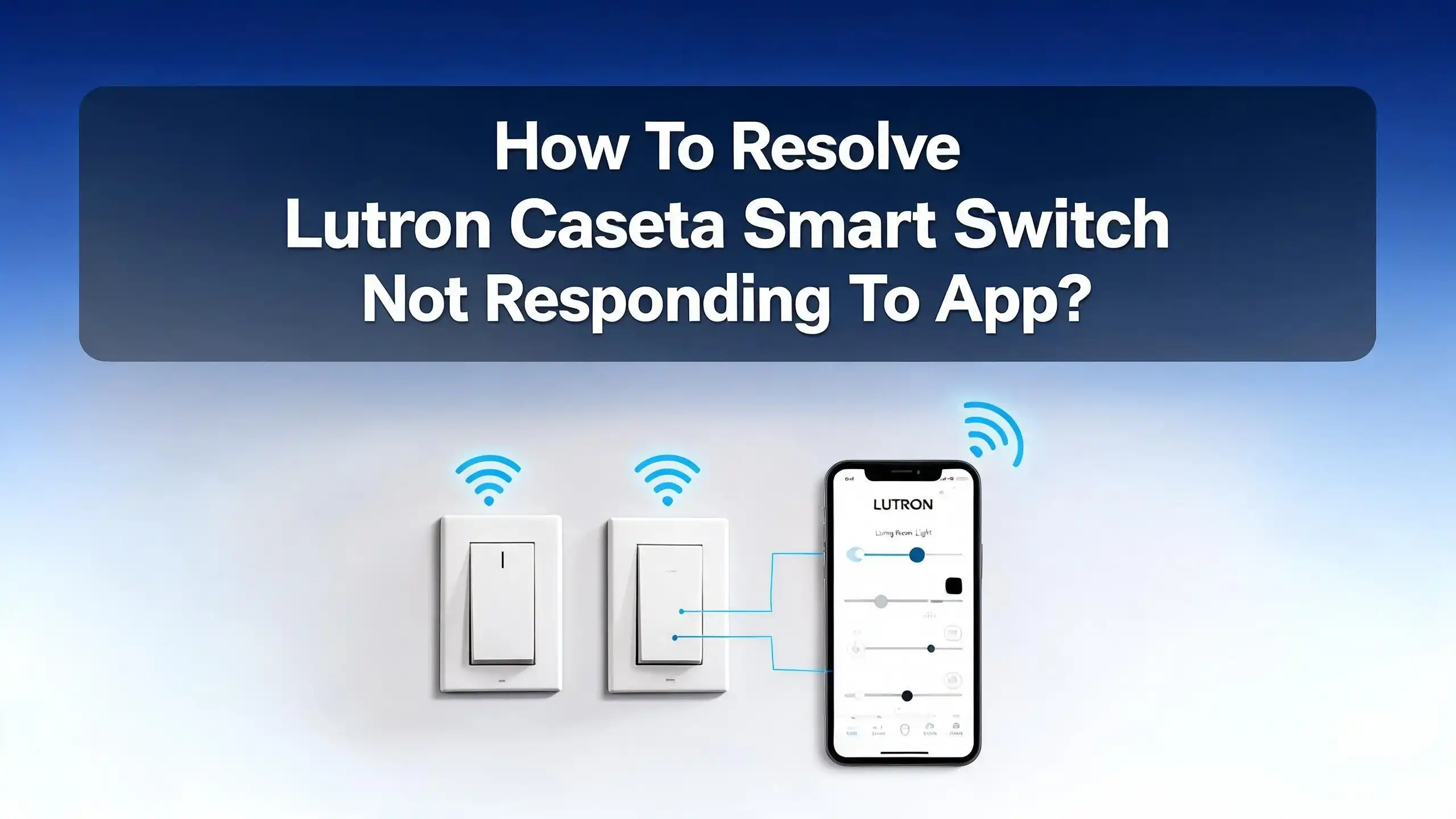
Your Lutron Caseta system relies on three key components working together: the smart switch, the Smart Hub, and the Lutron app on your phone. The switch communicates with the hub using Lutron’s Clear Connect RF technology, a proprietary wireless signal. The hub then connects to your home network through an Ethernet cable and talks to the app over Wi Fi or the internet.
When any part of this chain breaks, the app loses control of the switch. The switch itself may still work manually because it does not need the hub or app to turn lights on and off. But app commands require the full communication path to be active.
Common causes include a hub that has lost power or network access, a router that changed its settings, a switch that drifted out of RF range, or corrupted firmware on the hub or switch. Sometimes the issue is as simple as the Lutron app needing a fresh start on your phone.
Understanding this chain helps you diagnose problems faster. If all switches are unresponsive in the app, the problem is likely the hub or your network. If only one switch is unresponsive, the issue is probably with that specific switch or its distance from the hub.
Power Cycle Your Smart Hub and Router
The fastest and most effective fix for a Caseta switch not responding to the app is a simple power cycle of your Smart Hub and router. This clears temporary memory errors, resets network connections, and forces the hub to reconnect to your system.
Start by unplugging the Smart Hub’s power adapter from the wall outlet. Next, unplug your router. Wait at least 30 seconds. This pause allows both devices to fully discharge and clear any cached errors.
Plug the router back in first and wait two to three minutes for it to fully boot up. Then plug the Smart Hub back in. Watch the LED light bar on the hub. It will cycle through a startup sequence. A spinning circular pattern means the hub is checking for firmware updates. A solid light means the hub is connected and ready.
Now open the Lutron app on your phone. Give it 30 to 60 seconds to detect the hub. Try controlling one of your switches. In most cases, this single step resolves the problem entirely.
If the hub’s LED light never turns solid or keeps blinking endlessly, the hub may not be reaching your router. Check the Ethernet cable connecting the hub to your router. Swap the cable with a known working one to rule out a bad connection.
Pull the FASS Tab to Reset Your Switch
Every Lutron Caseta dimmer and switch has a small tab at the very bottom called the FASS (Front Accessible Service Switch). This tab creates a physical air gap that completely disconnects the switch from electrical power. It is essentially a hard reboot button for your switch.
To use it, locate the small tab at the bottom of the switch faceplate. Pull it straight out. You will feel a slight click as it disengages. Leave it in the pulled position for at least 10 seconds. This ensures the switch fully powers down.
Push the tab back in. The switch will power back on, and the LED indicators on the switch should illuminate. The switch will automatically reconnect to the Smart Hub within a few moments.
This fix is especially useful when a switch physically stops responding to all inputs, including manual button presses. Several Caseta owners have reported that pulling the FASS tab immediately resolved switches that appeared completely dead.
One important note: make sure the FASS tab is firmly pushed all the way back in. If it is slightly loose or not fully engaged, the switch may have intermittent power and behave erratically. Check that it clicks into place when you push it back.
Verify Your Network Connection
Your Lutron Smart Hub connects to your home network through a wired Ethernet cable. It does not use Wi Fi. This is an important distinction because many users assume the hub connects wirelessly like other smart home devices.
First, check that the Ethernet cable is firmly plugged into both the hub and your router or network switch. A loose cable is one of the most overlooked causes of hub disconnection. Try unplugging and replugging the cable at both ends.
Next, confirm that your phone is connected to the same local network as the hub. If your router broadcasts multiple network names (such as a 2.4GHz and a 5GHz network), make sure your phone is on the network the hub is accessible from. The Lutron app needs local network access to discover and communicate with the hub.
If you recently changed your router, updated your router firmware, or changed your Wi Fi password, the hub may need to be rediscovered. Some routers also have features like “AP isolation” or “client isolation” that prevent devices on the network from communicating with each other. Disable these features if they are enabled.
You can also verify the hub has a valid IP address by checking your router’s connected devices list. The hub should appear as a connected wired device. If it does not show up, the network connection between the hub and the router is broken.
Check the Signal Range Between Hub and Switch
Lutron Caseta uses Clear Connect RF technology to communicate between the Smart Hub and your switches. The published range is approximately 30 feet indoors, though many users report success at greater distances depending on the home’s construction.
If your switch is installed far from the hub, thick walls, large metal appliances, or multiple floors between them can weaken or block the signal. A switch that worked fine initially may start dropping commands if you added new furniture, electronics, or other objects that interfere with the RF signal path.
To test if range is the issue, temporarily move the Smart Hub closer to the problem switch. You can use a longer Ethernet cable or temporarily relocate the hub. If the switch starts responding to the app, you have confirmed a range problem.
The permanent solution is to add a Caseta range extender. Lutron offers a dedicated repeater (PD REP WH) and also allows certain plug in dimmers to act as signal repeaters. Placing one of these devices between the hub and the distant switch creates a relay point that extends your RF coverage.
Keep the hub positioned centrally in your home for the best coverage. Placing it in a far corner or inside a metal cabinet significantly reduces its effective range. Lutron recommends the hub be installed in an open area near the center of the home for optimal performance.
Update the Smart Hub Firmware
Outdated firmware on your Smart Hub can cause connectivity problems, slow response times, and communication failures with your switches. Lutron regularly releases firmware updates that fix bugs and improve system stability.
To check for updates, open the Lutron app and look for any notification or banner indicating an available update. You can also force the hub to check for updates by pressing and holding the small button on the back of the hub for about 20 seconds. The LED light bar will flash quickly, indicating the hub is connecting to Lutron’s servers to check for new firmware.
Leave the hub alone for 5 to 10 minutes while it downloads and installs any available updates. Do not unplug the hub during this process. Interrupting a firmware update can corrupt the hub’s software and create worse problems.
After the update completes, the LED light bar will return to a steady solid glow. Open the Lutron app and test your switches. Many users on community forums have reported that a firmware update immediately resolved months of intermittent connectivity issues.
Also check that your Lutron app is updated to the latest version on your phone’s app store. An outdated app may not communicate properly with a hub running newer firmware. Keep both the hub and the app current for the best results.
Update Your Caseta Switch Firmware
In addition to the hub, individual Caseta switches and dimmers also receive firmware updates. A switch running old firmware may not respond properly to commands sent through the app, even if the hub is fully updated and connected.
Open the Lutron app and go to the settings menu. Look for a section related to device updates or firmware. The app will display a list of your devices and indicate if any of them have pending updates. Select the switch that is not responding and follow the on screen instructions to update its firmware.
The update process sends the new firmware from the hub to the switch over the Clear Connect RF signal. This can take several minutes depending on the size of the update and the signal quality. Keep the switch powered on and avoid pulling the FASS tab during the update.
Once the update is complete, the switch will restart automatically. Test it from the app to confirm it is now responding. If you have multiple switches that are not responding, update all of them one at a time.
Firmware updates have historically resolved issues like delayed responses, switches appearing offline, and commands being ignored. This step is often overlooked but can be the difference between a frustrating system and a reliable one.
Reinstall the Lutron App
Sometimes the problem is not with the hub or switch at all. The Lutron app itself can develop glitches that prevent it from connecting to your system. Cached data, corrupted settings, or a failed app update can all cause the app to lose contact with the hub.
Start by force closing the Lutron app on your phone. On an iPhone, swipe up from the bottom and swipe the app away. On an Android device, go to your recent apps and close it. Reopen the app and try connecting again.
If force closing does not help, delete the app entirely from your phone and reinstall it from the Apple App Store or Google Play Store. After reinstalling, log back into your Lutron account. The app should automatically detect your Smart Hub and restore all your device settings, scenes, and schedules.
Several users on Reddit have confirmed that a fresh install of the Lutron app resolved persistent “cannot connect to your Lutron system” errors. One user reported that even creating a new Lutron account with a different email address fixed an issue that no other troubleshooting step could resolve.
After reinstalling, make sure you grant the app all necessary permissions, including local network access. On iOS, go to Settings, find the Lutron app, and ensure “Local Network” is toggled on. Without this permission, the app cannot discover the hub on your network.
Resolve Apple HomeKit “No Response” Errors
If you use Apple HomeKit with your Lutron Caseta system, you may see a “No Response” error on your switches in the Apple Home app. This is a common issue that is separate from the Lutron app itself.
The HomeKit connection flows through the Smart Hub, which acts as a HomeKit bridge. If the hub loses its network connection, every Caseta device in HomeKit will show “No Response.” Start by power cycling the hub as described earlier.
Check your Home Hub settings in the Apple Home app. Go to Home Settings, then Home Hubs and Bridges. Make sure the Lutron Smart Hub appears as “Connected.” If it shows “Not Connected,” the hub is not reachable on the network. If you have multiple Apple Home hubs (Apple TV, HomePod, iPad), try turning off automatic selection and manually choosing a specific hub.
If only one switch shows “No Response” while all others work, the problem is likely with that specific switch. Reset it using the FASS tab and check that it is within RF range of the Smart Hub. You may also need to remove the device from HomeKit and re add it through the Lutron app.
For persistent HomeKit issues, reset the HomeKit connection entirely in the Lutron app. Go to the app’s settings, find the HomeKit option, and remove the integration. Then set it up again from scratch. This forces a fresh connection between the Lutron system and Apple HomeKit.
Factory Reset Your Caseta Switch
When all other steps fail, a factory reset returns your Caseta switch to its original out of the box state. This erases all programming, associations, and settings on the switch and allows you to pair it with your hub as if it were brand new.
To factory reset a Caseta dimmer or switch, follow these steps carefully. First, pull the FASS tab out to cut power to the switch. While the FASS is pulled out, press and hold the top button (the on button) on the switch. Continue holding the button and push the FASS tab back in.
Keep holding the top button until the LED indicator lights on the switch begin to flash rapidly. This usually takes about 10 seconds. Once you see the rapid flashing, release the button. The switch has been restored to factory defaults.
Now open the Lutron app and add the switch to your system again. Go to Devices, select Add Device, and follow the on screen pairing instructions. The switch should enter pairing mode automatically after the factory reset.
Be aware that a factory reset removes the switch from all rooms, scenes, schedules, and remote associations. You will need to reconfigure everything after re pairing. This is a last resort step, but it is extremely effective at resolving stubborn communication problems between the switch and the hub.
Check for Router or Network Configuration Issues
Your router plays a critical role in the Caseta system’s ability to communicate with the Lutron app. Certain router settings can block or interfere with the connection between the hub and the app on your phone.
IGMP snooping is a feature on some routers that can cause issues with the Lutron hub. If your router has this feature enabled, try disabling it and testing the connection. Similarly, “AP isolation,” “wireless isolation,” or “device isolation” settings prevent devices on your network from seeing each other. The Lutron app needs to see the hub on the same network to work.
Some routers assign new IP addresses to devices periodically through DHCP. If the hub’s IP address changes after a router restart, the app may temporarily lose its connection. You can fix this by assigning a static IP address to the hub in your router’s settings. Find the hub’s MAC address (printed on the bottom of the hub) and reserve a fixed IP for it.
If you recently upgraded your router or switched internet providers, the hub may need to be reconnected. Some users have found that plugging the hub into a different port on the router resolves detection issues. Also check that UPnP (Universal Plug and Play) is enabled on your router, as the Lutron system uses it for device discovery.
Mesh router systems like Eero, Google Wifi, or Orbi generally work well with Caseta, but make sure the hub is connected to the main router node rather than a satellite.
Relocate Your Smart Hub for Better Performance
The physical placement of your Smart Hub directly affects how well it communicates with all your Caseta switches. A poorly placed hub can create dead zones where switches struggle to receive or send signals.
Place the hub in an open area, away from large metal objects, refrigerators, microwaves, and other electronics that produce RF interference. Avoid placing the hub inside a metal cabinet, behind a television, or in a basement corner. These locations severely reduce the hub’s effective communication range.
The ideal location is near the center of your home, on a shelf or table where the hub has clear line of sight to as many rooms as possible. Since the hub needs a wired Ethernet connection, you may need a longer Ethernet cable to reach a more central location.
If your home is larger than 2,500 square feet or has multiple floors, a single hub may not cover every switch. Lutron allows you to add one auxiliary repeater to extend the RF range. A Caseta plug in dimmer installed in a hallway or central room can also serve as a signal booster for nearby switches.
After relocating the hub, test each switch from the app. Pay special attention to the switches that were previously unresponsive. You should notice improved response times and more reliable control across your entire home.
Contact Lutron Support for Hardware Issues
If you have tried every troubleshooting step and your Caseta switch still does not respond to the app, the switch or hub may have a hardware defect. Lutron offers 24/7 customer support and is known for providing excellent assistance with technical issues.
Call Lutron’s support line or use their online contact form to describe your issue. Have the following information ready: the model number of your Smart Hub and switch, the firmware version shown in the Lutron app, and a description of the steps you have already tried.
Lutron provides a warranty on their products. If your hub or switch is defective and within the warranty period, they will often send a replacement at no cost. Some users on community forums have reported receiving replacement hubs even outside the standard warranty period after explaining their issue to support.
Before calling, check the LED indicator on the hub one more time. If the LED is off or behaving abnormally (constant blinking, unusual colors), this suggests a hardware failure. A hub that is six or more years old may also experience age related reliability issues, as reported by several long time Caseta users.
Do not attempt to open or repair the hub or switch yourself. These devices contain sealed electronics and are not user serviceable. Opening them voids the warranty and risks electrical hazards.
Frequently Asked Questions
Why does my Lutron Caseta switch work manually but not from the app?
The switch controls lights directly through its internal wiring, so manual button presses always work regardless of network status. App control requires the Smart Hub to relay commands from the app to the switch over RF. If the hub is offline, disconnected from the network, or out of range, the app cannot reach the switch. Power cycle your hub and check its Ethernet connection to restore app control.
How do I know if my Lutron Smart Hub is connected to the network?
Check the LED light bar on the front of the hub. A solid, steady light means the hub is powered on and connected. A spinning circular pattern means it is updating firmware. No light or constant rapid blinking may indicate a power or network issue. You can also check your router’s list of connected devices to confirm the hub has an active network connection and a valid IP address.
Can I control my Caseta switches without the Smart Hub?
You can control switches manually using the physical buttons on the switch and with paired Pico remotes. However, app control, voice assistant integration, scheduling, and geofencing all require the Smart Hub. The hub is the central communication point that makes your Caseta system “smart” beyond basic on and off functionality.
How far can a Lutron Caseta switch be from the Smart Hub?
Lutron’s Clear Connect RF technology has a published range of approximately 30 feet indoors. Real world performance varies based on wall materials, floor construction, and interference from other electronics. Many users report reliable connections at 40 to 50 feet in typical homes. For greater distances, add a Caseta repeater or plug in dimmer to extend the signal range.
How often should I update my Lutron Caseta firmware?
Check for updates at least once a month. Lutron releases firmware updates periodically to fix bugs, improve security, and enhance performance. The Lutron app will usually notify you of available updates. You can also force a check by pressing and holding the button on the back of the hub for 20 seconds. Always keep both the hub firmware and the Lutron app updated to the latest versions.
Will a factory reset delete all my Lutron Caseta settings?
A factory reset on an individual switch erases only that switch’s programming and associations. Your other switches, scenes, and schedules remain intact on the hub. However, you will need to re pair the reset switch to the hub and reconfigure any scenes, schedules, or remote associations that included that switch. A factory reset on the hub itself erases all system settings and requires a complete system setup from scratch.

Hi, I’m Lily — a tech enthusiast and the voice behind SmartResizerr.com. I love testing gadgets, breaking down specs into plain English, and helping everyday people find the right tech without the overwhelm.