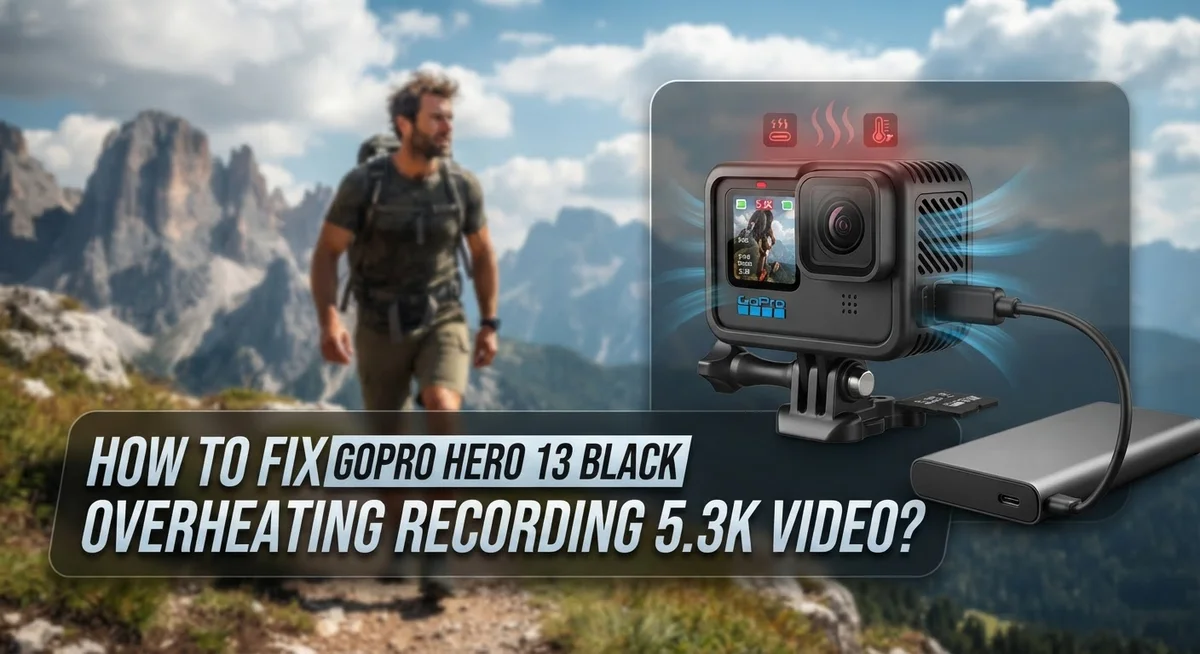
How To Fix GoPro Hero 13 Black Overheating When Recording 5.3K Video?
Your GoPro Hero 13 Black is an incredible camera, but recording in 5.3K can push it to its limits. Many users notice their camera suddenly shuts down mid-recording, especially during longer sessions. This is a thermal shutdown, and it happens more often than you might think.
The good news is that this problem is fixable. You do not need to send your camera in for repairs or give up on 5.3K recording entirely.
This article walks you through the exact steps to stop your GoPro Hero 13 Black from overheating. You will learn why it happens, what mistakes make it worse, and how to keep your camera running longer.
We cover everything from firmware updates and video performance settings to simple habits like managing your recording duration and improving airflow around your device.
In a Nutshell
- GoPro Hero 13 Black overheating during 5.3K recording is a known issue. The processor works extremely hard at this resolution, which generates a lot of heat fast.
- Short clips are safer. Recording 2 to 3 minute clips is usually fine. Sessions of 15 minutes or more are where problems start.
- Firmware updates matter. Running outdated firmware makes overheating worse. Always keep your camera updated to the latest version.
- Video Performance Mode is your best friend. Switching to Tripod Mode inside Preferences helps reduce heat during stationary or studio-style shoots.
- Resolution is a simple fix. Dropping from 5.3K to 4K takes a big load off the processor and greatly reduces the chance of a thermal shutdown.
- Airflow makes a real difference. Recording in enclosed or poorly ventilated spaces speeds up overheating. Give your camera room to breathe, and avoid direct sunlight during long sessions.
Why Does the GoPro Hero 13 Black Overheat During 5.3K Recording?
Your GoPro Hero 13 Black generates significant heat when recording at 5.3K resolution because the processor works extremely hard to capture and process that much data. This is the core reason behind thermal shutdown.
The camera’s processor handles massive amounts of information during 5.3K recording. Each frame contains more pixels than standard 4K, which means your device must work faster and hotter. The internal components push themselves to their maximum capacity.
Environmental conditions play a bigger role than you might think. Even at moderate room temperatures around 75 degrees Fahrenheit, the camera struggles during extended 5.3K sessions. The heat builds up inside the device faster than it can escape.
Poor ventilation around your camera makes things worse. When you record in enclosed spaces or hold the camera tightly against your body, airflow gets blocked. Heat gets trapped inside instead of dissipating into the air around it.
Continuous recording duration is critical. Short clips lasting 2 to 3 minutes typically stay cool. Once you push past 15 minutes of non stop 5.3K recording, thermal shutdown becomes likely. The processor simply cannot maintain that workload indefinitely without overheating.
Your camera has a built in safety feature that shuts down recording when temperatures get too high. This protects the internal components from permanent damage. It is not a defect. It is a protection mechanism.
Understanding these causes helps you prevent problems before they start. You now know that 5.3K recording is inherently demanding. You also know that environment, ventilation, and recording length all affect how quickly your camera heats up. With this knowledge, you can make smart choices about when and how to use 5.3K mode.
How to Recognize Overheating Warning Signs on Your GoPro Hero 13
Your GoPro Hero 13 Black will show you clear signs before it completely shuts down. Learning to spot these warnings helps you take action before recording stops.
The first sign is a temperature icon on your screen. This small thermometer symbol appears in the top corner of your display. When you see it, your camera is getting hot. This is your main alert that heat is building up inside the device.
You might notice your camera feels warm to the touch. The back of the device and around the battery area become noticeably hot. If you can barely hold it comfortably, overheating is happening right now.
Recording performance drops before shutdown occurs. Your video might become choppy or lag slightly. The frame rate may stutter even though you selected smooth settings. These performance dips mean the processor is struggling with heat stress.
The camera may stop recording automatically without warning. This is the safety shutdown feature kicking in. Your footage stops, and the device enters cooldown mode. You cannot restart recording immediately after this happens.
Battery drain accelerates during overheating. Your battery percentage drops faster than normal during 5.3K recording. Rapid battery loss combined with the temperature icon means overheating is active.
Your camera may become unresponsive to button presses. The touchscreen responds slowly or freezes temporarily. Menu navigation becomes sluggish. These delays indicate the processor is prioritizing heat management over normal functions.
Pay attention to these signs early. Stop recording when you see the temperature icon. Give your camera a break before the automatic shutdown kicks in. This prevents data loss and protects your device’s long term health. Recognition of these warnings is your first defense against overheating problems.
Enable Video Performance Modes to Reduce Heat Buildup
Video Performance Modes are built into your GoPro Hero 13 Black specifically to manage heat during demanding recording sessions. These modes adjust how your camera processes video data, which directly reduces thermal stress on the processor.
Tripod Mode is the most effective performance option for stationary recording. When you enable this mode, your camera prioritizes stability over continuous autofocus adjustments. This means fewer processor operations running simultaneously, which generates less heat. You access Tripod Mode through your camera’s Preferences menu under Video settings.
The way Tripod Mode works is simple. Your camera locks focus at the start of recording instead of constantly refocusing throughout your session. This single change cuts down unnecessary processing power that would otherwise create additional heat buildup.
Standard Mode runs your autofocus system continuously, which keeps your processor working harder than necessary during static shots. If you’re filming a stationary subject like an interview or landscape, Standard Mode wastes energy on focus adjustments you don’t need.
Enabling performance modes takes less than one minute. Open your camera settings, navigate to Preferences, select Video, then choose your preferred mode. You can switch between modes depending on your recording situation.
Performance modes work best when combined with other heat reduction strategies. Using Tripod Mode alone won’t completely prevent overheating during extended 5.3K sessions, but it significantly extends your recording time before thermal shutdown occurs.
Test your preferred mode before important recording sessions. Record a 10 minute test clip in your typical environment to see how long your camera stays cool. This helps you understand realistic recording limits for your specific conditions and setup.
Update Your GoPro Hero 13 Firmware to the Latest Version
Firmware updates are one of the most effective ways to stop your GoPro Hero 13 from overheating during 5.3K recording. Manufacturers release updates specifically to fix thermal issues and improve how the camera manages processor load.
Check your current firmware version first. Connect your camera to the GoPro app on your phone or computer. Look in the settings menu under “About” or “System Information.” Write down the version number you see there.
Visit the official GoPro support website to find the latest available version. Compare it with what your camera currently runs. If a newer version exists, your camera needs an update.
Download the firmware file to your computer. Follow the official instructions carefully. The process typically involves connecting your camera via USB cable and letting the update run completely. Never disconnect during this process, as it can damage your device.
Updates usually take 5 to 15 minutes to complete. Your camera may restart several times. This is completely normal. Wait until you see a confirmation message before unplugging.
Test your camera after updating. Record a short 5.3K clip to see if performance improves. Many users report noticeably cooler operating temperatures after installing the latest firmware.
Set a reminder to check for updates every few months. Manufacturers continue releasing improvements based on user feedback. Staying current with firmware keeps your camera running at peak efficiency.
If overheating continues after updating, combine this fix with other strategies like enabling Tripod Mode or reducing recording duration. Firmware updates work best as part of a complete heat management approach.
Adjust Resolution and Frame Rate Settings to Prevent Thermal Shutdown
Adjusting your resolution and frame rate is one of the most direct ways to stop thermal shutdown during extended recording sessions. Your GoPro Hero 13 Black processes massive amounts of data when shooting 5.3K at 60fps, which generates significant heat inside the device.
Switching to 4K resolution cuts your data load substantially. The camera works less hard, produces less heat, and can record for longer periods without triggering the temperature warning. Most viewers cannot detect the difference between 5.3K and 4K on standard displays anyway.
Lowering your frame rate also helps dramatically. Recording at 30fps instead of 60fps reduces the processing demand by half. Your footage still looks smooth for most content. Action scenes benefit from higher frame rates, but many recording situations work perfectly fine at 30fps.
Start by testing different combinations. Try 4K at 30fps first. This setting handles most recording scenarios without overheating issues. If you need faster motion capture, move to 4K at 60fps next. Only use 5.3K when absolutely necessary for your project.
Record shorter clips when using high resolutions. Limit continuous 5.3K sessions to 2 to 3 minutes maximum. Take breaks between clips. This approach prevents heat accumulation inside your camera body.
Check your current settings in the Preferences menu. Navigate to Resolution and Frame Rate options. Select your desired combination before you start recording. Write down your preferred settings so you remember them for future sessions.
These adjustments work best when combined with adequate ventilation and Video Performance Modes. Your camera performs reliably when you match your settings to your actual recording needs rather than always maxing out specifications.
Improve Airflow and Environmental Conditions While Recording
Your GoPro Hero 13 Black needs fresh air to stay cool during 5.3K recording. Heat builds up fast when your camera cannot breathe. Let’s fix this by improving airflow around your device.
Position your camera for maximum ventilation. Never place your GoPro in tight spaces, enclosed boxes, or against walls during recording. Leave at least 2 to 3 inches of open space on all sides. This gap lets heat escape naturally instead of trapping warm air around the lens and body.
Avoid recording in direct sunlight when possible. Intense sunlight raises your camera’s internal temperature before recording even starts. If you must shoot outdoors in bright conditions, position your GoPro in partial shade or use a small reflective shield to block some heat.
Keep ambient temperature in mind. Your camera struggles more when the surrounding air is already warm. Even at 75°F, extended 5.3K recording can trigger thermal shutdown. Try recording during cooler parts of the day, like early morning or late afternoon.
Use external cooling aids if needed. Placing your camera near a fan or in a breezy location helps significantly. Some users position their GoPro where natural wind passes by it. This approach works especially well for stationary shots.
Limit recording duration in hot environments. If your location is warm and poorly ventilated, record in shorter sessions of 5 to 10 minutes. Take breaks between clips to let your camera cool down naturally.
Combine airflow improvements with other solutions. Better ventilation works best alongside Video Performance Modes and firmware updates. Together, these strategies create the ideal conditions for uninterrupted 5.3K recording.
Common Mistakes That Cause GoPro Hero 13 Overheating
Most users don’t realize that 5.3K recording at 60 frames per second demands enormous processing power from your GoPro Hero 13. This creates heat faster than the camera can dissipate it. Extended continuous recording pushes the device beyond its thermal limits.
One major mistake is recording in enclosed or poorly ventilated spaces. Your camera needs airflow to cool down. Placing it inside a protective case, against a wall, or inside a bag traps heat around the device. The internal temperature climbs rapidly without fresh air circulation.
Many people ignore firmware updates thinking they don’t matter. Outdated firmware lacks thermal management improvements that newer versions provide. Your camera runs less efficiently without these critical updates.
Another common error is underestimating environmental temperature effects. Even moderate ambient conditions around 75°F can trigger overheating during intensive 5.3K recording. Warm weather makes the problem worse. Your camera works harder to cool itself when surrounding air is already hot.
Recording lengthy continuous clips is a frequent mistake. Attempting 15 to 20 minute sessions at full resolution overwhelms the cooling system. Short clips of 2 to 3 minutes rarely cause shutdown, but extended sessions almost always do.
Some users also forget that combining high resolution with high frame rates creates maximum heat output. Using 5.3K at 60fps simultaneously stresses the processor intensely. Each setting alone is manageable, but together they create thermal overload.
Battery placement matters too. An internal battery generates additional heat during operation. Removing it (if your model allows) reduces overall thermal load significantly.
Understanding these mistakes helps you prevent shutdowns before they happen during important recording sessions.
Additional Troubleshooting Steps If Overheating Persists
When overheating persists despite your earlier adjustments, you need to dig deeper into your camera’s settings and usage patterns. Start by checking your firmware version in the system menu. Outdated firmware often lacks thermal optimization improvements that newer versions include. Visit the official GoPro support page and download the latest update if available. This single step resolves many overheating issues users face.
Next, enable Video Performance Modes in your Preferences menu. This feature lets you activate Tripod Mode, which adjusts processing to reduce heat generation during stationary recording. Even if you’re not using a tripod, this mode can help significantly.
Consider removing your internal battery temporarily and letting your camera cool for 30 minutes. Sometimes the battery itself retains heat and prevents proper temperature regulation. Reinsert it only after the device cools completely.
Test your recording with even lower settings than you’ve tried before. Switch to 1080p resolution for a few test clips to establish a baseline. If 1080p records without shutting down, gradually increase resolution to find your camera’s thermal limit under current conditions.
Limit your continuous recording sessions to 5 minute intervals maximum when using 5.3K. Build in cooling breaks between recordings. This approach prevents cumulative heat buildup that triggers automatic shutdowns.
If overheating continues after these steps, your camera may have a hardware issue. The thermal sensor could be malfunctioning, or internal components might need professional inspection. Contact GoPro support with documentation of your troubleshooting attempts. They can determine whether your device requires repair or replacement under warranty coverage.
Final Thoughts
The GoPro Hero 13 Black is a powerful camera, but 5.3K recording pushes its processor hard. Overheating during long recording sessions is a known limitation of this technology, not a sign that your camera is broken.
The good news is that most overheating problems are completely preventable. You now have a clear set of solutions to work with.
Start with the simplest fixes first. Enable Tripod Mode through your Preferences menu and make sure your firmware is fully updated. These two steps alone solve the problem for many users.
Ventilation is your most powerful tool. Keep your camera in open air, avoid enclosed spaces, and never record in direct sunlight for extended periods. Small changes in positioning make a big difference.
Reducing resolution or frame rate is always a smart option. Dropping to 4K still delivers stunning footage while generating noticeably less heat. Most viewers cannot tell the difference on standard screens anyway.
Short recording intervals protect your camera long-term. Keeping clips under 5 minutes during 5.3K sessions prevents thermal shutdowns and extends your camera’s lifespan.
Remember that ambient temperature matters more than most people expect. Even a moderate 75°F environment can trigger shutdown during intensive recording sessions.
If problems continue after trying every solution, consider having your camera inspected for hardware issues. Persistent overheating despite all adjustments suggests something deeper may be wrong.
Consistent habits make the biggest difference overall. Update firmware regularly, plan your recording sessions carefully, and always prioritize airflow. With the right approach, your GoPro Hero 13 Black will deliver reliable high-quality footage every time you need it.
Frequently Asked Questions
Is overheating normal when recording 5.3K video on the Hero 13 Black?
Yes, overheating is completely normal with 5.3K recording. Your camera has a built in safety feature that automatically shuts down when internal temperatures get too high. This protects your device from damage. The processor works extremely hard to capture 5.3K footage, which generates significant heat. Think of it like a car engine running at maximum RPM for extended periods. Your camera is designed to handle this, but it needs breaks.
How long can I safely record in 5.3K before overheating occurs?
Short clips of 2 to 3 minutes are typically safe without thermal issues. Once you push past 10 to 15 minutes of continuous recording, overheating becomes very likely. The exact time depends on your environment and camera settings. Warmer ambient temperatures reduce your safe recording window. Even at moderate room temperature around 75°F, extended 5.3K sessions will trigger shutdowns. Breaking your recording into smaller intervals is your best strategy.
Does ambient temperature really affect overheating that much?
Absolutely. Ambient temperature plays a huge role in thermal performance. Moderate indoor temperatures of 75°F are actually not cool enough for sustained 5.3K recording. Your camera struggles to dissipate heat when the surrounding air is already warm. Recording outdoors on cool days gives you much longer recording windows. Direct sunlight makes things worse. Always check the temperature before planning long recording sessions.
What’s the fastest way to cool down my camera after it shuts down?
Remove your camera from its housing immediately. Place it in a well ventilated area away from direct sunlight. Removing the internal battery temporarily speeds up cooling. Wait at least 30 minutes before attempting to record again. Don’t use fans or ice, as rapid temperature changes can damage components. Patience is your best tool here.

Hi, I’m Lily — a tech enthusiast and the voice behind SmartResizerr.com. I love testing gadgets, breaking down specs into plain English, and helping everyday people find the right tech without the overwhelm.