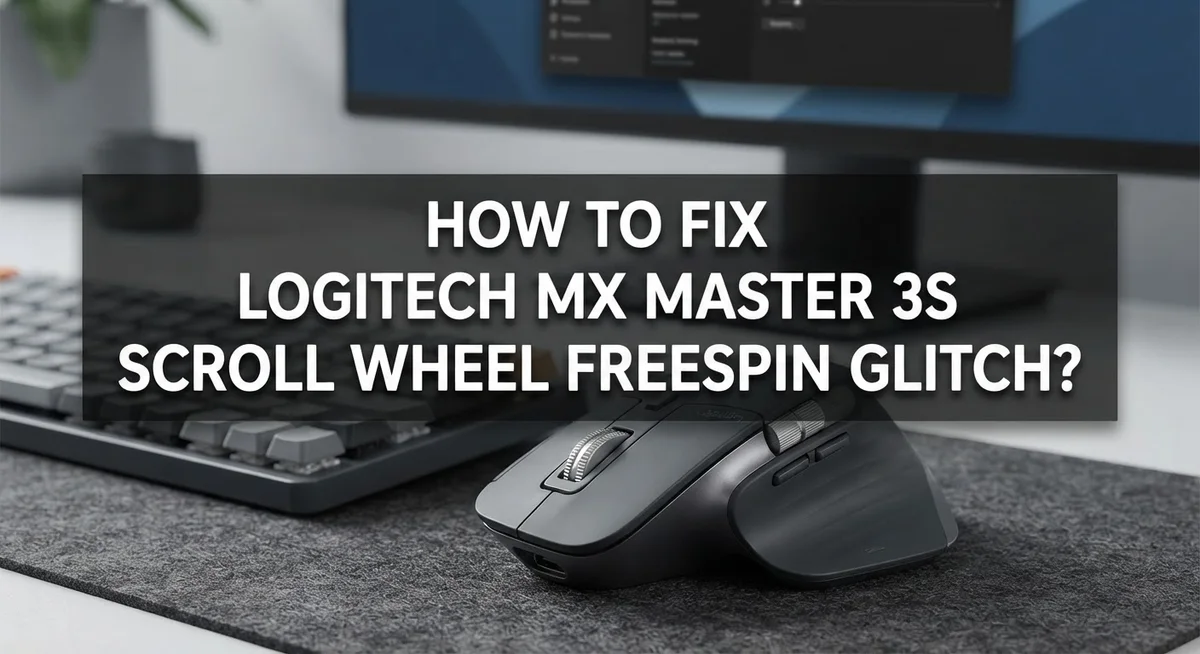
How To Fix Logitech MX Master 3S Scroll Wheel Freespin Glitch?
You reach for your Logitech MX Master 3S, ready to fly through a long document or webpage. But the scroll wheel feels stiff, heavy, and completely wrong. The free-spin mode has stopped working, and now every scroll feels like a chore.
This is a known glitch that started showing up for many users in mid-2024. The good news? It is almost always a software setting issue, not a broken mouse.
Most people assume the hardware is damaged and start worrying about repairs or replacements. In reality, a single setting inside the Logitech Options software is usually the culprit.
In this guide, you will learn exactly why the freespin glitch happens and how to fix it in just a few steps. We will walk through the correct software settings, common mistakes to avoid, and what to check if the basic fix does not work.
In a Nutshell
The Logitech MX Master 3S freespin glitch makes the scroll wheel feel heavy or completely unresponsive to free-spin mode.
This is almost always a software issue, not a hardware failure, so do not panic about repairs.
The main fix involves opening Logitech Options software and going to the “Point and Scroll” settings.
You need to turn SmartShift OFF. Leaving it enabled is the most common mistake people make.
After disabling SmartShift, manually set your scroll mode to either “Ratchet” or “Free Spin” based on your preference.
Always make sure your Logitech Options software is fully updated before troubleshooting, as an outdated version can cause the same problem to return.
What Is the MX Master 3S Scroll Wheel Freespin Glitch?
The freespin glitch is a software issue that makes your scroll wheel feel heavy or unresponsive. Your mouse suddenly loses the smooth, automatic scrolling motion it normally provides. Instead of gliding through documents effortlessly, the wheel requires constant manual effort to move.
This glitch started appearing in mid-2024 for many users with the MX Master 3 and 3S models. The problem is frustrating because the mouse feels broken, even though the hardware works perfectly fine. You might notice the scroll wheel behaves like a traditional ratchet mode instead of the free-spin mode you expect.
The core cause involves the SmartShift feature in your Logitech Options software. SmartShift automatically switches between ratchet and free-spin modes based on scrolling speed. When this feature malfunctions or conflicts with your settings, it can lock your scroll wheel into an undesired mode.
The glitch is not a hardware failure. Your mouse does not need repair or replacement. The scroll wheel mechanism itself remains intact and functional. The issue lives entirely in the software layer that controls how the wheel behaves.
Many users panic when this happens because they assume something broke inside the mouse. The reality is much simpler. A software setting has either changed unexpectedly or become corrupted. This makes the fix straightforward and reversible.
Understanding this distinction matters because it changes your approach completely. Instead of opening your mouse or contacting support for repairs, you simply adjust software settings. The solution takes just minutes and requires no technical expertise. Your mouse returns to normal performance once you restore the correct configuration in Logitech Options.
Why Does the Freespin Mode Stop Working Suddenly?
The freespin mode stops working suddenly due to software conflicts rather than physical damage inside your mouse. The SmartShift feature in Logitech Options software is the primary culprit. This feature automatically switches between ratcheted and free spin modes based on scrolling speed, but it can malfunction and lock your scroll wheel into an unresponsive state.
When SmartShift becomes confused about which mode to use, your scroll wheel loses its smooth gliding sensation. You may notice the wheel feels heavier or requires more effort to turn. This sudden change often happens after a software update or when Logitech Options experiences a glitch during operation.
Another reason freespin stops working is an outdated version of Logitech Options software. Older versions contain bugs that conflict with your mouse’s firmware. The software cannot communicate properly with the hardware, causing the scroll wheel to malfunction unexpectedly.
Sometimes the issue appears after you manually toggle between scroll modes multiple times. The software settings become corrupted or fail to save correctly. Your mouse then defaults to a ratcheted mode that feels stiff and unresponsive.
Environmental factors can also trigger this glitch. If your computer enters sleep mode while Logitech Options is running, the software connection may break temporarily. When your system wakes up, the scroll wheel settings fail to reload properly.
The good news is that this glitch is completely reversible. You do not need to replace your mouse or send it for repairs. A simple software reset through Logitech Options restores full functionality within minutes. Understanding that this is software based helps you approach the fix with confidence rather than worry.
What You Need Before You Start Troubleshooting
Before you start fixing your scroll wheel issue, gather a few basic items and check your setup. You do not need much, but having everything ready saves time and frustration.
First, make sure you have your computer or laptop nearby with an active internet connection. You will need this to download or update the Logitech Options software if it is not already installed. The software is free and available from Logitech’s official website.
Have your mouse connected and powered on. Check that your batteries are not low, as a weak battery can sometimes cause unexpected behavior with scroll settings. A fully charged or newly replaced battery ensures your mouse communicates properly with your computer.
You should also have a text editor or web browser open. This helps you test the scroll wheel after making changes. Open a document or webpage with plenty of text so you can immediately verify whether free spin mode works correctly.
Keep your mouse on a flat, clean surface during troubleshooting. A mousepad works best. Avoid working near magnetic devices or other wireless equipment that might interfere with your mouse connection.
Check your operating system version too. The Logitech Options software works on Windows and Mac, but compatibility varies by version. Make sure your computer runs a recent operating system update.
Finally, clear about 15 to 20 minutes in your schedule. This process is not rushed. You need time to download software, navigate settings, and test your changes properly.
Having these basics ready means you can focus on the actual fix without stopping halfway through. This preparation prevents common mistakes and makes the entire troubleshooting process smoother and faster.
Step-by-Step Fix Using Logitech Options Software
Start by opening Logitech Options software on your computer. If you don’t have it installed yet, visit the Logitech support website and download the application for your operating system.
Launch the software after installation completes. You’ll see a dashboard with your MX Master 3S listed. Click on the mouse icon to access its settings.
Look for the “Point and Scroll” section in the menu. This is where all scroll wheel settings live. Click on it to expand the options available.
Find the SmartShift toggle and turn it OFF immediately. This feature often causes the freespin glitch because it tries to switch between modes automatically. Disabling it removes this conflict.
Next, locate the scroll mode selector. You’ll see options like “Ratchet” or “Free Spin.” Choose “Free Spin” if you want smooth scrolling. Select “Ratchet” if you prefer clicking sensations. Either option works fine once SmartShift is disabled.
Test your scroll wheel right away. Use your mouse to scroll through a document or webpage. The wheel should feel noticeably lighter and respond smoothly.
If scrolling still feels heavy, check that Logitech Options is fully updated. Go to the software’s settings menu and look for update notifications. Install any available updates and restart the application.
Reconnect your mouse to your computer if the issue persists. Simply unplug the USB receiver or disconnect via Bluetooth, then reconnect after 10 seconds.
These steps fix the freespin glitch in most cases. The key is ensuring SmartShift stays OFF and your software version is current. Your scroll wheel should return to normal performance within minutes.
How to Disable SmartShift to Restore Scroll Behavior
SmartShift is a feature that automatically switches between two scroll modes based on your scrolling speed. When enabled, it can interfere with your free spin capability and cause the scroll wheel to feel stiff or unresponsive.
Disabling SmartShift is your first step to restore normal scroll behavior. Open Logitech Options software on your computer. Navigate to the “Point and Scroll” section from the main menu.
Look for the SmartShift toggle switch. Click it to turn SmartShift OFF completely. This prevents the software from automatically switching between modes and causing conflicts.
After disabling SmartShift, you need to manually select your preferred scroll mode. Choose either “Ratchet” mode for clicking through content or “Free Spin” mode for smooth, continuous scrolling. Free Spin mode is what you want if you prefer the gliding sensation.
Test your scroll wheel immediately after making these changes. Scroll through a long document or webpage to feel the difference. The scroll wheel should feel lighter and more responsive than before.
If scrolling still feels heavy, check that your Logitech Options software is fully updated. Outdated versions sometimes don’t properly disable SmartShift. Visit the Logitech website and download the latest version if needed.
Reconnect your mouse to your computer by unplugging the USB receiver and plugging it back in. Wait about 10 seconds before testing again. This reconnection helps the mouse apply the new settings properly.
Most users see immediate improvement after disabling SmartShift and selecting Free Spin mode. Your scroll wheel should return to its smooth, frictionless operation. If problems continue, the issue may require additional troubleshooting steps beyond software settings.
Hardware Checks If the Software Fix Does Not Work
If software adjustments don’t solve your scroll wheel problem, you need to check the physical components of your mouse. Hardware issues can cause the freespin glitch to persist even after you’ve adjusted all the settings.
Start by examining the scroll wheel itself. Remove your mouse and look at the wheel closely under good lighting. Dust and debris can accumulate inside the scroll mechanism and prevent smooth rotation. Use a dry, soft cloth to gently wipe around the wheel edges. You can also use compressed air to blow out any particles trapped inside the wheel assembly. Be careful not to force anything into the mechanism.
Next, check the mouse feet on the bottom surface. Sometimes the adhesive on mouse feet can lift slightly and catch on your desk surface. This tension can affect how smoothly the entire mouse moves, which indirectly impacts scroll wheel performance. Gently press down on each foot to ensure they’re flat and fully adhered to the base.
Inspect the scroll wheel’s connection point inside the mouse. If you’re comfortable opening your device, look for any loose components or disconnected wires near the wheel. However, only do this if you feel confident. Opening the mouse can void your warranty.
Test the scroll wheel on different surfaces. Sometimes a textured mousepad or rough desk surface creates friction that makes scrolling feel heavier than normal. Try using your mouse on a smooth, clean surface to see if the problem improves.
If the wheel still doesn’t work properly after these checks, contact Logitech support. They can determine if your mouse needs professional repair or replacement. Keep your receipt and warranty information ready when you reach out to them.
Common Mistakes to Avoid When Fixing the Freespin Glitch
Many people rush through the fix and make errors that make the problem worse. Here are the mistakes you should avoid.
Don’t skip updating your software first. Many users try to adjust settings in an outdated version of Logitech Options. Old software versions contain bugs that cause scroll wheel issues. Always check for updates before you start troubleshooting.
Avoid toggling SmartShift on and off repeatedly. Some users flip this setting back and forth thinking it will solve the problem faster. This actually confuses the software and can lock your scroll wheel in the wrong mode. Change it once and wait a full minute for the change to take effect.
Don’t assume your mouse is broken immediately. The freespin glitch is almost always a software issue, not a hardware failure. Hardware problems are rare with this model. Give the software fix at least two attempts before you consider physical damage.
Never disconnect your mouse during the fix process. Pulling out the USB receiver while you’re adjusting settings can interrupt the configuration. Wait until you finish all software changes before you reconnect anything.
Avoid changing multiple settings at once. Some users adjust SmartShift, scroll mode, and other settings simultaneously. This makes it impossible to know which change actually fixed the problem. Change one setting, test it, then move to the next one.
Don’t forget to test your scroll wheel on different applications. Sometimes the scroll wheel works fine in one program but feels heavy in another. This tells you whether the problem is software or application specific.
Finally, avoid working on this when you’re rushed. You need time to test each change properly.
How to Verify the Scroll Wheel Is Working Correctly After the Fix
After you apply the scroll wheel fix, you need to verify that everything works as intended. This step ensures the glitch is truly resolved and your mouse functions properly.
Start by opening a document or web page with plenty of text. Scroll up and down slowly to check if the wheel responds smoothly. The scroll should feel light and effortless if you selected “Free Spin” mode. If you chose “Ratchet” mode instead, you’ll notice distinct clicks as you scroll.
Test scrolling at different speeds. Move your finger slowly across the wheel, then scroll quickly. The behavior should remain consistent without any stuttering or resistance. Pay attention to whether the wheel spins freely after you stop scrolling. In Free Spin mode, the wheel should continue spinning briefly after you lift your finger.
Try scrolling in multiple applications. Open your email client, a web browser, and a text editor. Scroll in each one to confirm the fix works everywhere. Sometimes the glitch appears in specific programs, so testing broadly helps you catch any remaining issues.
Check if SmartShift is truly disabled. Go back into Logitech Options and verify the toggle remains OFF. Many users accidentally re enable it without realizing, which brings back the problem.
Test the scroll wheel on different surfaces and angles. Tilt your mouse slightly and scroll to ensure the wheel performs consistently. Physical obstructions sometimes cause uneven behavior, so this helps identify if dirt or debris is interfering.
If scrolling still feels heavy or unresponsive after these tests, the issue may be hardware related rather than software based. In that case, you’ll need to explore additional troubleshooting steps or contact support for further assistance.
Final Thoughts
The Logitech MX Master 3S freespin glitch is frustrating, but it is almost always fixable without replacing your mouse.
The most important thing to remember is that this is usually a software issue, not a hardware failure. Many users panic and assume their mouse is broken when the real cause is a single setting inside Logitech Options.
Turning off SmartShift and manually setting your preferred scroll mode solves the problem for most people. It takes less than two minutes once you know where to look.
Always keep your Logitech Options software updated. An outdated version can cause settings to behave unpredictably, which makes the freespin glitch harder to diagnose.
If the software fix does not work, move to the physical checks. Inspect the scroll wheel, the mouse feet, and the internal connection points carefully. Small physical issues are often overlooked but easy to correct once identified.
After applying any fix, always verify the result by testing in multiple applications. A quick test in one app is not enough to confirm the scroll wheel is fully functional again.
Patience matters here. Avoid changing too many settings at once, and give each adjustment time to take effect before moving on.
The freespin feature is one of the best things about the MX Master 3S. Losing it even temporarily feels like a significant downgrade, which is why getting it back quickly matters.
Follow the steps in order, stay calm, and work through each possible cause one at a time. Most users restore full scroll wheel function without needing any professional repair or replacement.
Frequently Asked Questions
What causes the scroll wheel to suddenly lose free spin?
The free spin loss is almost always a software glitch, not a hardware failure. Your mouse settings get confused, especially if SmartShift was enabled. This feature automatically switches between ratchet and free spin modes based on scroll speed. When it malfunctions, your wheel feels heavy and locked.
The good news? You can fix this yourself in minutes by adjusting your Logitech Options software.
How do I know if it’s a software issue or hardware problem?
Start with software fixes first. Download the latest Logitech Options software and disable SmartShift completely. Then manually set your scroll mode to “Free Spin.”
If scrolling still feels stiff after testing in multiple applications, then you likely have a hardware issue. Physical problems are rare, but they do happen.
Can I fix this without installing software?
Unfortunately, no. The Logitech Options software controls your scroll wheel behavior. Without it, you cannot access the settings needed to restore free spin functionality.
You must download and install this software to make changes to your mouse settings.
Why does SmartShift cause problems?
SmartShift is designed to switch your scroll mode automatically based on how fast you scroll. When this feature glitches, it locks your wheel in ratchet mode permanently.
Disabling SmartShift removes this automatic switching and lets you control your scroll mode directly. This solves the issue for most users.
Will restarting my computer help?
A restart can help, but it rarely fixes this issue on its own. You still need to adjust your settings in Logitech Options software.
Always restart your computer after making changes to ensure the new settings take effect properly.

Hi, I’m Lily — a tech enthusiast and the voice behind SmartResizerr.com. I love testing gadgets, breaking down specs into plain English, and helping everyday people find the right tech without the overwhelm.