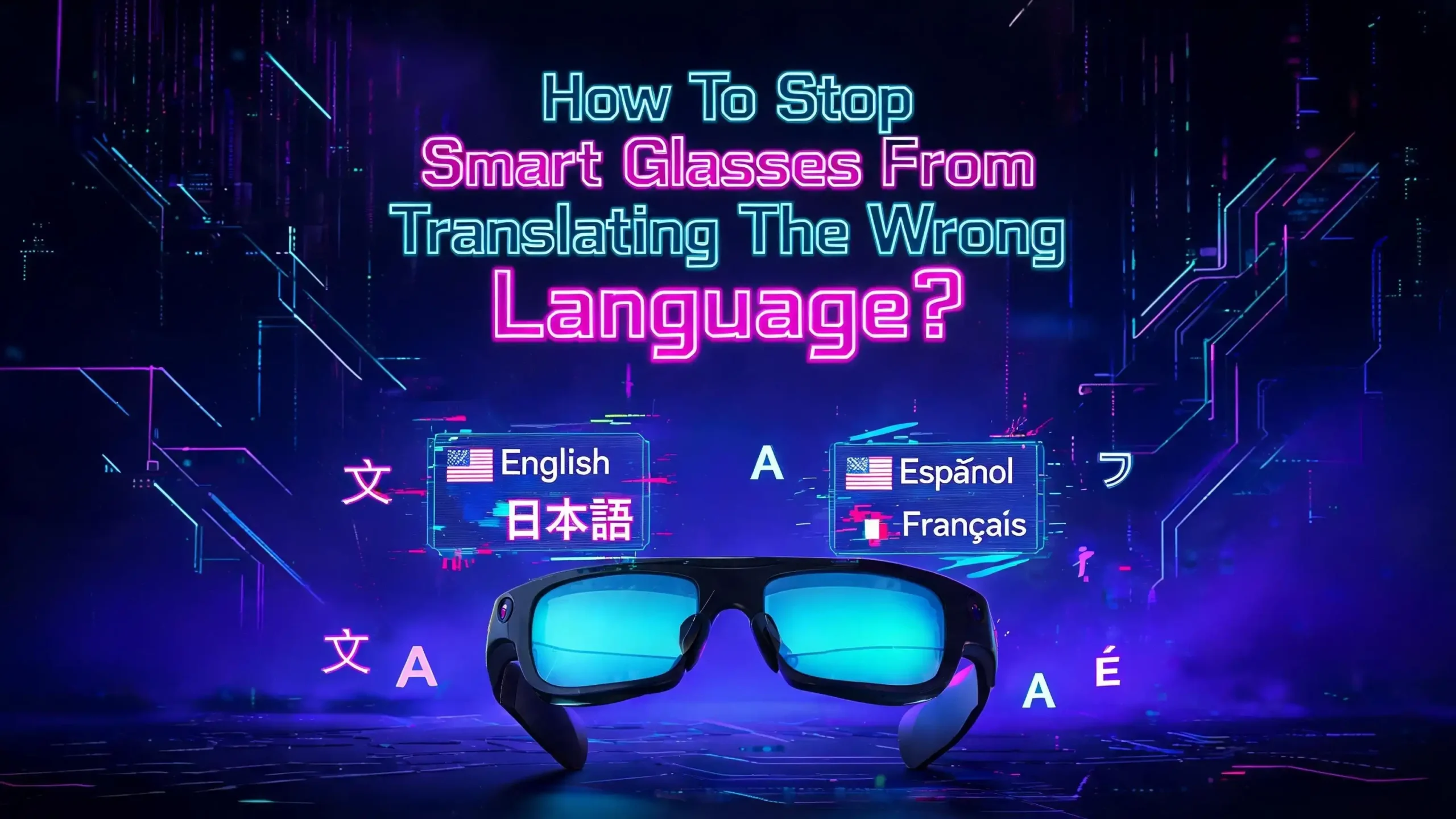
How To Stop Smart Glasses From Translating The Wrong Language?
You just landed in a new country. You put on your smart glasses and start a conversation with a local. The translation kicks in, but it is showing Spanish instead of French. Or worse, it picks up a nearby conversation and starts translating a language you never selected.
This is one of the most common frustrations smart glasses owners face today. Real time translation is one of the most exciting features of modern smart eyewear. But when your glasses lock onto the wrong language, the experience goes from helpful to confusing in seconds.
The good news? Most wrong language translation problems have clear, fixable causes. Whether your glasses are auto detecting the wrong input language, using an outdated language pack, or struggling with background noise, there are practical steps you can take right now to fix the issue.
This guide walks you through every possible cause and solution. You will learn how to set the correct language pair, update firmware, manage language packs, reduce interference, and more. By the end, your smart glasses will translate exactly what you need, in exactly the right language.
Key Takeaways
- Wrong language translations usually happen because of incorrect language pair settings in the companion app. Always double check your input and output language selections before starting a translation session.
- Auto detect language features are not always reliable. Manually selecting the specific language you want to translate gives you far more accurate results, especially in multilingual environments.
- Outdated firmware and language packs cause translation errors. Keep your smart glasses and companion app updated to the latest versions to access bug fixes and improved language models.
- Background noise confuses the microphone input. Loud environments cause the speech recognition system to misidentify the spoken language. Move to a quieter spot or use the phone microphone option when available.
- A factory reset can resolve persistent translation glitches. If your glasses keep defaulting to the wrong language after trying all other fixes, a full reset followed by a fresh language pack download often solves the problem.
- Not all languages are supported on every device. Check your specific model’s language list before traveling. Some languages only work with an active internet connection and are not available offline.
Why Smart Glasses Translate The Wrong Language
Understanding why this problem happens is the first step to fixing it. Smart glasses use a combination of microphone input, speech recognition AI, and cloud based translation models to convert spoken words from one language to another.
The process starts with the microphone capturing audio. The AI then tries to identify which language is being spoken. Once it makes that determination, it sends the audio to translation servers or processes it locally using a downloaded language pack.
The problem appears at the identification stage. If the AI hears fragments of multiple languages, background chatter, or unclear pronunciation, it can lock onto the wrong language entirely. For example, Portuguese and Spanish share many similar words. A speaker with a regional accent can easily confuse the detection system.
Another common cause is incorrect settings in the companion app. Many users set up their glasses once and forget to change the language pair when they travel to a different country. The glasses will keep translating based on whatever language pair was last selected, even if the person speaking is using a completely different language.
Firmware bugs also play a role. Users of Meta Ray Ban glasses and Even Realities G2 have reported that certain software updates broke their translation features or reset their language preferences without warning.
Check And Correct Your Language Pair Settings
The most common fix is also the simplest. Open your companion app and verify that the input language and output language are correctly set for your current situation.
For Meta Ray Ban glasses, open the Meta AI app. Tap on Glasses in the top right corner. Then tap Device Settings, followed by Meta AI, and then Language and Voice. Here you can select the correct language for Meta AI to listen for and respond in.
For translation specifically, go to the Translate section in the app. Select the language you expect to hear as the input language. Select your own language as the output language. Save these changes before starting a session.
For Even Realities G2 users, open the Even App. Go to the Translate feature. You will see options for input and output languages displayed clearly. Change them to match your current conversation needs. Always set these languages before you launch the translate function, because the G2 does not allow changes mid session.
For RayNeo X3 Pro users, access the Settings menu directly on the glasses or through the companion app. Select your desired translation language pair from the available options.
If you frequently switch between language pairs, make it a habit to check these settings every time you start a new translation session. This single step eliminates the majority of wrong language errors.
Turn Off Auto Detect And Choose Languages Manually
Many smart glasses offer an auto detect feature that tries to identify the spoken language on its own. This sounds great in theory. In practice, it causes frequent mistakes.
Auto detection works by analyzing short segments of audio and comparing them against known language patterns. The system needs several seconds of clear speech to make an accurate determination. In a noisy restaurant, busy street, or room where multiple languages are spoken, the detection algorithm gets confused.
The fix is straightforward. Turn off auto detect and manually select the specific language you want your glasses to translate. This tells the AI exactly what to listen for, which removes the guessing step entirely.
On Meta Ray Ban glasses, you do this by choosing a specific language in the Translate settings rather than leaving it on automatic. On Even Realities G2, you select both the input and output languages before launching the feature. On RayNeo X3 Pro, select a specific language from the supported list in the settings menu.
Manual selection is especially important in cities where multiple languages are commonly spoken. In Montreal, for example, you might hear French, English, and other languages on the same street corner. Auto detect will struggle in that environment. Choosing French as your input language tells the system to focus only on French speech patterns.
Update Your Firmware And Companion App
Outdated software is a silent cause of translation errors that many users overlook. Smart glasses manufacturers release regular firmware updates that include bug fixes, improved language models, and better speech recognition algorithms.
Users in online forums have reported that translation features stopped working correctly or started detecting the wrong language after falling behind on updates. In some cases, a firmware update itself introduced a bug that was later fixed in the next release.
Here is what you should do. Open your companion app and check for updates. For Meta Ray Ban glasses, open the Meta AI app, go to Device Settings, and look for a firmware update notification. Make sure the app itself is also updated through your phone’s app store.
For Even Realities G2, open the Even App and check for any available updates. The app will prompt you when a new version is ready for both the app and the glasses firmware.
For RayNeo X3 Pro, connect the glasses to the companion app and navigate to the update section. Download and install any pending updates before your next translation session.
After updating, test the translation feature with a short conversation or a video in your target language. This confirms that the update resolved the issue. If the problem persists after updating, the next steps in this guide will help.
Download Or Reinstall Language Packs
Language packs are the local data files your smart glasses use to recognize and translate specific languages. A corrupted or incomplete language pack is a common cause of wrong language translations.
Some users can only have one language pack installed on their glasses at a time. This is the case with certain Meta Ray Ban models for offline translation. If you downloaded a Spanish pack for your last trip and forgot to switch it, your glasses will try to process everything as Spanish even if you are now in Italy.
To fix this, go to the translation settings in your companion app. Delete the current language pack and download the correct one for your destination. Make sure the download completes fully before disconnecting from WiFi.
On Meta Ray Ban glasses, go to the Meta AI app, navigate to the Translate section, and select the language you need. The app will download the required resources. If the download fails, try clearing the app cache and restarting the process.
On Even Realities G2, the app manages language support through its cloud connection. Make sure you have a stable internet connection when setting up a new language pair.
Several users in community forums found that reinstalling their language pack fixed persistent wrong language issues even when the correct language was selected. The pack may have been corrupted during an earlier download or update.
Reduce Background Noise For Accurate Detection
Background noise is one of the biggest enemies of accurate language translation on smart glasses. The microphones on these devices must isolate a speaker’s voice from all surrounding sounds before the AI can identify the language.
Research shows that speech recognition accuracy can drop by 30 to 50 percent in noisy environments. This dramatic drop directly affects language detection. If the microphone picks up music, traffic noise, or other conversations, the AI receives a muddled audio signal and may identify the wrong language entirely.
Here are practical steps to reduce this problem. First, move closer to the person speaking. Reducing the distance between the speaker and your glasses improves the signal quality significantly.
Second, face the speaker directly. Most smart glasses have forward facing microphones designed to capture sound from the direction you are looking. Turning your head away from the speaker reduces audio clarity.
Third, if your glasses support it, switch the microphone source to your phone. The Even Realities G2 offers this option in the Translate settings. You can place your phone closer to the speaker while wearing the glasses, giving the AI a cleaner audio input.
Fourth, avoid starting translations in extremely loud environments. Wait for a quieter moment or move to a calmer area. A few feet of distance from a noise source can make a dramatic difference in translation accuracy.
Handle Multilingual Environments Correctly
Traveling through areas where multiple languages are spoken creates a unique challenge for smart glasses. Airport terminals, tourist districts, and international business conferences often feature conversations in several languages happening at once.
Your smart glasses may pick up fragments of different languages and become confused about which one to translate. The auto detect system might switch languages mid sentence, producing garbled or incorrect output.
The best approach is to lock your glasses to a specific language pair before entering these environments. Decide which language you need translated and set it manually. This prevents the system from trying to identify languages on its own.
If you need to switch between languages during the same event, pause the translation session before changing the language pair. On the Even Realities G2, you need to stop and relaunch the Translate feature with new settings. On Meta Ray Ban glasses, you can adjust the language in the app between conversations.
Another helpful technique is to ask the speaker to face you directly and speak at a moderate pace. Clear, well paced speech in a single language gives the AI its best chance at correct detection and translation. Fast speech, mumbling, or mixing languages within sentences will reduce accuracy on any device.
Perform A Factory Reset For Persistent Issues
Sometimes wrong language translations persist despite trying every other fix. In these cases, a factory reset can clear out glitches that simple troubleshooting cannot reach.
A factory reset erases all stored settings, language packs, and preferences from your glasses. It returns them to their original out of the box state. This eliminates corrupted data, stuck configurations, and software conflicts that may be causing the wrong language problem.
For Meta Ray Ban glasses, open the Meta AI app and go to Device Settings. Look for the Reset or Factory Reset option. Follow the on screen instructions. After the reset, you will need to pair your glasses again and set up your translation preferences from scratch.
For Even Realities G2, you can perform a factory reset through the Even App under device management. Some users in online forums have confirmed that a factory reset followed by a fresh language pack download resolved translation errors that nothing else could fix.
For RayNeo X3 Pro, access the settings menu on the glasses or through the companion app and select the reset option.
After the reset, update the firmware immediately before downloading new language packs. This ensures you start fresh with the latest software and translation models. Then manually configure your language pair and test the translation feature before relying on it in a real conversation.
Understand The Limits Of Supported Languages
Not every language works on every pair of smart glasses. If you select a language that is not fully supported, your glasses may default to a closely related language or produce incorrect translations.
Meta Ray Ban glasses currently support English, Spanish, French, Italian, German, and Portuguese for offline translation. Additional languages like Hindi, Arabic, Russian, Mandarin, Japanese, and Korean are available through early access programs and require an internet connection.
Even Realities G2 supports 35 languages for display based translation, including Chinese, Japanese, Korean, and most European languages. However, some languages like Arabic, Bengali, and Hindi cannot display on the G2 screen due to character set limitations. The translations will still appear in the companion app.
RayNeo X3 Pro supports 14 languages with offline translation for basic phrases in major languages like English, Chinese, and Spanish.
Before traveling, check the language support list for your specific glasses model. If the language you need is not supported, your glasses will either fail to translate or misidentify the spoken language as something similar that is supported. A French Creole speaker might get results in standard French. A Catalan speaker might see Spanish translations.
Improve Translation Accuracy With Clear Speech Habits
The way people speak directly affects how well your smart glasses translate. Even with perfect settings and the latest firmware, unclear speech will produce poor translations.
Ask the person you are speaking with to talk at a natural, moderate pace. Very fast speech overwhelms the processing pipeline. The AI needs time to capture audio, process it, and deliver the translation. When speech is too fast, the system may skip words or misidentify the language.
Encourage speakers to use standard vocabulary rather than heavy slang or regional idioms. AI translation models are trained primarily on standard language forms. A phrase like “no manches” in Mexican Spanish might be translated literally as “don’t stain” instead of its actual meaning of “no way” or “you’re kidding.”
If you are the one speaking and want your glasses to translate your words for someone else, speak clearly and directly into the microphone area of your glasses. Avoid covering the temples where microphones are located.
Short, complete sentences translate better than long, complex ones. Break your thoughts into simple statements. This gives the AI clear input to work with and reduces the chance of language detection errors mid sentence.
These habits may feel slightly unnatural at first. But they dramatically improve translation results on any smart glasses model.
Use The Phone Microphone As A Backup Input Source
Some smart glasses allow you to switch the audio input source from the glasses microphone to your phone microphone. This is an underused feature that can solve many wrong language detection issues.
The microphones built into smart glasses sit on the temple arms, near your ears. They capture sound from the general environment around you. In contrast, you can place your phone directly on the table between you and the other speaker. This gives the phone microphone a much cleaner audio signal.
On Even Realities G2, this option is available in the upper right corner of the Translate screen within the Even App. You can toggle between the G2 microphone and the phone microphone with a single tap.
On other models, check the translation settings for a similar option. Not all glasses offer this, but those that do give you a significant advantage in noisy environments.
Using the phone microphone is especially helpful in restaurants, cafes, and conference rooms where ambient noise levels are high. Place the phone face up on the table, and the microphone will capture the speaker’s voice with minimal interference.
This workaround does mean you need to have your phone accessible during the conversation. But it is a reliable way to prevent language detection errors without needing to change any other settings.
Check Your Internet Connection For Cloud Based Translation
Most advanced translation on smart glasses depends on a stable internet connection. The glasses send captured audio to cloud servers where powerful AI models process and translate the speech. Without a solid connection, translations can fail, lag, or default to the wrong language.
If your smart glasses are translating the wrong language, check your phone’s internet connection first. The glasses rely on your phone’s data connection through the companion app. Weak WiFi or spotty mobile data can cause the translation system to use a cached or default language model instead of the correct one.
When traveling internationally, make sure you have a local SIM card, eSIM, or reliable roaming plan before depending on cloud based translation. Some airports and hotels have unstable WiFi that drops frequently, which interrupts the translation pipeline.
For offline situations, download the required language pack before you lose internet access. This is critical for Meta Ray Ban glasses, which support offline translation for a limited set of languages. Having the correct pack already installed means your glasses will not need the cloud to perform basic translations.
If you notice translations becoming slow, inaccurate, or switching to the wrong language during a session, your internet connection has likely degraded. Pause the session, reconnect to a stronger network, and restart the translation feature.
Know When To Contact Support
If you have tried every fix in this guide and your smart glasses still translate the wrong language, it may be time to reach out to the manufacturer’s support team. Some translation issues are caused by hardware defects or deep software bugs that only the manufacturer can address.
For Meta Ray Ban glasses, access support through the Meta Help Center or the Meta AI app. Be aware that Meta routes purchases through Ray Ban to Ray Ban’s customer service first. If Ray Ban cannot help, request to be transferred to Meta’s technical support. The process can take time, so be patient and persistent.
For Even Realities G2, visit the Even Support Center online. They have articles on translation setup and troubleshooting. If those do not resolve your issue, submit a support ticket through the app or website.
For RayNeo X3 Pro, contact RayNeo support through their website or app. Describe the specific wrong language issue, what you have already tried, and which firmware version you are running.
When contacting support, provide specific details about the problem. Mention which languages are involved, whether the issue happens offline or online, and what troubleshooting steps you have already completed. This helps the support team skip basic suggestions and focus on solving your actual problem.
Future Improvements In Smart Glasses Translation
The technology behind smart glasses translation is improving rapidly. Current limitations like wrong language detection, limited language support, and noise interference are active areas of development for every major manufacturer.
Meta has expanded its translation languages from just four to over a dozen in recent updates, with more on the way. Cloud based AI models are getting better at distinguishing between similar languages and handling regional accents.
Even Realities continues to update the G2 with improved translation accuracy and more supported languages. Their HUD based subtitle display reduces the need for audio output entirely, which eliminates one source of confusion.
RayNeo is developing better offline language packs that support more complex conversations beyond basic phrases. Their X3 Pro already supports real time translation with visual display, and future updates aim to expand this capability.
The trend across the industry points to better auto detection, faster processing, and broader language support. Within the next few years, many of the problems discussed in this guide will become less common. But until then, knowing how to manually configure and troubleshoot your smart glasses translation settings remains an essential skill for any smart glasses owner.
Frequently Asked Questions
Why do my smart glasses keep translating the wrong language?
The most common cause is an incorrect language pair setting in your companion app. Your glasses may also be using auto detect, which can misidentify languages in noisy or multilingual environments. Check your translation settings, manually select the correct input and output languages, and make sure your firmware and language packs are up to date.
Can I use smart glasses translation without an internet connection?
Yes, but only for specific languages that have downloadable offline packs. Meta Ray Ban glasses support offline translation for English, Spanish, French, Italian, German, and Portuguese. Other languages require a cloud connection. Even Realities G2 and RayNeo X3 Pro also offer limited offline support for select languages.
How do I fix smart glasses translation that stopped working after an update?
Try reinstalling the language pack first. Go to your companion app, delete the current language pack, and download it again. If that does not work, perform a factory reset on your glasses and set up the translation feature from scratch. Make sure both the glasses firmware and the companion app are on the latest version.
Do smart glasses translate written text like signs and menus?
Some models do. Meta Ray Ban glasses can use the camera and AI to read and summarize written text in foreign languages when you say “Hey Meta, look at this and translate.” However, the results are often broad summaries rather than word for word translations. Even Realities G2 focuses on spoken conversation translation rather than visual text.
How many languages do smart glasses support for translation?
It varies by model. Even Realities G2 supports 35 languages for displayed translation. Meta Ray Ban glasses support around a dozen languages, with more being added through updates and early access programs. RayNeo X3 Pro supports 14 languages. Always check the specific language list for your model before traveling.
Will background noise cause my smart glasses to translate the wrong language?
Yes. Background noise is a major factor in language misidentification. Noisy environments make it difficult for the microphones to capture clear speech, which confuses the language detection system. Move closer to the speaker, face them directly, and consider switching to your phone’s microphone for cleaner audio input.

Hi, I’m Lily — a tech enthusiast and the voice behind SmartResizerr.com. I love testing gadgets, breaking down specs into plain English, and helping everyday people find the right tech without the overwhelm.