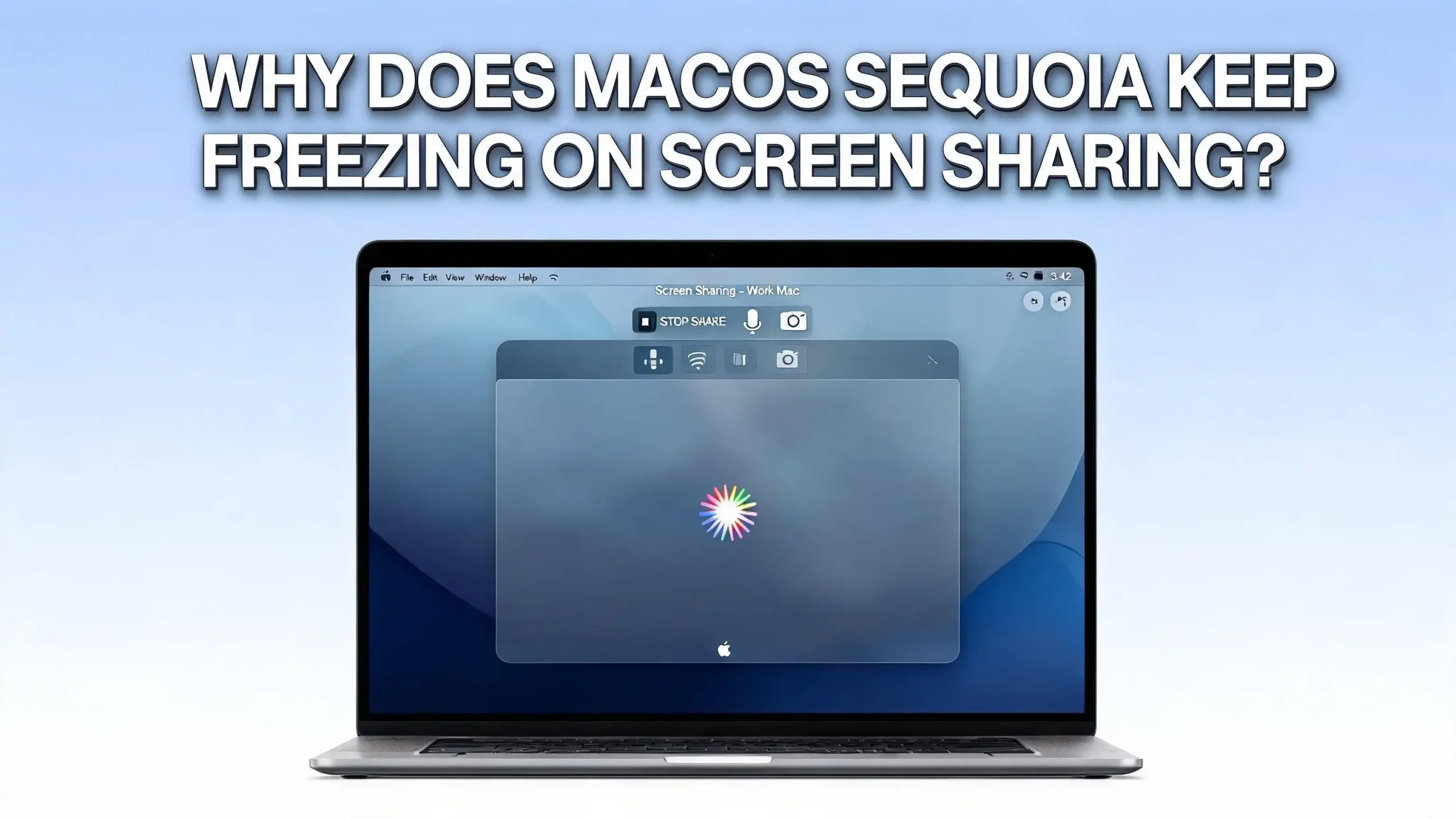
Why Does macOS Sequoia Keep Freezing On Screen Sharing?
You are in the middle of an important presentation. Your screen is shared on Zoom, Teams, or Google Meet. Then it happens. The screen freezes. Your colleagues see a still image. You scramble to restart the share, and a minute later, it freezes again. Sound familiar?
This problem has affected thousands of macOS Sequoia users across M1, M2, and M3 Macs. The freezing occurs on almost every platform, from FaceTime to Microsoft Teams, from Google Meet to Slack. Some users report the freeze after a few seconds. Others get a few minutes before the screen share drops. Either way, it disrupts your workflow and makes virtual meetings a frustrating experience.
The good news is that this issue has real, identifiable causes. And most of them are fixable right now without waiting for Apple to push an update. This post walks you through each cause and its matching solution so you can get back to smooth, uninterrupted screen sharing on your Mac.
In a Nutshell
- Low disk space is the number one cause of screen sharing freezes on macOS Sequoia. Many users discovered that having fewer than 10 GB of free storage on their SSD caused screen sharing to cut out repeatedly. Freeing up at least 15 to 20 GB of space resolved the problem instantly for most people.
- Outdated or broken screen recording permissions can trigger freezes. macOS Sequoia introduced stricter privacy controls that require apps to re-authorize screen recording access. If permissions are stale or corrupted, screen sharing will fail or freeze mid-session.
- The shared clipboard feature in Apple’s built-in Screen Sharing app is a known trigger for repeated pauses and freezes. Disabling this feature often eliminates the problem entirely.
- Network instability and Wi-Fi interference can cause screen sharing sessions to stall. A weak or congested connection will lead to dropped frames, frozen screens, and disconnections during video calls.
- Background processes and heavy memory usage put added pressure on your Mac’s resources. Screen sharing is a demanding task, and if your system is already under load, freezes become far more likely.
- Keeping macOS and your video conferencing apps updated is essential. Apple and app developers regularly patch bugs related to screen capture and sharing. Running outdated software leaves known issues unresolved.
Low Disk Space Is the Most Common Cause
If your Mac freezes during screen sharing, check your available storage first. This single issue has been confirmed by dozens of users across Reddit and Apple community forums as the primary cause of screen sharing freezes on macOS Sequoia.
macOS needs free disk space to create temporary files, manage virtual memory, and handle screen capture buffers. Screen sharing generates a constant stream of screen data. When your SSD drops below 10 GB of free space, the system cannot manage these operations properly. The result is a frozen or dropped screen share.
To check your storage, click the Apple menu, then select About This Mac, then click More Info, and finally open Storage Settings. Wait for the calculation to finish. You will see a breakdown of what is using your disk space.
Aim to keep at least 15 to 20 GB of free space at all times. Users who cleared storage reported that screen sharing worked without any interruptions immediately after. One user had only 500 MB free on a 250 GB drive. After freeing 50 GB, the problem vanished completely. Another user with 9 GB free had constant freezes. After clearing space, the issue was gone.
How to Free Up Disk Space on macOS Sequoia
Freeing up disk space does not have to be a long process. macOS gives you built-in tools that make it quick and simple. Start by opening System Settings, then General, then Storage. You will see Apple’s own storage recommendations at the top.
Enable “Optimize Storage” to let macOS automatically remove movies and TV shows you have already watched. Turn on “Empty Bin Automatically” to delete items in the Trash that have been there for more than 30 days. Consider enabling “Store in iCloud” for documents and desktop files if you have enough iCloud storage.
Below the recommendations, click the information icon next to Applications. Sort by size and delete apps you no longer use. Do the same for the Documents section. The File Browser tab is especially useful here. It sorts folders by size, so you can quickly find the biggest space hogs.
Do not forget to empty the Trash after deleting files. Deleted files stay in the Trash and continue to occupy disk space until you empty it. Right-click the Trash icon in your Dock and select Empty Trash. After this, restart your Mac and test screen sharing again.
Reset Screen Recording Permissions
macOS Sequoia introduced a stricter permissions model for screen recording and screen sharing. Apps that previously had access may now need to be re-authorized. Stale or corrupted permissions are a frequent cause of screen sharing freezes and failures.
To fix this, open System Settings, go to Privacy & Security, and then click Screen & System Audio Recording (or Screen Recording on earlier Sequoia versions). You will see a list of apps that have been granted screen recording access.
Here is the important part. Do not just toggle the switches off and on. Instead, select each app and click the minus button to fully remove it from the list. Then restart your Mac. After the restart, open the app you use for screen sharing, such as Zoom, Teams, or Google Meet, and start a screen share. macOS will prompt you to grant permission again. Accept the prompt and restart the app if macOS asks you to.
Several users confirmed that this full removal and re-authorization process fixed their screen sharing freezes. Simply toggling the permission off and on was not enough. The complete removal forces macOS to create a fresh permission entry, which eliminates any corruption from the previous authorization.
Disable the Shared Clipboard in Built-In Screen Sharing
If you use Apple’s built-in Screen Sharing app to connect to another Mac, a specific feature called Shared Clipboard may be causing your freezes. This feature syncs the clipboard between the local and remote Mac during a screen sharing session.
The Shared Clipboard triggers repeated errors in the system log related to the pasteboard service. These errors cause the screen sharing session to pause for 10 seconds or more at regular intervals. The session appears frozen, and mouse clicks and keyboard input become unreliable.
To disable this, open a Screen Sharing session with the remote Mac. In the menu bar, click Edit and then look for “Use Shared Clipboard.” If there is a checkmark next to it, click it to disable the feature. The freezes should stop immediately.
This fix has been documented by developers who checked the macOS Console app and found specific error messages tied to the clipboard sync process. The errors reference “pboard” and “Local Pasteboard,” which confirm the Shared Clipboard as the source. If you do not need clipboard sharing between the two Macs, keep this feature off permanently.
Check Your Network Connection
Screen sharing requires a stable and fast network connection. Even a brief drop in bandwidth can cause the shared screen to freeze. Wi-Fi connections are especially prone to interference and congestion, which makes them a common contributor to this problem.
Start by running a speed test. Open your browser and go to a speed test site. Check your download and upload speeds. Screen sharing typically needs at least 5 Mbps upload speed for a smooth experience. If your speeds are low, move closer to your Wi-Fi router or switch to a wired Ethernet connection.
Check if other devices on your network are using heavy bandwidth. Streaming video, downloading large files, or running backups on other devices can starve your Mac of the bandwidth it needs. Pause these activities during important screen sharing sessions.
If your Wi-Fi router is older than five years, consider updating its firmware. Outdated router firmware can cause intermittent connection drops that directly affect screen sharing stability. Log in to your router’s admin panel and check for available firmware updates. Many routers also have a setting to prioritize certain devices, which can help ensure your Mac gets reliable bandwidth.
Update macOS and Your Apps
Apple regularly releases macOS updates that fix bugs related to screen capture and sharing. Running an older version of Sequoia means you may be dealing with issues that have already been patched. Some users reported that updating from macOS 15.5 to 15.6.1 resolved their screen sharing freezes entirely.
To check for updates, open System Settings, click General, and then click Software Update. If an update is available, install it and restart your Mac.
You should also update your video conferencing apps. Zoom, Microsoft Teams, Slack, and Google Chrome all release frequent updates that improve compatibility with the latest macOS versions. Open each app and check for updates in its settings or preferences menu.
For browser-based screen sharing through Google Meet or other services, make sure your browser is up to date. If you use Chrome, click the three-dot menu, go to Help, and click About Google Chrome. The browser will check for updates and install them automatically. A mismatch between your macOS version and your browser version can create screen sharing issues that neither Apple nor Google would individually classify as a bug.
Adjust Energy and Display Sleep Settings
macOS has energy-saving features that can interfere with screen sharing. If your Mac’s display goes to sleep or the system enters a low-power state during a screen sharing session, the shared screen may freeze or disconnect.
Open System Settings and click Displays. Then look for the “Advanced” display settings. On some Mac models, you will also find energy-related options under Battery or Energy Saver in System Settings. Make sure the display sleep timer is set to a longer duration or set to Never during screen sharing sessions.
Also check Lock Screen settings. If your Mac locks automatically after a short period, this can interrupt screen sharing. Go to System Settings, click Lock Screen, and increase the time before the screen saver starts or the screen locks.
One user specifically noted that adjusting the screen sleeping time fixed their screen sharing freezes. This makes sense because macOS treats a sleeping display as an inactive session. The screen sharing service may lose its connection to the display output, which causes the remote viewer to see a frozen image. Keeping your Mac awake during meetings prevents this chain of events.
Close Unnecessary Background Apps
Screen sharing uses significant CPU and memory resources. Your Mac captures the screen content, encodes it, and transmits it in real time. If other apps are consuming large amounts of memory or CPU power, screen sharing performance will suffer.
Open Activity Monitor from your Applications > Utilities folder. Click the CPU tab and sort by CPU usage. Look for apps that are using a high percentage of your processor. Do the same for the Memory tab. Close any apps you do not need during your screen sharing session.
Common resource hogs include web browsers with many open tabs, video editing software, large Xcode projects, and Docker containers. Closing these before a screen sharing session gives your Mac more headroom to handle the screen capture and encoding process smoothly.
Pay special attention to apps that also use screen capture. If you have OBS, screenshot utilities, or screen recording apps running at the same time as your video call, they may conflict with each other. macOS Sequoia’s new permission model means multiple apps requesting screen access simultaneously can create unexpected behavior, including freezes. Close any screen capture app you are not actively using before you start screen sharing.
Create a New User Profile to Test
Sometimes the issue is specific to your user profile rather than a system-wide problem. Corrupted user preferences, broken caches, or conflicting settings in your account can cause screen sharing to malfunction.
To test this, open System Settings, click Users & Groups, and create a new user account. Log out of your current account and log in to the new one. Open a video conferencing app and try screen sharing.
If screen sharing works without freezes on the new account, the problem is with your original user profile. This means you can fix it by resetting preferences related to screen sharing in your main account. You can delete the screen sharing preference files from your Library folder. Open Finder, click Go in the menu bar, hold the Option key, and click Library. Look in the Preferences folder for files related to screen sharing and your video conferencing apps.
Back up these files before deleting them. After deletion, restart your Mac and log back into your main account. The system will recreate fresh preference files. This often resolves issues caused by corrupted settings without requiring you to migrate to a new user profile entirely.
Reset NVRAM and SMC on Your Mac
Resetting the NVRAM (Non-Volatile Random Access Memory) and SMC (System Management Controller) can fix display-related glitches that contribute to screen sharing freezes. These resets clear low-level system settings related to display resolution, graphics output, and power management.
For Apple Silicon Macs (M1, M2, M3, M4), the NVRAM resets automatically every time you restart your Mac. Simply shut down your Mac completely, wait 30 seconds, and turn it back on. There is no special key combination needed.
For Intel-based Macs, shut down your Mac. Turn it on and immediately hold Option + Command + P + R for about 20 seconds. Release the keys after your Mac restarts. To reset the SMC on an Intel Mac with a T2 chip, shut down your Mac, then hold Control + Option + Shift on the left side of the keyboard for 7 seconds. While holding those keys, also press and hold the power button for another 7 seconds. Release all keys, wait a few seconds, and turn on your Mac.
These resets do not delete your files or settings. They only clear hardware-level configurations that may have become misconfigured. After the reset, check your display settings and test screen sharing again to see if the freezing issue is resolved.
Use a Wired Connection or Reduce Screen Resolution
If your screen sharing freezes persist despite trying the fixes above, consider reducing the load on your system and network. Two practical ways to do this are switching to a wired Ethernet connection and lowering your display resolution during screen sharing.
A wired Ethernet connection provides more stable bandwidth and lower latency than Wi-Fi. Even on a fast Wi-Fi network, interference from other devices, walls, and competing signals can cause brief dropouts. These dropouts may not affect web browsing but are enough to freeze a screen sharing session. A USB-C to Ethernet adapter costs very little and can make a noticeable difference.
Lowering your display resolution reduces the amount of data your Mac needs to capture and transmit. Open System Settings, click Displays, and choose a lower resolution. You do not need to use your Mac’s maximum resolution during a screen sharing session. A resolution of 1440 x 900 or 1280 x 800 is usually more than enough for presentations and demonstrations.
Some video conferencing apps also let you choose the quality of your screen share. In Zoom, for example, you can adjust the screen sharing frame rate and resolution in the app’s settings. Lowering these values reduces the strain on both your Mac and your network, which helps prevent freezes.
Reinstall macOS Sequoia as a Last Resort
If none of the above fixes resolve your screen sharing freezes, a clean reinstall of macOS Sequoia may be necessary. This is a last resort option, but it effectively eliminates any software corruption, broken system files, or deep configuration issues that could be causing the problem.
Before reinstalling, back up your entire Mac using Time Machine or another backup tool. Make sure your backup is complete and verified before proceeding. A reinstall will erase your system drive, so your data must be safely stored elsewhere.
To reinstall, restart your Mac and hold the appropriate key combination to enter Recovery Mode. On Apple Silicon Macs, hold the power button until you see the startup options. On Intel Macs, hold Command + R during startup. Select Reinstall macOS from the recovery options and follow the on-screen instructions.
After the reinstall, set up your Mac and install your apps fresh. Test screen sharing before restoring your full data from the backup. If screen sharing works on the clean install, you know the issue was caused by something in your previous system configuration. You can then selectively restore your files and apps, testing screen sharing after each batch to identify what caused the original problem.
Frequently Asked Questions
Why does my screen share keep freezing on macOS Sequoia?
The most common cause is low disk space on your Mac’s SSD. macOS needs free storage to manage temporary files and screen capture buffers. If you have fewer than 10 GB free, screen sharing will freeze or stop repeatedly. Other causes include outdated screen recording permissions, network instability, and heavy background app usage. Check your storage first, then work through the other fixes listed in this guide.
Does this screen sharing freeze issue affect all Mac models?
Users have reported this problem on M1, M2, M3, and M4 Macs running macOS Sequoia. It affects MacBook Air, MacBook Pro, iMac, Mac Mini, and Mac Studio models. The issue is not limited to a specific hardware configuration. It appears to be related to how macOS Sequoia handles screen capture and disk management rather than a hardware defect.
Why does screen sharing work fine for a few minutes and then freeze?
This pattern is typical of the low disk space issue. Your Mac can handle the screen capture process briefly, but as temporary files accumulate and available space shrinks further, the system runs out of buffer space. The screen share then freezes or drops. Freeing up significant storage space, at least 15 to 20 GB, usually stops this pattern entirely.
Will updating macOS Sequoia fix the screen sharing freeze?
Updating can help in many cases. Apple has released patches in later Sequoia updates that address screen capture and sharing bugs. Some users confirmed that updating to macOS 15.6.1 resolved their issues. However, the update alone may not fix the problem if your disk space is low or your permissions are corrupted. Treat the update as one part of a complete troubleshooting approach.
Does this problem happen with all screen sharing apps or just specific ones?
The freezing issue has been reported across multiple platforms including Zoom, Microsoft Teams, Google Meet, FaceTime, Slack, and Discord. It also affects Apple’s built-in Screen Sharing app. Since the root cause is often at the macOS system level, such as disk space or permissions, it impacts all apps that rely on macOS screen capture. Fixing the underlying system issue will resolve the problem across all your apps.
Can I use a browser instead of an app to avoid the screen sharing freeze?
Some users found temporary success by switching from a desktop app to a browser-based version of their meeting platform. For example, using Google Meet in Safari instead of Chrome, or using Teams in a browser instead of the desktop app. This can work as a short-term workaround because browsers may handle screen capture permissions differently. However, this does not fix the root cause. Address your disk space and permissions for a permanent solution.

Hi, I’m Lily — a tech enthusiast and the voice behind SmartResizerr.com. I love testing gadgets, breaking down specs into plain English, and helping everyday people find the right tech without the overwhelm.